If campaigns are eating budget but not producing consistent returns, you need a fast, repeatable triage. Use this guide with tools from ExecWrite to find wastage and convert audits into action.
- Five common PPC failure modes: keywords, bids, automation, creative/landing page fit, and account structure.
- Fixes you can run this week: prioritized checks, negative keyword hunts, dayparting changes, and quick landing tweaks.
- Use two ExecWrite tools (Wastage Snapshot & Search Term Analyzer) to turn findings into scripted fixes.
Why PPC feels harder now
Paid media isn’t broken — it’s more complex. Budgets, attribution, automation and keyword intent interact in ways that hide where value is created or destroyed. Teams inherit accounts, platforms accelerate bidding decisions, and noisy metrics mask the levers that actually move CPA and ROAS.
The 5 biggest PPC problems marketers face
1. Unmanaged search term waste
Keywords that match irrelevant queries or low-intent searches generate impressions and clicks with zero downstream value.
Symptoms
- High spend on long lists of search terms with zero conversions.
- Many one-off queries in reports, making manual reviews slow.
- Cost-per-conversion drifting up despite stable CTR or impressions.
Why it happens
Broad match and automated expansions pull in high-volume but low-intent queries. Teams don’t have an efficient process for labeling and batching negative keywords or adjusting bids by search-term performance.
Fix this week
- Export last 30 days of search terms, sort by cost and zero conversions.
- Create a negative keyword list of top offenders and apply at campaign level.
- Tag mid-performing queries for phrase or exact tests instead of broad match.
2. Poor bid timing (dayparting) and hourly swings
You can be paying full bid at low-conversion hours or underbidding when conversion probability spikes.
Symptoms
- Strong hourly CPA/ROAS swings that don’t align with ad schedule.
- Campaigns that underperform at specific hours/days but look fine in daily aggregates.
Why it happens
Default schedules and automated bidding models smooth performance across time. Without hour-level analysis, profitable micro-windows are missed and wasted spend accumulates.
Fix this week
- Pull hour-of-day performance for last 60 days, segmented by conversion rate and CPA.
- Increase bids +15–30% for high-intent hours; pause or reduce bids for consistently poor hours.
- Test a conservative ad schedule change and monitor 3-day performance before full rollout.
3. Automation chasing the wrong signals
Smart bidding without guardrails optimizes for a noisy signal (e.g., clicks or last-touch conversions) and amplifies waste.
Symptoms
- Sudden shifts in spend after switching bidding strategies.
- High variance in conversion value per conversion across campaigns.
- Difficulty attributing declines to bidding vs creative or landing pages.
Why it happens
Automated strategies need clean, stable signals. If conversion tracking, offline imports, or conversion windows are inconsistent, the bidding engine optimizes toward noise.
Fix this week
- Validate conversion tracking and remove low-quality event types from bidding targets.
- Apply portfolio constraints (min/max CPA or ROAS) while models stabilize.
- Roll back to manual or enhanced CPC for a short test if behavior is unstable.
4. Messaging mismatch: ads vs landing pages
Good clicks, bad landing pages — or vice versa — kills conversion rates and makes acquisition metrics meaningless.
Symptoms
- High CTR with low conversion rate.
- Large drop in conversion rate after ad copy or landing page changes.
Why it happens
Ads promise benefits that landing pages don’t deliver. This creates a Quality Score drag and increases CPCs while depressing CVR.
Fix this week
- Map top-performing ad headlines to landing page headlines; align offer language.
- Run a headline/A/B variant with the top ad message embedded on the landing page.
- Fix obvious UX blockers: remove auto-redirects, speed up key pages, and clarify CTAs.
5. Broken account structure and tagging
When campaigns, ad groups, and tags are inconsistent, automated reports and scripts produce misleading recommendations.
Symptoms
- Duplicate keywords across multiple ad groups or campaigns.
- Inconsistent naming conventions that block bulk automation and scripts.
- Difficulty running sensible experiments because traffic isn’t isolated.
Why it happens
Accounts evolve. Without enforced naming and grouping rules, campaigns accumulate cruft, which increases ROP (rate of painful operations) and slows optimization.
Fix this week
- Inventory keywords with a simple CSV export and flag duplicates for consolidation.
- Standardize campaign/ad group names with one-line rules (e.g., [Geo] | [Intent] | [Product]).
- Apply consistent labels for experiments, site sections, and conversion types.
Fixes you can apply this week
- Export search terms, sort by cost and conversions; apply negatives to campaigns for the top 20% of wasted spend items.
- Run hour-of-day analysis and change ad schedules for the worst-performing 6–8 hours.
- Lock down bidding targets: pause automated experiments and set conservative CPA/ROAS bounds for 7–14 days.
- Align ad headlines to landing page H1s for top 3 campaigns; run 1 headline test per campaign.
- Standardize naming and label top-traffic campaigns to enable scripts and bulk edits.
Use an automated snapshot to find where the budget flows and which areas to triage first.
Tool-based workflow: map the problems to ExecWrite tools
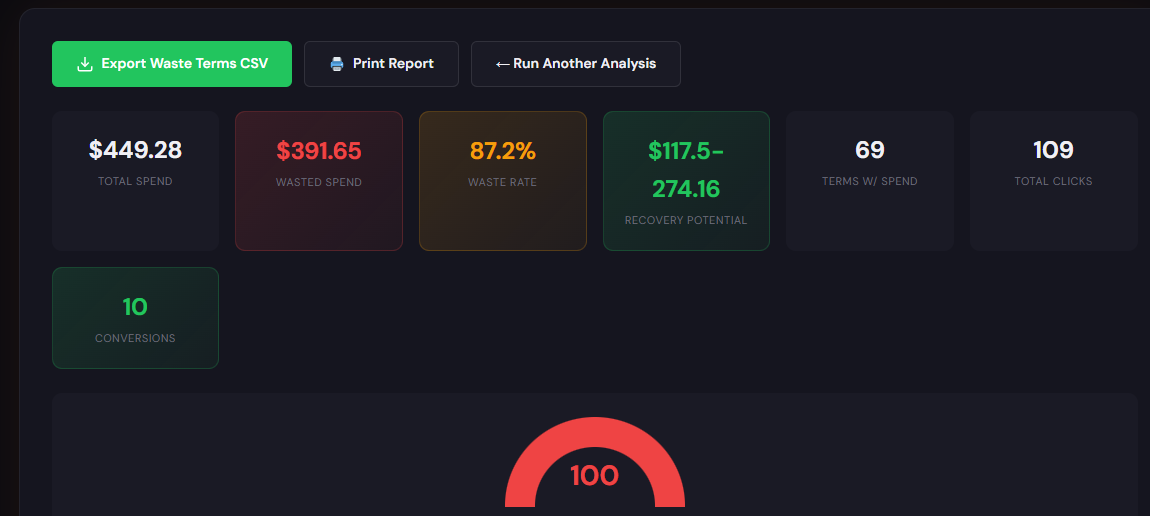
Outputs a dashboard-style snapshot with total wasted spend, top leakage areas, negative keyword suggestions, and an action-prioritized recovery plan.
How to use (3 steps)
- Upload or connect your account data and run the snapshot to get an immediate spend leakage summary.
- Review top 3 leakage areas (search term waste, budget leaks, low-QS campaigns) and export recommended negatives and campaign actions.
- Implement the high-priority fixes (negatives, ad schedule adjustments, pausing low-quality placements) and re-run the snapshot in 7 days to validate improvements.
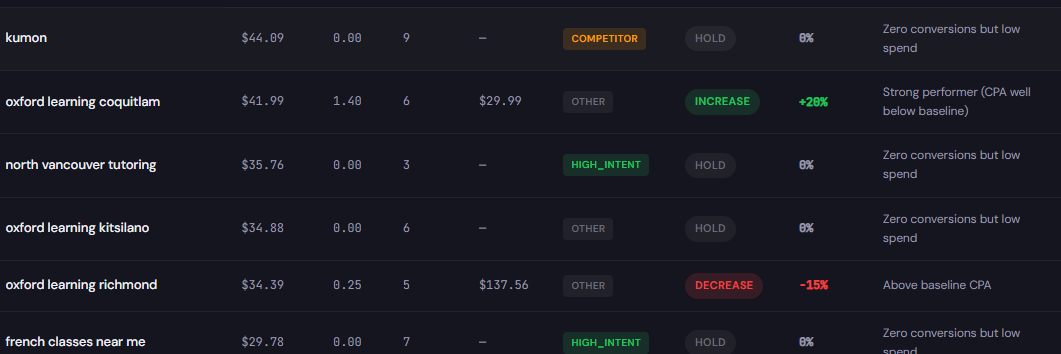
Produces a tagged table of search terms with cost, conversions, conversion rate, and recommended bid actions or negatives — built to scale negative lists and bid rules.
How to use (3 steps)
- Run the analyzer on your search-term export and tag each term automatically (negative, test exact, keep as-is).
- Export the recommended negative keyword lists and the bid action CSV for implementation in bulk editor or scripts.
- Apply the bid adjustments for high-cost/low-conversion terms, and schedule re-evaluation after 14 days.
These two tools solve the highest-impact items from the triage: fast identification (Wastage Snapshot) and repeatable remediation (Search Term Analyzer). Use them together to convert audit insights into bulk updates.
90-minute account triage playbook
Follow this time-boxed checklist to get a reliable snapshot and a prioritized action list.
- Minutes 0–10: Connect export or pull last 30 days. Open the Wastage Snapshot and generate the high-level report.
- Minutes 10–30: Scan top leakage areas. Export search terms and top-spend lists for the top 3 campaigns.
- Minutes 30–50: Run the Search Term Analyzer on the export. Create an immediate negative list and export bid action CSV.
- Minutes 50–70: Implement critical negatives and one ad-schedule change for the worst-performing hours.
- Minutes 70–90: Apply conservative bid constraints to automated strategies, and document the fixes and next-check date (7 days).
Turn one-off triage into documented playbooks and exportable actions.
FAQ
A: Expect a measurable drop in wasted spend within 72 hours; stabilized CPA/ROAS improvements typically appear in 7–14 days as bidding models re-learn.
A: Short pauses help when signals are noisy. Use conservative constraints rather than full disablement when possible, and re-enable automation after clean signals are restored.
A: Start with the Wastage Snapshot for a prioritized view, then use Search Term Analyzer to operationalize negatives and bid changes.
A: Yes — both tools produce CSVs and bulk action lists that you can import into Google Ads Editor or use in scripts for automated updates.
Leave a Reply