Google Ads is more automated, more competitive, and more opaque than five years ago. That makes small errors costlier and wasted spend easier to hide — unless you run a tight, ops-driven audit. ExecWrite builds tools to surface waste and act fast; see how a targeted checklist plus two quick tools can recover budget this week (ExecWrite).
- Run a 90-minute triage: prioritize waste by spend leakage, poor search terms, and time-of-day losses.
- Apply three quick fixes this week: block bad search terms, fix ad-to-landing relevance, and set hourly bid rules.
- Use two focused tools: Wastage Snapshot for quick recovery and Search Term Analyzer for bid & negative keyword actions.
Why PPC feels harder now
More automation, higher CPCs, and blurred intent make performance volatile. Marketers used to manual control now wrestle with black-box bidding, mixed-signal attribution, and a bigger share of low-intent traffic. The result: harder to keep CPA targets without constant, data-driven triage.
The 5 biggest PPC problems marketers face
1. Hidden wasted spend (leakage you don’t see)
- Symptoms: High spend with flat conversions, many low-quality clicks, bad ROAS pockets.
Why it happens: Campaigns grow, auto-bidding scales bids into marginal auctions, and poor negative keyword hygiene lets irrelevant queries burn budget.
- Fix this week: Run a waste-first snapshot, pause top leaking queries, add negatives, and reallocate budgets.
2. Search term noise and poor bid adjustments by term
- Symptoms: High CPA on a subset of queries, inconsistent conversion rates across similar terms.
Why it happens: Broad and phrase match types plus automated match expansions expose campaigns to low-intent variations; bids are usually set at ad group level, not by expensive or cheap terms.
- Fix this week: Export search terms, tag top-waste terms, set bid modifiers or move terms to tightly themed ad groups.
3. Ad-to-landing page mismatch (Quality Score and conversion drops)
- Symptoms: Low CTR, falling Quality Score, rising CPCs, and low landing-page conversion rates.
Why it happens: Rapid creative changes or automated ad rotation can separate messaging from landing pages, degrading relevance signals that control CPC and ad rank.
- Fix this week: Align headlines with landing page H1, test focused variants, and prioritize ad-copy that matches top-converting queries.
4. Time-of-day and dayparting losses
- Symptoms: Large hourly swings in CPA or ROAS, wasted budget during low-conversion hours.
Why it happens: Default schedules and automated bidding don’t always respond to intra-day demand shifts, especially for narrower audiences or cross-timezone accounts.
- Fix this week: Analyze hour-of-day slices, reduce bids or pause during poor hours, and increase bids where conversion density is highest.
5. Over-reliance on broad automation without guardrails
- Symptoms: Sudden performance drift after strategy changes, rising costs with plateaued conversions.
Why it happens: Smart bidding can over-optimize to noisy signals if conversion tracking, budgets, or conversion windows aren’t aligned with business goals.
- Fix this week: Add conversion filters, tighten conversion windows for short-funnel campaigns, and add manual bid caps where needed.
Fixes you can apply this week
- Run a wastage snapshot across accounts to identify the top 10% of queries driving most waste.
- Build a negative keyword list from those terms and apply it account-wide where appropriate.
- Move high-cost, low-converting search terms into dedicated ad groups with tailored ads and landing pages.
- Set hourly bid adjustments for clear low-performing hours and increase bids during peak conversion windows.
- Audit ad-to-landing relevance for top-spend assets and push immediate landing page headline fixes.
- Apply temporary manual bid caps on new automated campaigns until data stabilizes (7–14 days).
If you don’t know where the waste is, you can’t stop it. Run a fast recovery snapshot to identify leakage and export action lists.
Tool-based workflow — map each pain point to ExecWrite tools
Use two focused tools to triage and act: Wastage Snapshot & Recovery for immediate spend recovery, and Search Term Analyzer for bid actions and negatives. Each tool outputs action-ready tables you can apply in Google Ads Editor or via scripts.
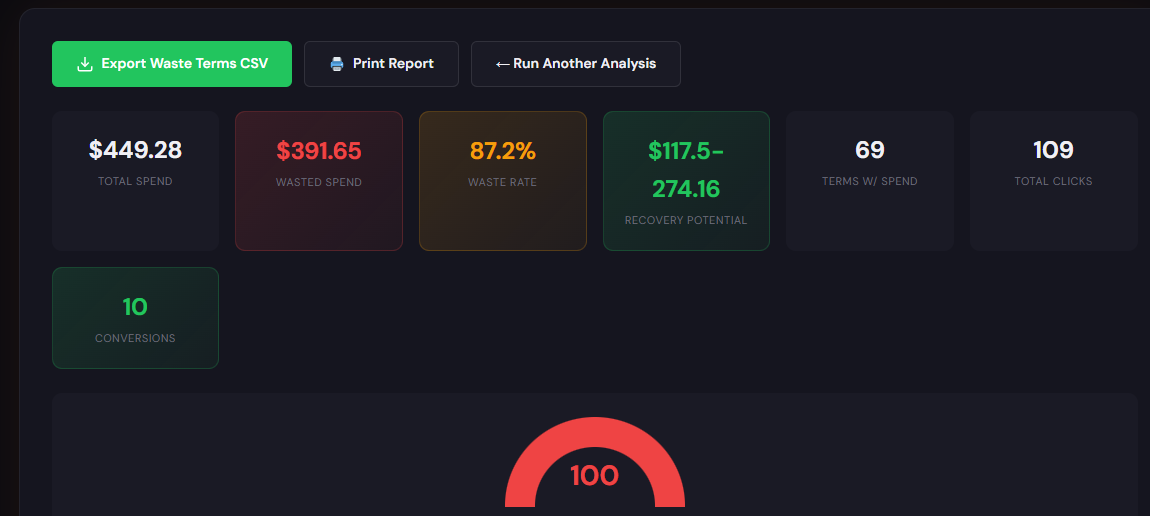
What it outputs: Account-level dashboard with total wasted spend, top leaking campaigns/queries, and an exportable recovery plan (negatives, pause list, budget moves).
- Upload or connect your account and run the snapshot (2–5 minutes).
- Review the top leakage areas and export the recovery CSV for Google Ads Editor.
- Apply negatives and pausing recommendations, then rerun snapshot in 7 days to measure recoveries.
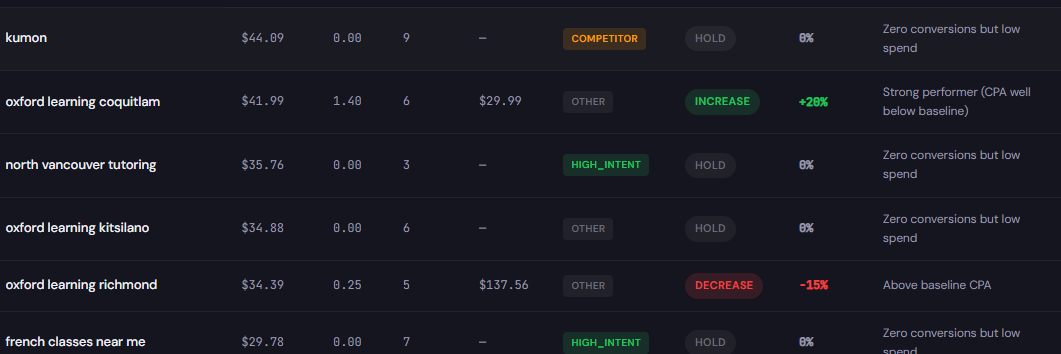
What it outputs: A term-level table with spend, conversions, CPA/ROAS, tags, and suggested bid actions or negative keyword recommendations.
- Run a search-term export and load into the analyzer to auto-tag high-waste and high-opportunity terms.
- Review recommended bid actions (up, down, or negative) and preview the spend impact report.
- Export adjustments for Google Ads Editor or turn into a pause/negative list for immediate application.
90-minute account triage playbook
- 0–10 min: Open account-level performance summary. Note spend, CPA, and any major recent changes.
- 10–30 min: Run Wastage Snapshot. Export top 50 waste-driving queries and campaigns.
- 30–50 min: Load top queries into Search Term Analyzer. Tag negatives, high-cost/low-conversion terms, and high-opportunity terms.
- 50–70 min: Implement immediate actions: apply negatives, pause worst-performing ads/ad groups, and push targeted landing page headline fixes.
- 70–90 min: Set hourly bid adjustments for identified weak hours and create a follow-up schedule (7-day check, 14-day review).
- Deliverable: Exported Google Ads Editor CSVs for negatives, bid changes, and pause lists; 7-day recheck plan.
Use a focused snapshot + term analyzer to produce action lists you can apply immediately. Start the recovery and protect this month’s budget.
FAQ
You can see measurable drop in wasted clicks within 3–7 days for negatives and pauses. Bid and landing-page changes may take 1–2 weeks as smart bidding re-learns.
Automation reacts to signals; short-term manual controls (negatives, bid caps, dayparting) act as guardrails. Reassess automated strategies after the initial recovery window.
Yes — both Wastage Snapshot and Search Term Analyzer export CSVs formatted for Google Ads Editor to speed application of changes.
No. The tools are designed for operators: upload or connect data, review recommendations, and export action lists. Larger agencies often use them to scale audits.
Leave a Reply