If your account feels expensive and unpredictable, you need a compact, operator-first triage and toolbox. Use this guide with quick checklists and ExecWrite tools to stop wasted spend and restore performance fast — try the tools at ExecWrite as you work through the steps.
- Most underperformance comes from waste (misaligned keywords, poor bidding, or bad landing-page relevance) — find and freeze leaks fast.
- Run a 90-minute account triage, prioritize fixes by ROI, and apply quick bid/keyword/landing fixes this week.
- Use the Wastage Snapshot and Search Term Analyzer to identify leaks and actionable bid adjustments in minutes.
Why PPC feels harder now
Three structural shifts make managing Google Ads more painful: automation hides signals, auction dynamics compress margins, and privacy changes reduce attribution clarity. That means old playbooks (wide-match + low-touch bids) create more waste today. The answer is not “turn automation off” — it’s a faster, evidence-based triage process plus targeted tool-driven fixes.
The 5 biggest PPC problems marketers face
Pain 1 — Wasted spend on non-converting search terms
- Symptoms: High spend with low conversions; many low-intent search terms in reports; high CPA for specific ad groups.
Why it happens: Broad or modified match and automation expand query reach; without frequent negative keyword audits, low-intent queries burn budget.
- Fix this week: Export last 30 days search terms, tag top spend/no-conversion queries, add negatives for branded/irrelevant intent.
- Pause or lower bids on ad groups where >30% of clicks are from non-converting terms.
- Use a Search Term Analyzer to tag and recommend bid actions (see tool below).
Pain 2 — Hourly performance swings (bad ad scheduling)
- Symptoms: CPA or ROAS swings by hour of day; budget spent during low-conversion hours; conversion lag hides real-time issues.
Why it happens: Budgets and automated bidding don’t always account for predictable hourly patterns; campaigns bid uniformly unless you explicitly daypart.
- Fix this week: Pull hour-of-day performance, set negative bid adjustments in low-performing hours, and test +20–30% bid ups during peak hours.
- Apply an hourly bid-adjuster to generate recommended bid actions by hour.
Pain 3 — Low Quality Score and landing-page mismatch
- Symptoms: Low CTR, high CPCs, high impression share loss to rank; landing pages with poor conversion rates despite clicks.
Why it happens: Ads and landing pages drift apart; messaging, headlines, or CTAs don’t match search intent. This reduces relevancy and increases cost.
- Fix this week: Audit ad-to-landing relevance for top 10 ad groups and apply headline/copy alignment changes.
- Use a landing-page rewrite tool to generate headline and CTA variants focused on the search intent driving conversions.
Pain 4 — Automated bidding without guardrails
- Symptoms: Sudden CPA spikes after switching to maximize conversions or target CPA; large day-to-day volatility.
Why it happens: Automation learns from noisy or sparse signals; without constraints (min/max CPC, excluded queries), it can chase bad traffic.
- Fix this week: Add bid caps, exclude top-waste queries, and revert to manual bids for ad groups with volatile outcomes.
- Audit automated strategy windows and give automation fresh, cleaned data after waste removal.
Pain 5 — Poor account structure and keyword cannibalization
- Symptoms: Multiple ad groups targeting the same queries, low CTRs across many keywords, difficulty isolating winning copy.
Why it happens: Teams layer keywords into existing structures instead of creating tightly themed ad groups; this dilutes signal and hurts Quality Score.
- Fix this week: Identify top 10 keywords by spend and map them to single, focused ad groups; export for bulk edits to split or pause overlapping keywords.
Fixes you can apply this week
- Run a 30-day search term export. Tag high-spend/no-convert queries and add negatives.
- Check hour-of-day report; apply bid adjustments to mute low-value hours and boost high-value hours.
- Audit top ad groups for ad-to-landing relevance; update headlines and CTAs for alignment.
- Set bid caps or switch volatile ad groups back to manual bidding while you clean data.
- Split crowded ad groups into tightly themed groups for clearer signals.
Start with a single audit that surfaces waste, top leakage areas, and an immediate recovery plan.
Tool-based workflow: map each pain to ExecWrite tools
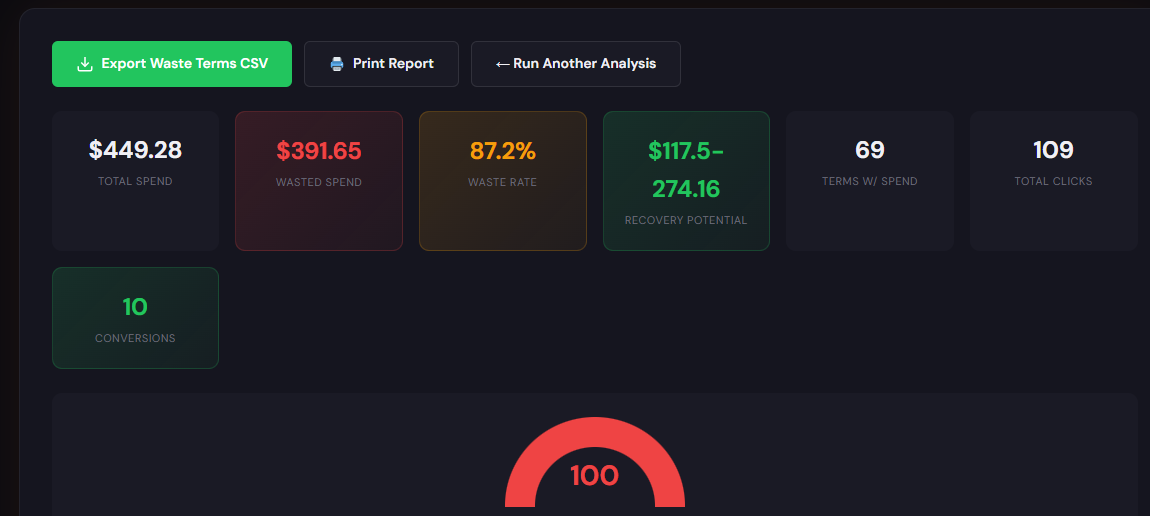
What it outputs: A dashboard-style snapshot showing total wasted spend, top leakage categories (search terms, campaigns, audiences), and a prioritized recovery checklist.
How to use it — 3 steps:
- Upload a 30-day Google Ads export and let the snapshot classify waste buckets.
- Review the top 5 leakage items in the report and apply the suggested negatives or pauses.
- Export the recovery plan and push changes into Google Ads Editor or implement directly.
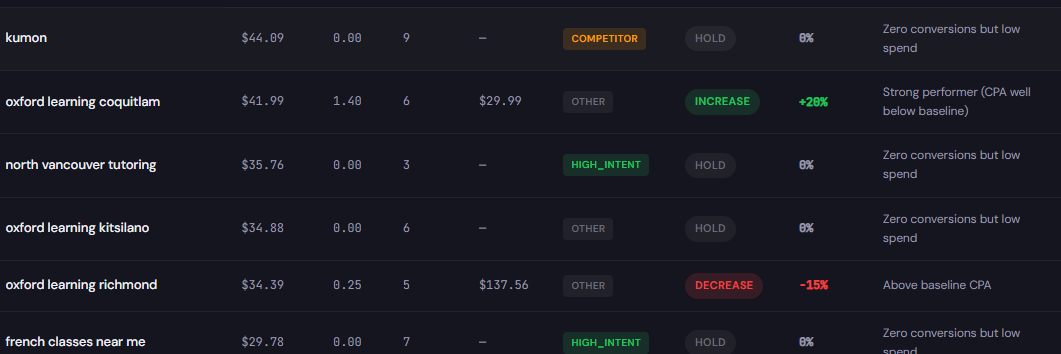
What it outputs: A tagged table of search terms with spend, conversions, intent tags, and recommended bid actions (increase, decrease, negative).
How to use it — 3 steps:
- Paste your search term report into the tool; it auto-tags intent and highlights high-spend, low-conversion queries.
- Accept recommended bid adjustments and export the change list as a Google Ads Editor CSV.
- Upload the CSV to apply bid adjustments and negatives quickly, then monitor CPA over the next 7 days.
Both tools work together: run the Wastage Snapshot to prioritize campaigns, then use the Search Term Analyzer to surgically remove low-value queries and set bid actions.
90-minute account triage playbook
- 0–10 minutes: Pull last 30 days (or 90 days if sparse) — search terms, campaign performance, hour-of-day, landing-page conversion rates.
- 10–30 minutes: Run the Wastage Snapshot. Identify top 3 leakage campaigns and one critical ad group to pause or cap.
- 30–55 minutes: Export search terms for the top 3 campaigns and run them through the Search Term Analyzer. Generate negatives and bid recommendations.
- 55–70 minutes: Implement immediate changes: hard negatives, bid caps, and ad schedule adjustments for low-performing hours.
- 70–85 minutes: Update 3 landing pages or headlines for the highest-spend ad groups to improve Quality Score.
- 85–90 minutes: Document changes, set 7-day monitoring, and schedule a follow-up to re-open automated bidding only after cleaned signal.
Use ExecWrite’s snapshot and search term analyzer to complete most triage steps in the workflow above.
FAQ
Expect measurable CPA improvements in 3–7 days if your account has steady traffic. Immediate impressions and CPC reductions are visible within hours for paused/negated queries.
Temporarily adding bid caps or switching critical ad groups to manual can stabilize cost while you remove waste. Re-enable automation only after at least one clean cycle (7–14 days) of accurate data.
Yes — both the Wastage Snapshot and Search Term Analyzer export upload-ready CSVs for Google Ads Editor to speed bulk edits.
Prioritize by waste dollars recovered per hour of work. Start with high-spend, low-conversion campaigns and work down the list.
Leave a Reply