If your account is burning budget without predictable results, this operational guide shows where leaks happen and how to stop them this week. Run a quick audit with ExecWrite tools to get data-driven fixes fast: https://execwrite.com
- Wasted spend is predictable: poor match control, broken bids, irrelevant search terms, and landing page mismatch are the largest drains.
- Use a 90-minute triage, a weekly fixes checklist, and two ExecWrite tools (Wastage Snapshot & Search-Term Analyzer) to find and recover wasted budget.
- Immediate wins: block high-cost-no-conversion terms, fix ad schedules by hour, and align ads to the highest-converting landing pages.
Why PPC feels harder now
Higher CPCs, stricter privacy, and platform automation mean blanket rules no longer work. Performance requires surgical fixes: per-search-term intelligence, hour-by-hour adjustments, and landing-page relevance. If you rely on guesses, your budget leaks.
The 5 biggest PPC problems marketers face
1. High spend on irrelevant search terms
- Lots of clicks but zero or very low conversions from specific queries.
- Search term reports are long and hard to parse.
- Negative keyword list grows but damage repeats.
Why it happens
Broad matches, insufficient negative keyword coverage, and lack of regular search-term reviews let low-intent queries siphon budget.
Fix this week
- Export last 30 days of search terms, sort by cost and conversions.
- Apply immediate negatives for high-cost/no-convert terms.
- Pause or tighten broad-match keywords that generate poor queries.
2. Bids out of sync with time-of-day performance
- High CPA during certain hours of the day.
- Ad schedule defaults that ignore hourly CPA/ROAS swings.
- Manual bid rules applied at campaign level miss intra-day peaks.
Why it happens
Most teams set schedules at the campaign level and assume constant performance. Hourly conversion patterns and competitive activity create big intra-day differences.
Fix this week
- Review last 90 days hour-of-day performance for cost and conversions.
- Increase bids +10–30% for hours with strong ROAS; reduce for loss hours.
- Apply ad-schedule changes and monitor 48–72 hours.
3. Landing page mismatch and low conversion rates
- Low conversion rate despite high-quality scores.
- High bounce on paid landing pages, short session duration.
- Ad copy promises different messaging than the landing page delivers.
Why it happens
Automation can optimize for clicks; if landing pages aren’t aligned to ad intent, you pay for traffic that won’t convert.
Fix this week
- Map top ad groups to their landing pages and audit message match.
- Run headline + CTA alignment tests on underperforming pages.
- Prioritize fixes where CPC is high but conversion rate is < industry average.
4. Automation hiding performance shifts
- Sprints of high spend after algorithmic bidding changes.
- Difficulty tracing whether conversions are organic or automated-ad driven.
- Performance fluctuates after attribution changes or feed updates.
Why it happens
Automated bidding and portfolio strategies react to signals; without monitoring, they can overreact to short-term noise and chase clicks.
Fix this week
- Set guardrails: max CPA/ROAS limits and conservative learning budgets.
- Enable automated rules to pause or lower bids if CPA exceeds threshold.
- Audit recent feed or attribution changes that preceded the shift.
5. Hidden budget leakage (duplicate audiences, mis-tagging)
- Audience overlap causing internal auctions and inflated CPCs.
- Conversion tracking discrepancies between analytics and Ads.
- Unexpected spend in remarketing or display placements.
Why it happens
Small configuration errors in tagging, audiences, or shared budgets create continuous, low-level waste that compounds.
Fix this week
- Reconcile conversions across analytics and Ads; fix tracking gaps.
- Check shared budgets and placement exclusions.
- Segment audiences to reduce overlap and internal bidding competition.
Fixes you can apply this week
- Pull search-term and hour-of-day reports for the last 30–90 days and sort by cost/conversion.
- Apply negatives for clear no-convert terms and tighten match types for budget-draining keywords.
- Adjust ad schedule bids based on hourly CPA/ROAS swings (increase for high ROAS, decrease for poor hours).
- Map ads to landing pages and fix headline/CTA mismatch on the worst-converting paths.
- Set bid/CPA caps and automated rules to stop runaway spend during learning windows.
- Reconcile conversion numbers and prioritize fixes for the top 20% of spend sources that drive 80% of waste.
Use the Wastage Snapshot to find top leakage areas and a prioritized recovery plan in minutes.
Tool-based workflow: map pain points to ExecWrite tools
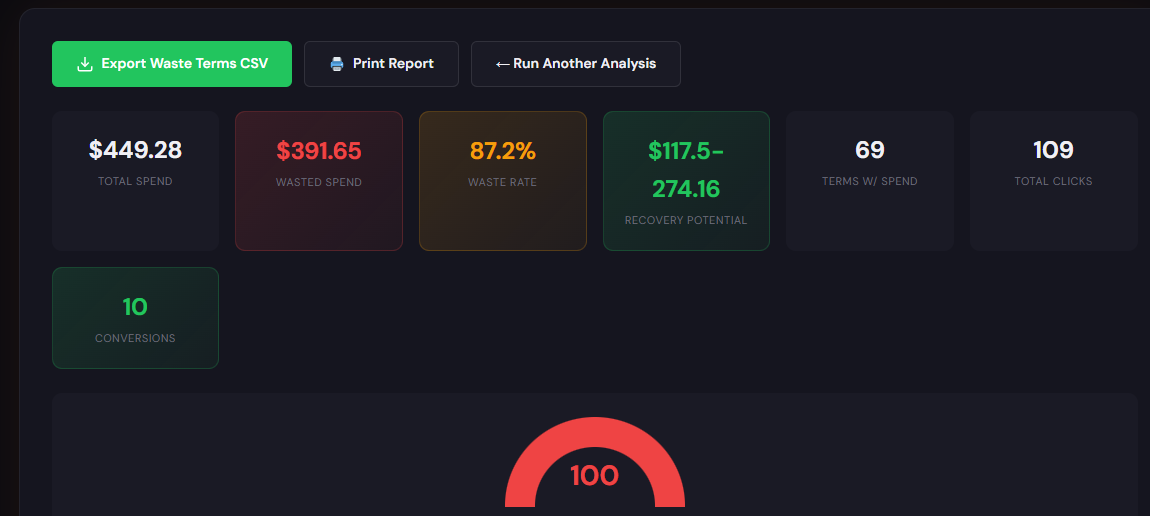
Wastage Snapshot & Recovery — what it outputs
Dashboard-style snapshot showing total wasted spend, top leakage channels, negative keyword opportunities, and a recovery plan summary.
How to use it in 3 steps
- Upload your Ads data or connect via CSV and run the snapshot to surface top waste drivers.
- Review the prioritized recovery plan — it tags high-impact negatives, placements, and campaigns.
- Export the recovery CSV and apply changes to your account; monitor the impact over 7 days.
Open the Wastage Snapshot to generate a recovery plan fast.
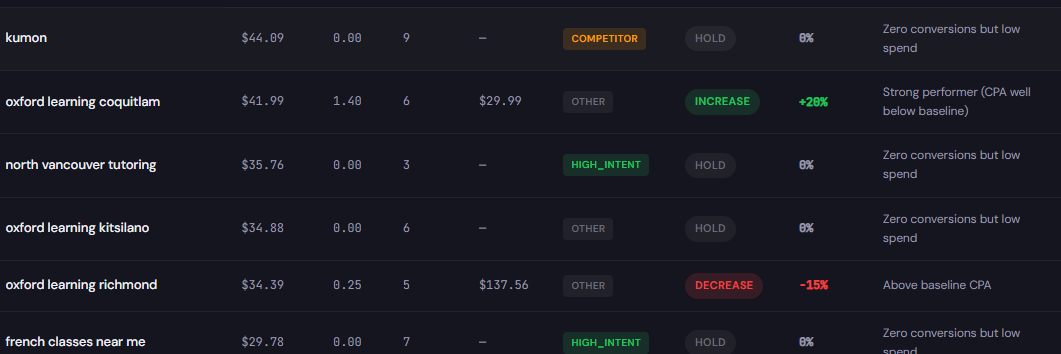
Search Term Analyzer (Bid Adjustment by Search Term) — what it outputs
Per-search-term table with cost, conversions, recommended bid actions, and tags for quick negatives or bid changes.
How to use it in 3 steps
- Load your account search-term report (last 30–90 days) into the analyzer.
- Review recommended tags: negative, bid-down, bid-up, or keep. Apply batch negatives for high-cost/no-convert terms.
- Export the recommendations and implement with Ads Editor or bulk uploads; re-run weekly to capture new leaks.
Open the Search Term Analyzer and reduce wasted clicks.
Both tools work together: use Wastage Snapshot to prioritize where to look, then the Search-Term Analyzer to act precisely on queries and bids.
90-minute account triage playbook
- 0–10 min: Pull top-line metrics (cost, conversions, CPA) and note campaigns with sudden spend spikes.
- 10–30 min: Run the Wastage Snapshot to get a prioritized leak list (placements, keywords, audiences).
- 30–50 min: Export search-term report for the worst 3 campaigns; run the Search-Term Analyzer and tag negatives.
- 50–70 min: Apply immediate negatives and conservative bid caps in Ads Editor for the top 20% spenders.
- 70–80 min: Adjust ad schedule for any identified bad hours; lower bids for poor-performing hours.
- 80–90 min: Document changes, set a 48–72 hour check, and schedule the next deep audit (7 days).
Run the snapshot and search-term tools now to generate a prioritized action list and exportable recovery files.
FAQ
You can see click-rate and immediate CPC changes within hours; conversion and ROAS improvements typically appear in 3–7 days as traffic quality stabilizes.
Yes — automated bidding can re-escalate bids if signals suggest higher conversions. Set guardrails (max CPA/ROAS) and monitor during learning windows.
Start with search-term by cost and conversions, then hour-of-day performance. These reveal the largest, fastest wins.
Tools accept CSV uploads and direct connections where available. For immediate triage, export data from Ads and upload to the tools.
Sources
For hands-on recovery, run the ExecWrite Wastage Snapshot and Search-Term Analyzer: https://execwrite.com
Leave a Reply