Wasted spend is the most common reason campaigns miss targets — not bad creatives. Start with a focused audit, apply quick fixes this week, and use targeted tools at ExecWrite to recover budget and raise ROI.
- Most wasted spend comes from poor match types, irrelevant search terms, and bad dayparting — you can triage this in 90 minutes.
- Apply a three-step weekly checklist (negatives, bid caps, message alignment) to stop leakage immediately.
- Use ExecWrite’s Wastage Snapshot and Search Term Analyzer to find leakage and prioritize fixes.
Why PPC feels harder now
Two trends make PPC operations tougher: automation masks signals (so problems compound before they’re visible) and account structures have ballooned (more campaigns, more keywords, more leakage). The result: budgets move to low-intent queries, inefficient hours, and mismatched landing pages, and teams chase metrics rather than root causes.
The 5 biggest PPC problems marketers face
1) Wasted spend from irrelevant search terms
Symptoms
- High spend on low or zero conversion queries.
- Low CTR on many search terms, with cost but no conversions.
- Broad-match keywords driving unrelated traffic.
Why it happens
Broad and smart-bidding strategies increase reach, but without search-term monitoring they bid on queries that offer no intent or fit.
Fix this week
- Pull last 30 days of Search Terms by spend and conversions.
- Add top irrelevant terms as negatives (campaign- and account-level).
- Move high-spend, low-conversion queries into precise match ad groups or pause them.
2) Budget leakage across hours and days (bad dayparting)
Symptoms
- Spikes in CPA or low ROAS during specific hours.
- Evening or weekend spend with no lead volume.
Why it happens
Default ad schedules and aggregated bid strategies ignore hour-by-hour performance swings — and automation can’t correct when the signal is weak.
Fix this week
- Segment performance by hour and day; identify hours with CPA > target by 30%.
- Apply -25% to -100% bid adjustments for bad hours; test in one campaign first.
- Use a weekday/weekend schedule if behavior differs materially.
3) Low Quality Score and landing page mismatch
Symptoms
- High CPCs with strong click volume but poor conversion rate.
- Low ad relevance and low expected CTR on Quality Score diagnostics.
Why it happens
Ads promise one thing and landing pages deliver another — search intent isn’t mapped to messaging or page experience.
Fix this week
- Match top-performing headlines to landing page H1 and primary CTA.
- Create targeted landing sections for highest-volume keywords.
- Run A/B tests on headline + CTA alignment for low-converting groups.
4) Overbidding on low-intent or exploratory traffic
Symptoms
- High impression volume with few conversions; low conversion rate but high clicks.
- Poor ROAS for new campaign experiments.
Why it happens
Auto-bidding can be overly aggressive when it tries to chase conversions in weak-signal contexts, driving up cost with little return.
Fix this week
- Apply conservative CPA/ROAS targets to new experiments for the first 2 weeks.
- Use portfolio bidding with clear guardrails or switch to manual CPC for low-data campaigns.
- Pause experimental keywords that exceed a spend threshold without conversions.
5) Structural chaos: too many mixed-intent ad groups
Symptoms
- High variance in CTR and conversion rate inside the same ad group.
- Difficulty writing relevant ads because keywords cover multiple intents.
Why it happens
Poorly segmented ad groups lower relevance and Quality Score — automation amplifies the problem because signals are noisy.
Fix this week
- Split ad groups by intent (buy vs research vs comparison).
- Create distinct ads and landing pages for each intent bucket.
- Use the free keyword generator to expand and structure groups logically.
Fixes you can apply this week
- Run a 30-day search-terms export sorted by spend; add the top irrelevant queries to negatives.
- Audit hours: lower bids by 25–100% on hours where CPA exceeds goal by 30%.
- Pinpoint low-QS ad groups and align headlines to landing page H1s; deploy a quick A/B test.
- Set conservative targets for new experiments; pause keywords that spend without conversions.
- Restructure ad groups by intent and deploy tailored ad copy per intent bucket.
Scan for leakage and get a prioritized recovery plan in minutes.
Tool-based workflow: map problems to ExecWrite tools
Below are two practical tools you can run today. Each section includes what the tool outputs and a 3-step way to apply it. Preview images appear inline for immediate signal recognition.
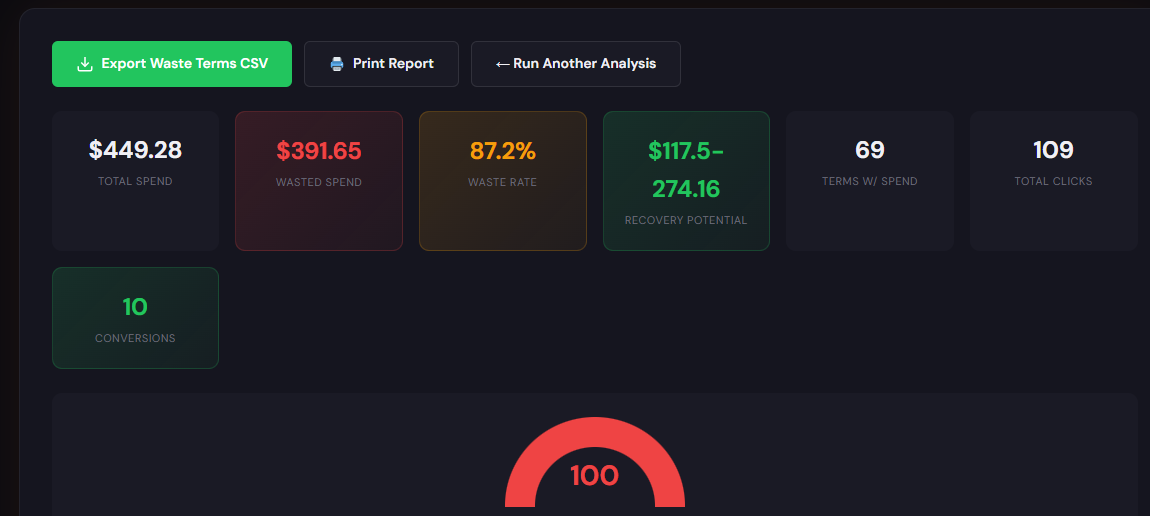
What it outputs: Dashboard-style snapshot with total wasted spend, top leakage areas (search terms, devices, hours), and a short recovery plan of prioritized fixes.
How to use it in 3 steps
- Run the Snapshot for the last 30 days to surface where spend is leaking.
- Apply the top three fixes the snapshot recommends (negatives, bid adjustments, paused keywords).
- Re-run after 7 days and measure spend reduction vs conversions; iterate.
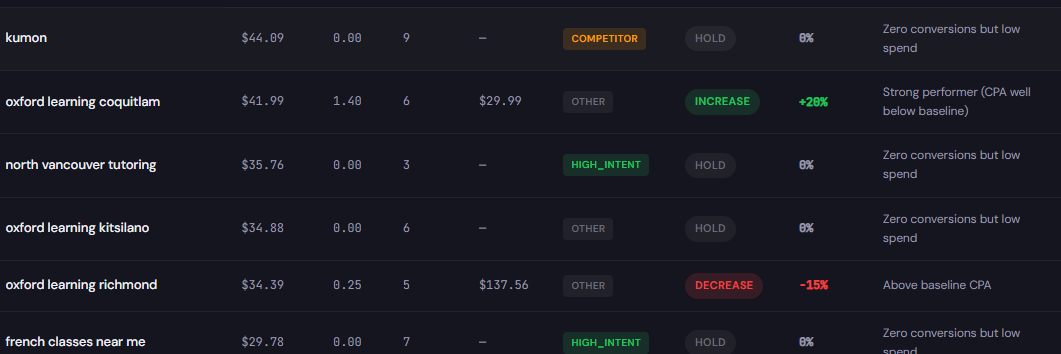
What it outputs: A table of search terms with spend, conversions, suggested tags (negative, keep, test), and recommended bid actions.
How to use it in 3 steps
- Upload your search-term report and sort by spend and conversion rate.
- Tag high-spend no-conversion terms as negatives; move ambiguous terms to exact-match tests.
- Apply suggested bid adjustments for high-converting terms and monitor CPA for 7 days.
Tool: Search Term Analyzer
Both tools integrate into a weekly workflow: Snapshot to prioritize, Search Term Analyzer to act on the top leakage items.
90-minute account triage playbook
Use this playbook to convert the theory above into action. Time allocations assume you have account access and a basic reporting export ready.
- 0–10 minutes: Pull reports — last 30 days search terms, hourly performance, campaign-level spend vs conversions.
- 10–25 minutes: Run ExecWrite Wastage Snapshot; digest top 3 leakage categories.
- 25–45 minutes: Open Search Terms for top-leakage campaigns. Add top irrelevant queries as negatives immediately.
- 45–60 minutes: Dayparting quick-fix — apply negative bid adjustments to worst hours and schedule tests for weekends/weekday splits.
- 60–75 minutes: Align top ad headlines to landing page H1 for 2 worst-performing ad groups; deploy A/B variant.
- 75–90 minutes: Document actions, set a 7-day check, and schedule a follow-up review. Confirm expected impact thresholds (spend down X%, CPA down Y%).
Start the triage with ExecWrite: snapshot, search-term analysis, and prioritized recovery actions.
FAQ
Quick wins from negatives and bid adjustments often show within 3–7 days. Structural fixes like landing-page updates can take longer to move Quality Score and conversion rate.
Not if you apply guardrails. Set conservative targets on automated strategies after manual clean-up and monitor weekly; automation performs better on cleaner signal.
Start with 30 days for recent trends, extend to 90 days for seasonality checks. For new campaigns, use shorter windows (14 days) and conservative actions.
Yes. ExecWrite tools export actionable lists and CSVs you can apply via Google Ads Editor or directly in the UI.
Sources
- Google Ads Help: About Quality Score — Explains factors that drive Quality Score and relevance impact.
- WordStream: How to Stop Wasting PPC Budget — Practical tactics for negative keywords and bid control.
- Search Engine Journal: Guide to Dayparting — Best practices for time-of-day and day-of-week bid adjustments.
Leave a Reply