Accounts that once delivered steady ROAS now show volatility: wasted spend, bid swings by hour, and low conversion yield. This playbook is practical—no fluff—and links to the exact ExecWrite tools you can run in minutes to find and fix root causes. Learn more at ExecWrite.
- Common PPC problems are predictable: waste, keyword mismatch, bidding timing, Quality Score gaps, and tracking errors.
- Quick triage and three tactical fixes (negative keywords, hour-of-day bids, landing-page alignment) reduce waste fast.
- Use ExecWrite’s Wastage Snapshot and the Search Term Analyzer to pinpoint leak sources and generate prioritized fixes in minutes.
Why PPC feels harder now
Automation and auction dynamics changed the mechanics—fewer manual levers, more hidden signals. That raises the bar for signal hygiene: if your keywords, bids, and landing pages aren’t tightly aligned, automation amplifies waste instead of fixing it. Google’s automated bidding and smarter auction signals help when data is clean, but they struggle when accounts have noise: wrong intents, duplicate keywords, poor conversion tagging, or time-of-day swings.
For technical guidance on how Google evaluates relevance and automation, see Google’s documentation on Quality Score and automated bidding.
The 5 biggest PPC problems marketers face
1) Wasted spend (low intent clicks)
Symptoms
- High clicks with zero/low conversions
- Disproportionate spend on bottom-of-funnel budgets
- Many search terms showing irrelevant queries
Why it happens
Broad match, weak negative keyword lists, and unmanaged query growth let low-intent traffic consume budget. Automation then optimizes for volume unless negative signals are strong.
Fix this week
- Add negative keywords from last 30 days: exact low-intent phrases first
- Pause or reduce budgets on high-spend/zero-conversion campaigns
- Switch overly broad match keywords to phrase or exact where possible
2) Poor keyword/ad group structure
Symptoms
- Ad groups mixing multiple intents
- High impression share but low CTR/conversion rate
- Ad copy not matching landing page
Why it happens
Teams expand quickly and lump keywords by surface topic rather than intent. That damages relevance signals and reduces Quality Score.
Fix this week
- Split top 10% of ad groups by spend into single-intent groups
- Create tailored ad copy that matches the dominant intent per group
- Use negative keywords between sibling groups to prevent overlap
3) Bidding and dayparting mismatches
Symptoms
- CPA/ROAS varies wildly by hour or day
- Automated bids chase noisy conversion signals
- No consistent ad schedule adjustments
Why it happens
Accounts often lack hourly performance visibility; automated strategies then average across hours and lose efficiency when performance swings intraday.
Fix this week
- Audit performance by hour for the last 30 days and note extremes
- Apply conservative bid adjustments to hours with poor CPA
- Test holding back spend during low-performing hours for one week
4) Ad/landing-page relevance (Quality Score leaks)
Symptoms
- Low CTR despite high impressions
- Landing page conversion rate < industry benchmark
- High bounce rate from paid traffic
Why it happens
Misaligned headlines, inconsistent calls-to-action, and landing pages that don’t answer the search intent degrade Quality Score and increase CPC.
Fix this week
- Align 3 high-volume ad headlines to landing page H1s
- Run an A/B test for the main conversion flow
- Fix top 5 mismatch issues (headline, CTA, offer wording)
5) Conversion tracking & attribution errors
Symptoms
- Conversion counts differ between analytics and Google Ads
- Sudden drops/spikes in reported conversions without biz changes
- Attribution windows change performance signals unexpectedly
Why it happens
Missing tags, duplicate tracking, or server-side changes break the signal pipelines that automated bidding relies on.
Fix this week
- Verify the Google Ads conversion tag and GA4 event mapping
- Reconcile conversions for a 7-day window and surface mismatches
- Test a one-day manual bid cap on high-uncertainty campaigns
Fixes you can apply this week
- Run a top-down wastage snapshot to identify the single largest leak (campaign or query).
- Export last 30 days of search terms; add negatives and pause irrelevant queries.
- Split three worst-performing ad groups into single-intent groups and create matching ad copy.
- Check hour-of-day performance and apply conservative bid adjustments where CPA exceeds target by 30%.
- Confirm conversion tag health and reconcile differences with analytics.
Identify where the budget leaks are, in minutes. Use the snapshot to generate prioritized recovery actions.
Tool-based workflow: map problems to ExecWrite tools
Only two tools are required in this playbook: the Wastage Snapshot & Recovery and the Search Term Analyzer. Together they find the biggest leaks and convert search-term data into action.
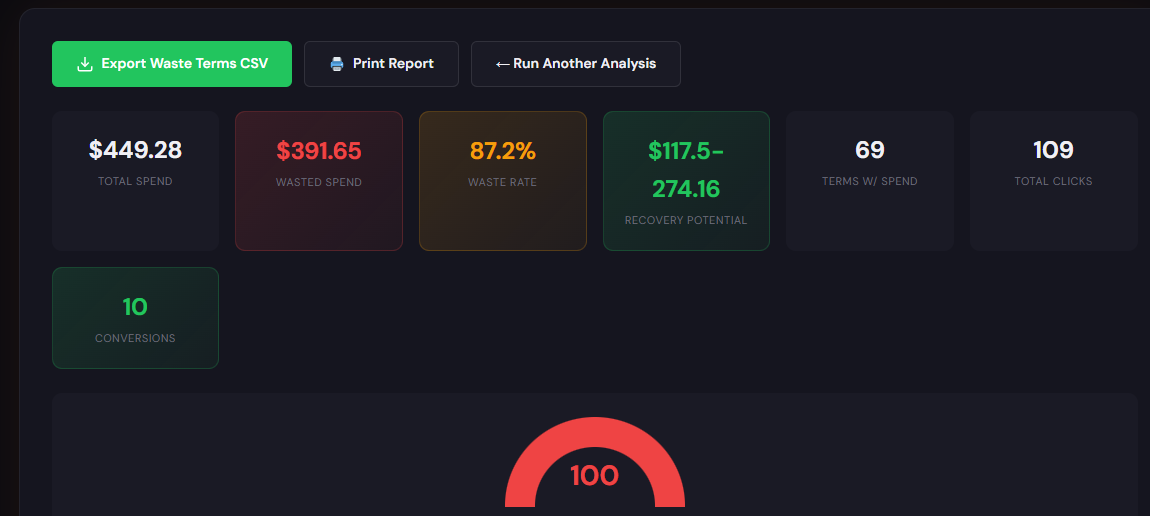
What it outputs: A dashboard-style snapshot showing total waste, top leakage areas (campaigns, ad groups, queries), and a recovery plan with prioritized actions.
How to use it (3 steps)
- Upload a 30-day Google Ads export (or connect account) to generate the snapshot.
- Review the top 5 waste drivers in the dashboard and export the recovery checklist.
- Apply the suggested negatives, budget shifts, and campaign pauses; re-run after 7 days to measure improvement.
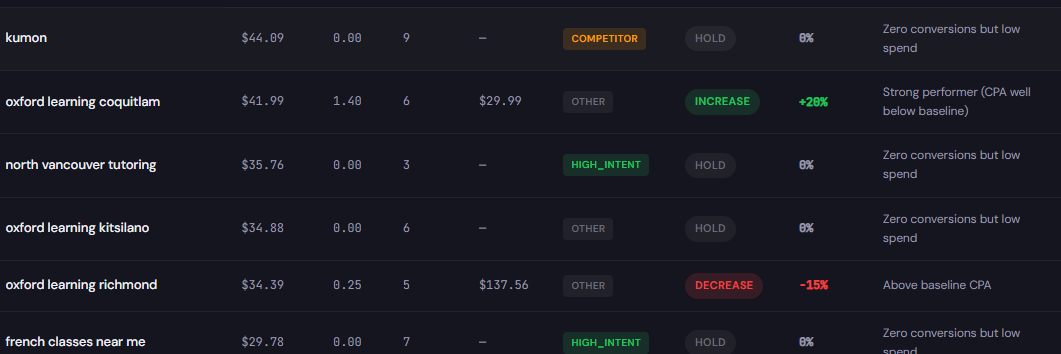
What it outputs: A prioritized table of search terms with spend, conversions, tags (good/bad), and recommended bid actions or negatives.
How to use it (3 steps)
- Paste your recent search terms export into the analyzer.
- Tag top offenders (waste, brand, high-intent) and accept automated bid suggestions or negatives.
- Export updates for bulk upload to Google Ads Editor or apply via your account UI.
90-minute account triage playbook
- 0–10 min: Export last 30 days (search terms, campaign performance, ad group list, conversions).
- 10–25 min: Run the Wastage Snapshot to surface the top leak (campaign/ad group/query).
- 25–45 min: Import search terms into the Search Term Analyzer; tag and accept top 20 negatives or bid actions.
- 45–60 min: Implement quick changes—negatives, pause worst-performing campaigns, apply hourly bid caps.
- 60–80 min: Align ad copy and landing page for the three biggest ad groups; push headline/CTA fixes to the site or use temporary landing variants.
- 80–90 min: Document actions and schedule a 7-day check. Re-run the snapshot to measure impact and iterate.
Run both tools and get a prioritized recovery checklist you can action in an hour. Reduce wasted spend quickly.
FAQ
Most accounts see measurable reductions in wasted spend within 7–14 days after applying negative keywords, pausing wasteful campaigns, and adjusting hour-of-day bids.
You can use CSV exports if you prefer not to grant access. Upload exports to generate snapshots and search-term analyses.
No. The tools recommend bid adjustments and negatives; you apply changes in your account. The goal is to clean signals so automated bidding can perform better.
They diagnose relevance gaps and provide landing-page and headline recommendations; paired with the recommended ad/landing updates, you can improve Quality Score over several weeks.
Leave a Reply