Many teams treat wasted spend as a long-term problem. It’s not—most accounts have predictable leak points you can diagnose and stop in hours. ExecWrite’s tools accelerate the triage and recovery process; learn the exact checklist and a tool-led workflow to recover budget this week at ExecWrite.
Quick summary
- Wasted spend usually comes from wrong intent, bad match types, and time-of-day bidding—findable in a 90-minute triage.
- Fixes you can do this week: prune search terms, lock down match types, pause low-converting hours, and recover budget with negative keywords.
- Use two ExecWrite tools—Wastage Snapshot & Search Term Analyzer—to automate diagnosis, prioritize fixes, and generate actions you can upload in minutes.
Why PPC feels harder now
Paid channels are more competitive and noisier. Automation in ad platforms hides problems until you lose scale: smart bidding optimizes to data you feed it, not to hidden leakage. Privacy changes and fewer signals make noisy clicks costlier. The result: conversion rates stagnate while spend drifts up.
The 5 biggest PPC problems marketers face
Problem 1: Wasted spend on non-converting search terms
- High spend with zero or few conversions on many search terms
- Broad-match or phrase-match keywords pulling irrelevant queries
- Low CTR and high bounce rates from search-driven landing traffic
Why it happens: Broad or poorly structured keyword lists invite low-intent queries. Without regular search term pruning, smart bidding rewards volume, not intent.
- Export recent search terms (last 30 days)
- Tag or pause the top 20 non-converting, high-spend queries
- Add them as negatives at campaign or account level
Problem 2: Poor match-type hygiene
- Campaigns mix broad, phrase, and exact without structure
- Unclear ad group intent and overlapping keywords
- High keyword duplication across campaigns
Why it happens: Teams copy keywords across campaigns to chase impressions. Overlap creates internal competition and drives up CPCs while confusing automated bidding.
- Segment broad-match keywords into their own campaigns
- Lock down exact-match ad groups for high-intent terms
- Use negatives to prevent overlap between campaign tiers
Problem 3: Time-of-day and dayparting losses
- Large conditional swings in CPA by hour
- High spend during off-hours with low conversion rate
- Default 24/7 schedules with no testing
Why it happens: Many accounts leave schedules default. Bids optimized to average performance miss hourly extremes; you overpay when conversions are rare.
- Review last 30 days by hour for cost and conversions
- Cut bids or pause hours with CPA materially worse than target
- Test aggressive dayparting for 2–4 weeks and measure lift
Problem 4: Landing page mismatch and quality score drag
- High CPCs and low ad relevance scores
- High impression share lost to rank
- Conversion funnel leakage on arrival pages
Why it happens: Ads promise one message while landing pages deliver another. Quality Score penalties increase CPCs and reduce impression share.
- Compare top ad headlines to landing page H1s and CTA copy
- Fix the top 1–2 messaging mismatches per high-volume ad group
- Run a quick A/B test with tightened headline alignment
Problem 5: Budget fragmentation and wasted overlap
- Multiple small campaigns cannibalizing spend
- Daily budget caps hitting early while other campaigns underspend
- Poor conversion attribution between campaigns
Why it happens: Teams replicate campaigns for control, but without prioritization, budgets fight each other. Result is suboptimal CPA and incomplete learnings.
- Identify top 10 campaigns by spend and ROI
- Merge low-volume duplicate campaigns or set shared budgets strategically
- Apply exclusion lists to prevent internal competition
Fixes you can apply this week
- Pull last 30 days of search terms, sort by spend, and flag non-converting queries
- Apply negatives and re-run smart bidding with cleaned signals
- Run an hourly performance scan and pause or reduce bids for worst-performing hours
- Tighten match-type structure: segregate broad match and protect exact-match ad groups
- Audit top landing pages for headline and CTA relevance; implement one quick copy update per page
ExecWrite automates the search-term diagnosis and produces prioritized actions you can upload into Google Ads. Get a snapshot and recovery plan in minutes.
Tool-based workflow (map problems to ExecWrite tools)
We recommend using two focused tools to triage and act: the Wastage Snapshot & Recovery and the Search Term Analyzer. Use them together to diagnose, prioritize, and generate upload-ready changes.
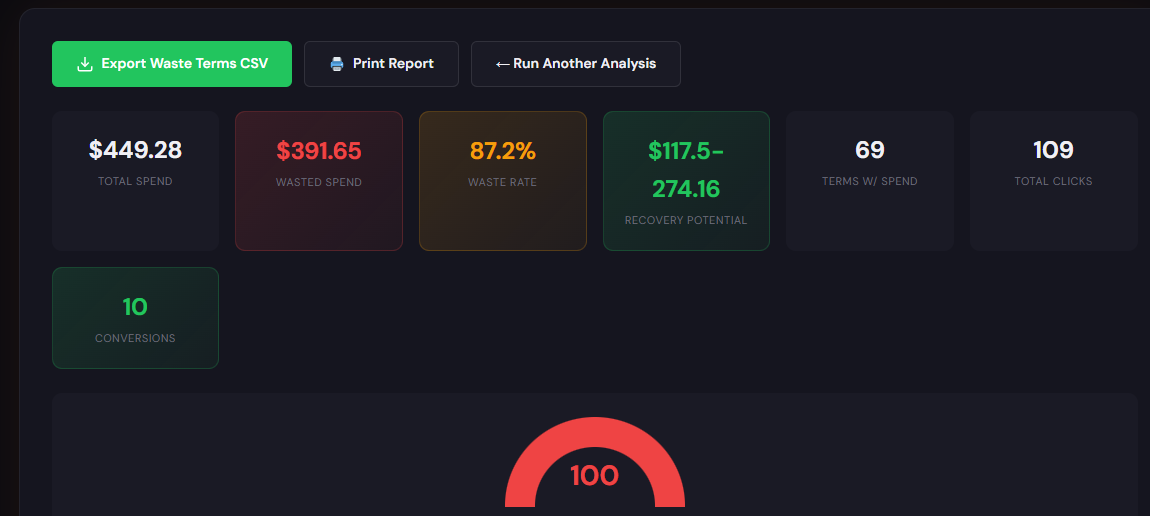 What it outputs: a dashboard-style snapshot with total wasted spend, top leakage areas, and a recovery plan with ranked fixes (negatives, budget shifts, and quick copy tips).
How to use it (3 steps):
- Upload or connect your account and run the snapshot to get instant waste totals and top leakage areas.
- Review the prioritized recovery list and export the negative keyword and pause recommendations.
- Apply the top 10 actions in Google Ads or via Google Ads Editor, then re-run after 7–14 days to measure changes.
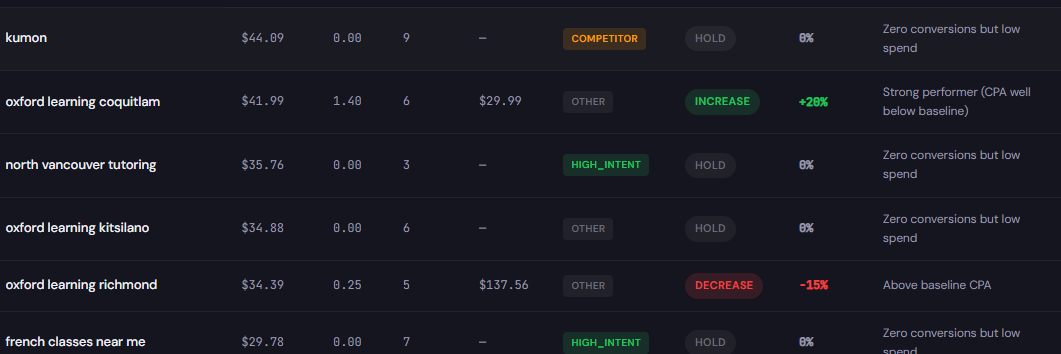 What it outputs: an annotated table of search terms with spend, conversions, recommended bid actions, and suggested negatives—exportable for quick uploads.
How to use it (3 steps):
- Upload your search term report or connect your account and filter to the last 30 days.
- Use the analyzer to tag terms as negative, keep, or bid-adjust—prioritize by spend and conversion velocity.
- Export the recommendations to CSV and upload via Google Ads Editor to apply bulk negatives and bid adjustments.
90-minute account triage playbook
- 0–10 min: Pull core reports—search terms (30 days), hour-of-day, campaign spend & conv data, top landing pages.
- 10–35 min: Run Wastage Snapshot to surface top leakage and suggested negatives.
- 35–60 min: Run Search Term Analyzer on high-spend campaigns; tag top negatives and bid-cuts.
- 60–80 min: Apply top 10 negatives and pause worst-performing hours/campaigns. Export and upload via Google Ads Editor.
- 80–90 min: Document actions, set a 7-day check, and schedule a 14-day follow-up to review impact.
If you want automation to do the heavy lifting, run a Wastage Snapshot and Search Term Analyzer now to get prioritized fixes and exportable actions.
FAQ
Not necessarily. Broad match can be useful if paired with strong negatives and proper campaign structure. If broad match is producing high spend with zero conversions, move it to a containment campaign and monitor closely.
Start with the highest-impact negatives (top 10–20 by spend) and apply them at the campaign level. Large negative lists can be applied after testing to avoid accidental blocking of converting traffic.
Short-term pruning improves signal quality. Pausing low-quality hours and removing bad queries increases conversion-rate signal for smart bidding and typically improves long-term performance if you re-evaluate regularly.
Run a full snapshot after major changes and on a 14–30 day cadence for active accounts. For accounts with fast-moving spend, weekly snapshots are reasonable.
Sources
- Google Ads Help: About the Search Terms Report — explains how to find search queries and add negatives.
- Google Ads Help: Optimize your campaigns with bid strategies — guidance on how bidding reacts to your signals.
- Search Engine Journal: How to Reduce Ad Spend Waste — tactical recommendations for pruning and structuring accounts.
- ExecWrite: Google Ads Wastage Recovery Snapshot — tool for quick waste diagnosis and recovery plans.
- ExecWrite: Bid Adjustment by Search Term (Search Term Analyzer) — tool to tag search terms and generate bid/negative recommendations.
Leave a Reply