Author: ahsanqureshi2025

  • Why is my Google Ads account wasting spend and missing conversions?

    PPC Google Ads Marketing Ops

    If your account feels like it spends more than it converts, this article gives a technician-first roadmap: the five persistent problems you’ll find, quick fixes you can run this week, and a tool-driven workflow using ExecWrite to recover wasted budget and stabilize performance. For hands-on audits and recovery, start at ExecWrite.

    TL;DR
    • Most wasted spend comes from structural issues: mismatched intent, poor scheduling, and unmanaged search terms.
    • Run a 90-minute triage that finds 3–5 high-impact fixes and reclaims budget fast.
    • Use the ExecWrite Wastage Snapshot and the Search Term Analyzer to produce a recovery plan and prioritized bid actions.

    Why PPC feels harder now

    Platforms change, but the real friction is internal: larger accounts, mixed funnels, and automation that hides the details. Advertisers lean on automated bidding and broad match without a repeatable audit routine. That produces two outcomes: invisible waste (spend that buys no incremental conversions) and fragile wins (improved CPA one week, crash the next).

    This post assumes you want operator-level fixes — checks you can apply in a day and tools to automate the repetitive work. If you need a quick audit dashboard, ExecWrite has templates and tools that speed diagnosis and remediation.

    The 5 biggest PPC problems marketers face

    1. Wasted spend from irrelevant search terms

    Symptoms

    • High cost on search terms with zero conversions or negative intent queries showing high clicks.
    • High impressions but low CTR on broad match campaigns.
    • Slow negative keyword hygiene — repeats of the same bad queries over weeks.

    Why it happens

    Broad match + smart bidding without ongoing search-term management lets the engine explore expensive, irrelevant queries. Automation optimizes for conversion volume, not query relevance, unless you guard it with negatives.

    Fix this week

    • Export last 30–90 days of search terms, sort by spend, and tag non-converting high-cost terms as negatives.
    • Add exact-match variants for high-intent converting terms and move them to tighter ad groups.
    • Pause low-quality broad-match ad groups until negatives are applied.

    2. Poor ad-to-landing-page relevance (Quality Score leaks)

    Symptoms

    • Low or falling Quality Scores on key ad groups.
    • High CPCs or low ad rank despite healthy bids.
    • Landing pages that don’t echo ad headlines or intent.

    Why it happens

    QS is an aggregate signal of expected CTR, ad relevance, and landing page experience. When messaging drifts between ad and landing page, conversion rates fall and costs rise.

    Fix this week

    • Map top-performing ads to their landing pages and update headlines to match the search intent.
    • Run experiments: simple headline/CTA swaps with clear intent alignment.
    • Prioritize pages with the highest traffic but lowest conversion rate for quick copy alignment.

    3. Hour-of-day and dayparting mismatches

    Symptoms

    • Big CPA swings by hour or day, unexplained by seasonality.
    • Budget drained during off-peak hours with poor conversion yield.
    • Ad schedule set broadly with no data-driven adjustments.

    Why it happens

    Accounts often inherit a default ad schedule. Without granular hour and day analysis, you bid into hours that consistently underperform.

    Fix this week

    • Pull hour-of-day performance (cost, conv, CPA) for last 90 days and mark hours with CPA above target.
    • Apply conservative bid adjustments or turn off ads during the worst hours.
    • Monitor for a full week and iterate.

    4. Duplicate or poorly structured campaigns

    Symptoms

    • Multiple campaigns competing for the same keywords or audiences.
    • Confusing priority settings (brand vs nonbrand) causing bid conflicts.
    • Difficulty attributing conversions to a single source.

    Why it happens

    Rapid scaling and multiple operators create overlapping campaigns. Overlap reduces control and increases CPCs because your campaigns bid against themselves.

    Fix this week

    • Run an overlap report between campaigns and pause redundant or legacy structures.
    • Define clear naming conventions and priorities (brand/exact > nonbrand/broad).
    • Move high-intent terms into single-purpose campaigns for better bidding.

    5. Slow negative keyword and waste recovery processes

    Symptoms

    • Known negatives are not applied account-wide.
    • Ad hoc fixes recur because there’s no reusable recovery plan.
    • Time-to-fix is days or weeks, not hours.

    Why it happens

    Teams fix symptoms rather than codify fixes. Without a recovery snapshot and a playbook, wasted spend returns.

    Fix this week

    • Create a negative keyword list for common waste and apply it across relevant campaigns.
    • Document a weekly search-term review slot and assign ownership.
    • Use tooling to automate detection of repeat offenders.

    Fixes you can apply this week

    • Export last 90 days of search terms, sort by spend, and add the top 20 non-converting queries to negatives.
    • Identify 3 landing pages with high traffic + low CR and align headlines to match the top 5 converting queries.
    • Pull hour-of-day CPA and apply -30% to worst hours; monitor for seven days.
    • Consolidate overlapping campaigns identified in your campaign overlap report.
    • Create an account-wide negative list for recurring waste and publish it organizationally.
    Recover wasted spend in under an hour

    Run the ExecWrite Wastage Snapshot to get a prioritized leak list and recovery plan for your account. Use the Search Term Analyzer to convert the plan into negatives and bid actions.

    Start a recovery snapshot at ExecWrite

    Tool-based workflow: map problems to ExecWrite tools

    We focus on two tools that give maximum reach: the Wastage Snapshot for fast recovery and the Search Term Analyzer for negative hygiene and bid actions.
    ExecWrite: Wastage Snapshot & Recovery

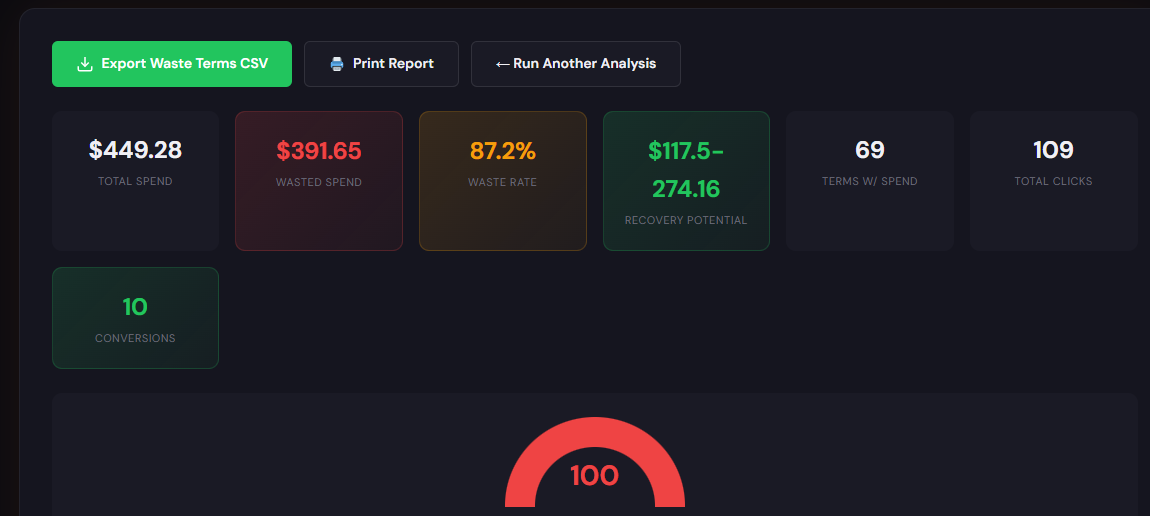
    Wastage Snapshot preview showing waste totals and recovery plan

    What it outputs: a dashboard-style snapshot of wasted spend, top leakage areas, and a prioritized recovery plan with recommended negatives and budget reallocation steps.

    How to use it (3 steps):

    1. Upload your account data or connect via API to generate the snapshot.
    2. Review the top 5 leakage areas (search terms, campaigns, audiences) and export the recovery checklist.
    3. Apply the recommended negatives and budget moves; re-run the snapshot next week to validate impact.

    Preview images show the waste totals and recovery plan that your team can assign and track. Use the snapshot to create a repeatable weekly audit.
    Open the Wastage Snapshot

    ExecWrite: Search Term Analyzer (Bid Adjustment by Search Term)

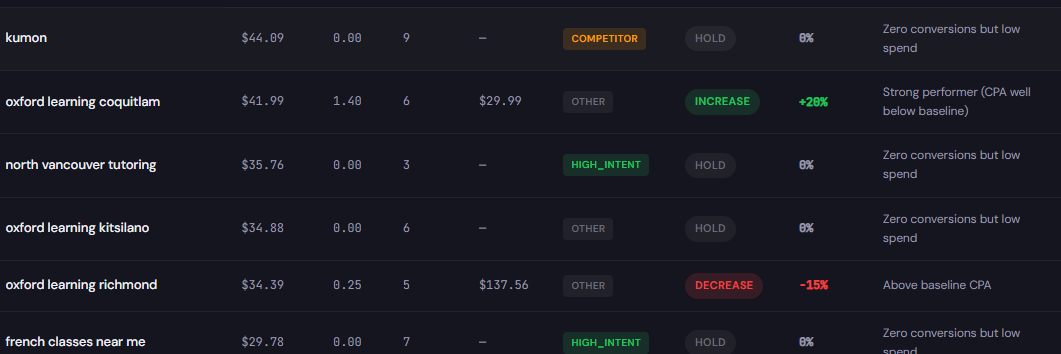
    Search term analyzer output table showing spend, conversions, tags, and recommended bid actions

    What it outputs: a search-term table with spend, conversions, tags (negative candidate vs convert), and recommended bid adjustments, plus CSVs for Editor upload.

    How to use it (3 steps):

    1. Export search-term data from Google Ads and import to the Search Term Analyzer.
    2. Tag high-cost non-converting queries as negatives; tag high-intent converts as exact-match candidates.
    3. Export the CSV and push changes through Google Ads Editor or apply recommendations in bulk via the tool.

    Open the Search Term Analyzer

    90-minute account triage playbook

    Run this sequence with a single operator and one sheet. Aim for quick, irreversible wins.

    1. Minute 0–10: Snapshot. Run the ExecWrite Wastage Snapshot to get a prioritized list (waste totals, top leakage areas).
    2. Minute 10–30: Search-term triage. Export top 200 search terms by spend; tag top 20 non-converting queries as negatives using the Search Term Analyzer.
    3. Minute 30–45: Hour analysis. Pull hour-of-day report and apply bid adjustments or pause worst hours for the week.
    4. Minute 45–60: Landing page triage. Pick the top 3 high-traffic, low-CR pages. Update headlines to match the top queries and launch A/B tests.
    5. Minute 60–75: Campaign structure. Identify overlapping campaigns; pause or rename redundant ones and apply an account-wide negative list.
    6. Minute 75–90: Document actions and schedule a 7-day validation. Re-run the Wastage Snapshot to measure immediate impact and export changes for handoff.

    FAQ

    How fast will I see savings?

    You can stop obvious waste in hours; measurable CPA improvements usually appear within 7–14 days after negatives and schedule changes are applied.

    Will adding negatives hurt traffic?

    Properly applied negatives reduce irrelevant clicks without harming high-intent traffic. Start with high-cost, zero-conversion terms and monitor traffic shifts.

    Can automated bidding handle this for me?

    Automation helps but needs clean inputs. Use tooling to fix structural issues first; then allow automated strategies to operate on higher-quality signals.

    What if I don’t have API access?

    ExecWrite accepts data uploads and exports. Run the Wastage Snapshot via CSV and use the Search Term Analyzer with exported search-term reports.

    Run a fast recovery audit

    Start your triage with ExecWrite to produce a prioritized recovery plan and executable CSVs. Reclaim wasted spend and lock in quality improvements.

    Run an ExecWrite audit now

    Sources

  • Why is my PPC performance slipping in Google Ads?

    PPCGoogle AdsMarketing Ops

    If your account feels like it’s slowly leaking ROI, this playbook gives operator-level steps to find and fix the three most common sources of decline — wasted spend, bid drift, and relevance gaps — and includes a tested tool workflow from ExecWrite to speed recovery.

    TL;DR
    • Quick audit: run a waste snapshot, check hour-of-day swings, and scan search term leakage.
    • Three fixes this week: stop bad spend, tighten keyword/ad relevance, and apply time-based bid controls.
    • Use two ExecWrite tools (Wastage Snapshot & Bid Adjuster) to produce an actionable recovery plan in one session.

    Why PPC feels harder now

    Higher CPCs, more automation noise, and audience fragmentation mean the old fixes don’t scale. The symptoms are familiar: rising CPA, flat ROAS, and a messy account structure that feeds waste into automated bidding. This article focuses on the operational fixes that work now — tangible checks you can run in hours, not vague strategy shifts.

    The 5 biggest PPC problems marketers face

    Pain 1 — Wasted spend from irrelevant search terms

    Symptoms

    • High impressions on low-quality searches with zero conversions.
    • Broad match campaigns driving most clicks instead of high-intent queries.
    • Negative keyword lists are incomplete or unmanaged.

    Why it happens

    Automation and broad match expansion generate volume but also noise. Without regular search term audits, low-intent queries erode budgets and confuse bidding models.

    Fix this week

    • Export search terms for top-spending campaigns (90 days).
    • Tag any term with 0 conversions and >X spend as immediate negative (define X by budget; typically 2–5% of total).
    • Create a watchlist for near-converting terms to turn into exact/phrase keywords.

    Pain 2 — Bid drift and hour-of-day swings

    Symptoms

    • CPA spikes at specific hours or weekdays.
    • Automated bid strategies frequently target poor-performing windows.
    • Ad scheduling is limited or not data-driven.

    Why it happens

    Many teams set broad ad schedules or rely solely on machine-learned bidding without feeding it clean hour-level signals. The result: bids rise when conversion probability is low.

    Fix this week

    • Pull hour-of-day performance for conversions and CPA for the last 60–90 days.
    • Apply -30% to -50% bid modifiers to the worst-performing hours; +10–20% to the best.
    • Monitor performance for 7 days and iterate.

    Pain 3 — Landing page relevance and Quality Score decay

    Symptoms

    • CTR and conversion rate both falling despite constant traffic levels.
    • Quality Score drops across several ad groups.
    • High bounce rates coming from paid landing pages.

    Why it happens

    Creative and messaging drift — ads no longer match landing pages. Search intent changes faster than copy updates, and Quality Score takes the hit.

    Fix this week

    • A/B test headline and hero messaging to restore ad-to-page relevance.
    • Align top 10 keywords per ad group with on-page H1/H2 and CTA text.
    • Add a quick variant landing page for the worst-performing ad groups.

    Pain 4 — Overbroad campaign structure

    Symptoms

    • Single campaigns with dozens of unrelated keywords and mixed intent.
    • Poor ad relevance and confusing automated bidding signals.
    • Difficulty tracing performance to a single driver.

    Why it happens

    To save time, teams lump keywords together. That convenience creates mixed signals for automation and hides the real winners.

    Fix this week

    • Split top-spending campaigns into narrower intent buckets (commercial vs. info).
    • Create dedicated ad groups for top-converting terms with bespoke ads and landing pages.
    • Export ad relevance and QS by ad group to validate splits.

    Pain 5 — Attribution and conversion tracking noise

    Symptoms

    • Conversions jump or drop after tracking changes; ROAS looks unstable.
    • Offline or cross-channel conversions aren’t stitched to paid clicks.
    • Lead quality doesn’t match conversion counts.

    Why it happens

    Tracking changes, misconfigured goals, and incomplete data imports create a false picture. Bidding models optimize for flawed signals and perform poorly.

    Fix this week

    • Audit conversion actions: ensure consistent naming, values, and attribution windows.
    • Map top revenue sources to conversions and disable ambiguous actions used by bids.
    • Validate tag firing and server-side imports on a sample of leads.

    Fixes you can apply this week

    • Run a quick waste scan (search terms + negative additions) and remove the top 10 waste drivers.
    • Apply hour-of-day bid adjustments based on 60–90 day data.
    • Split high-spend mixed campaigns into focused buckets and rewrite ads to match intent.
    • Run a landing page relevance check for top 20 ad groups and deploy quick headline variants.
    • Validate conversion actions and attribution windows; pause any noisy goals used for bidding.
    Run a fast account snapshot

    Use ExecWrite’s Wastage Snapshot to find top leakage areas and generate a recovery checklist you can act on in hours.

    Run a Snapshot at ExecWrite

    Tool-based workflow

    Below are two lightweight tools from ExecWrite that let you turn the fixes above into repeatable outputs. Each tool block shows what it produces and a three-step use path.

    Wastage Snapshot & Recovery

    Wastage snapshot showing waste totals and recovery plan

    What it outputs: A dashboard-style snapshot listing total wasted spend, top leakage areas (search terms, budgets, campaigns), and a prioritized recovery plan with quick negative keyword exports.

    How to use it — 3 steps

    1. Upload your account export (or connect via the guided workflow) and run the snapshot.
    2. Review the waste ranking and export the top negative keyword list and recovery tasks.
    3. Apply negatives, pause the worst campaigns, and schedule a 7-day monitoring sprint.

    Open Wastage Snapshot

    Bid Adjustment by Search Term (Search Term Analyzer)

    Search term analyzer output table showing spend, conversions, tags, and recommended bid actions

    What it outputs: A ranked table of search-term performance with spend, conversions, tags (negative/keep/test), and recommended bid actions by term or group.

    How to use it — 3 steps

    1. Export search terms for your high-spend campaigns (90 days) and upload to the analyzer.
    2. Apply the analyzer’s tags: negative for waste, keep/test for near-converters, and suggested bid adjustments for high-intent winners.
    3. Push negatives and bid recommendations back into the account (or via Editor) and monitor the delta in 7 days.

    Open Search Term Analyzer

    90-minute account triage playbook

    A timed checklist to triage an underperforming account and produce an immediate recovery plan.

    • 0–10 min: Pull account spend, conversions, top campaigns, and top search terms (last 60–90 days).
    • 10–30 min: Run Wastage Snapshot and export the top 10 negative candidates and the recovery summary.
    • 30–50 min: Upload search terms to Search Term Analyzer and tag the top 50 noisy terms.
    • 50–70 min: Apply negatives, implement ad schedule bid modifiers (based on analyzer + hour data), and pause top waste campaigns.
    • 70–90 min: Create a recovery action list with owners and a 7-day monitoring plan. Share results and next steps with stakeholders.
    Start the 90-minute triage

    Use ExecWrite’s tools to automate the waste scan and bid recommendations — save hours of manual triage and get a prioritized plan.

    Start a Snapshot at ExecWrite

    FAQ

    How fast will I see improvement after applying negatives?

    Expect initial efficiency gains within 3–7 days as the account stops spending on non-converting queries; full performance stabilization usually takes 2–4 weeks as bidding models re-learn.

    Do I need to pause automated bidding when making these changes?

    Not necessarily. Apply changes in stages: negative/structure fixes first, then let automated bids run on cleaner signals. Pause bids only if you see extreme volatility or if tracking is broken.

    What data window should I use for hour-of-day analysis?

    Use 60–90 days to smooth weekly patterns but exclude major seasonality spikes. For new campaigns, use at least 30 days and supplement with daypart tests.

    Can these tools identify landing page Quality Score issues?

    Yes. The Wastage Snapshot highlights relevance gaps and the Quality Score optimizer suggests headline and landing page changes to restore ad-to-page alignment.

    Sources

  • Why is my Google Ads underperforming? PPC triage and fixes

    PPCGoogle AdsMarketing Ops

    Performance slides, budgets burn, and bidding feels random. This guide shows pragmatic diagnostics and fixes you can apply in a week, plus how ExecWrite tools speed the work. Try the tools at ExecWrite for instant, actionable outputs.

    TL;DR
    • Most underperformance traces to wasted spend, poor match between ads and landing pages, and bid timing—fix these first.
    • Run a waste snapshot and search-term analysis to get prioritized fixes you can apply this week.
    • Use the 90-minute triage playbook to stabilize CPA/ROAS and create quick wins before longer optimizations.

    Why PPC feels harder now

    Three structural shifts make managing paid media more demanding: automated bidding obscures signals, audience overlap and keyword creep inflate costs, and cross-channel attribution hides where conversions actually come from. Those changes increase noise and make tactical wins feel temporary unless you pair diagnostics with surgical fixes.

    The 5 biggest PPC problems marketers face

    1) Wasted spend and low signal

    Symptoms

    • High impression volume but low conversion rate.
    • Large spend on branded/irrelevant queries with zero conversions.
    • Exploding cost per click (CPC) without corresponding lift in leads.

    Why it happens

    Broad match expansion, poor negative keyword lists, and unchecked query-level waste create noise that undermines automated bidding. The result: your bid strategy chases impressions instead of conversions.

    Fix this week

    • Run a waste snapshot to identify top leakage areas by spend and low-value queries.
    • Pause or tighten broad match keywords showing high cost and zero conversions.
    • Add top wasting queries to negatives and exclude low-intent placements.

    2) Poor search-term hygiene (keyword cannibalization)

    Symptoms

    • One keyword group triggers for dozens of intent signals (informational vs. transactional).
    • Multiple ad groups compete for the same queries, raising CPCs.
    • High spend on queries that should be negative or in a separate funnel.

    Why it happens

    Loose keyword structures and lack of query-level review let the account fragment. That fragmentation confuses bidding and reporting and blocks precise audience targeting.

    Fix this week

    • Export last 90 days of search terms and flag high-spend, low-conversion queries.
    • Reassign queries into intent-based ad groups; add negatives where necessary.
    • Use a search-term analyzer to generate recommended bid actions and tags.

    3) Timing and ad-schedule mismatches

    Symptoms

    • Huge hourly swings in CPA or ROAS.
    • Conversions concentrate in narrow windows but bids stay flat.
    • Budget burns during low-conversion hours.

    Why it happens

    Default ad schedules and daily budgets ignore hour-of-day performance. Without dayparting, you overbid when traffic is cheap but unproductive and underinvest when buyers convert.

    Fix this week

    • Run an hourly performance report and identify 3 best and 3 worst hours.
    • Reduce bids during low-conversion hours and increase when conversion rate spikes.
    • Set ad schedule modifiers or use an hourly bid adjuster for precise actions.

    4) Landing page mismatch and declining conversion rate

    Symptoms

    • CTR is stable but conversion rate falls.
    • High bounce rates on paid landing pages for specific ads or keywords.
    • Quality Score drops tied to ad-to-LP relevance.

    Why it happens

    Ads promise something different than the landing page delivers. That mismatch kills conversion rates and pushes up CPA, even if clicks look healthy.

    Fix this week

    • Audit top-converting keywords and check ad headline/LP alignment.
    • Run targeted landing copy tests focused on headline and CTA alignment.
    • Use a quality-score optimizer to get prioritized headline and LP changes.

    5) Over-reliance on automated bidding without clean inputs

    Symptoms

    • Bidding cycles produce unstable CPA/ROAS after small account changes.
    • Simulated bid changes show little predicted improvement.
    • Difficulty explaining performance to stakeholders.

    Why it happens

    Automated strategies require reliable signals. If your account has mixed-intent ad groups, noisy search terms, or unfiltered conversions, automation amplifies the problems instead of fixing them.

    Fix this week

    • Stabilize signals: clean conversions, fix tracking issues, and tidy ad groups.
    • Switch problematic ad groups to manual or portfolio strategies while you clean inputs.
    • Document changes and measure impact before re-enabling full automation.

    Fixes you can apply this week

    • Run a wasted-spend snapshot to get a prioritized leakage list and recovery steps.
    • Export and tag search terms; promote high-intent queries, add low-intent negatives.
    • Implement simple daypart bid adjustments for three worst and three best hours.
    • Align top 10 ad headlines to landing-page headlines; launch two A/B tests.
    • Stabilize conversions: verify tracking and remove low-value conversion events from bidding targets.
    Run a quick recovery snapshot

    Get a prioritized waste audit and recovery plan in minutes — targeted at the exact leakages that increase CPA.

    Start a snapshot at ExecWrite

    Tool-based workflow (map each pain point to ExecWrite tools)

    Wastage Snapshot & Recovery

    Wastage snapshot preview showing waste totals and top leak areas

    What it outputs: A dashboard-style snapshot showing total wasted spend, top leakage areas (search terms, campaigns, placements), and a prioritized recovery plan you can action immediately.

    How to use it — 3 steps

    • Upload your account CSV or connect via supported export and run the snapshot.
    • Review top leakage items and apply the suggested negatives/pauses for instant savings.
    • Export the recovery plan and implement changes in Google Ads; re-run snapshot after 7 days to measure impact.

    Open the Wastage Snapshot & Recovery tool

    Search Term Analyzer (Bid Adjustment by Search Term)

    Search term analyzer output table showing spend, conversions, tags, and recommended bid actions

    What it outputs: A query-level table that tags terms by intent, shows spend/conversion metrics, and recommends bid actions or negative keywords.

    How to use it — 3 steps

    • Feed the last 30–90 days of search-term data into the analyzer.
    • Approve tag suggestions and apply recommended bid adjustments or negatives.
    • Deploy changes and monitor hourly/weekly impact; iterate on newly uncovered queries.

    Open the Search Term Analyzer

    Both tools work together: run the Wastage Snapshot first to prioritize where to focus, then use the Search Term Analyzer to execute precise query-level fixes and bid actions.

    90-minute account triage playbook

    1. 0–10 min: Pull top-level KPIs (last 7/30/90 days): spend, conversions, CPA/ROAS, and top 20 spenders.
    2. 10–30 min: Run Wastage Snapshot to identify urgent leakage (top 10 waste items).
    3. 30–50 min: Export search terms for the top 5 leaking campaigns and run Search Term Analyzer.
    4. 50–70 min: Apply immediate actions—pause low-value keywords, add negatives, implement 3-hour bid modifiers for worst hours.
    5. 70–90 min: Fix tracking/Conversions: confirm conversion settings, remove low-value events, document changes and set a 7-day review.
    6. Deliverable: A one-page recovery plan with expected savings and next steps for A/B tests and larger structural fixes.
    Start the triage with ExecWrite

    Run the two tools above to produce the exact lists and bid actions you need to stabilize performance now.

    Run tools at ExecWrite

    FAQ

    How fast will I see improvements?

    Immediate savings from pausing wasteful queries can appear in 24–72 hours. Bid and landing-page changes typically take 7–14 days to stabilize so you can measure true impact.

    Can automated bidding coexist with these fixes?

    Yes. Clean inputs make automated bidding effective. Use manual controls on problematic groups while you fix signal quality, then re-enable automation gradually.

    Do I need to connect live accounts to run these tools?

    ExecWrite accepts exports and direct account data depending on the tool. Use CSV exports if you prefer not to connect live accounts; the tools accept standard Google Ads reports.

    Will these tools change my account structure automatically?

    No. Tools generate prioritized recommendations and export actions. You control which changes to implement in Google Ads; exported CSVs speed bulk uploads and Google Ads Editor workflows.

    Sources

    Ready to stop guessing and start recovering wasted spend? Run the snapshot and search-term analyzer at ExecWrite to get prioritized, export-ready actions.

  • Why is my PPC getting more expensive—and how do I fix it?

    PPC Google Ads Marketing Ops

    Rising CPCs and flat conversions are symptoms, not destiny. This post shows operator-level diagnostics and fixes you can run this week — including tools on ExecWrite to automate the boring parts.

    Why your PPC costs are climbing — TL;DR
    • Wasted spend, misaligned intent, and automation settings are the fastest levers to pull.
    • Run a waste snapshot, prioritize negative keywords, and tune bids by hour and search term this week.
    • Use targeted tools (waste recovery + search-term bid actions) to convert triage into measurable savings.

    Why PPC feels harder now

    Paid media is doing more with less forgiving signals. Competition pushes CPCs up, privacy changes reduce conversion signal fidelity, and smart bidding can both help and hide problems. The result: higher spend, slower troubleshooting, and longer time-to-impact on fixes. Fixes must be surgical — not broad budget slashes.

    The 5 biggest PPC problems marketers face

    1) Wasted spend from irrelevant or low-intent queries

    Symptoms

    • High spend with low conversions for many search terms.
    • Large number of clicks coming from queries that don’t match offer intent.
    • Conversion rate that drops when impressions rise.

    Why it happens

    Search term growth, broad match expansion, and automated match types surface lots of irrelevant traffic. If negative keywords aren’t catching up, you pay for clicks that never convert.

    Fix this week

    • Export last 30–90 days of search terms and sort by spend and CPA.
    • Identify top 10% of spend that produces zero conversions and add as negatives.
    • Pause or reduce bids on broad-match heavy ad groups until negatives are applied.

    2) Automation hiding core problems (smart bidding overconfidence)

    Symptoms

    • Performance drift after switching to a bid strategy.
    • Bid strategy recommends higher spend into inefficient segments.
    • Ad groups with volatile daily CPA/ROAS.

    Why it happens

    Automated bidding optimizes to the signals it sees. If signals are noisy or your account has leakage, the algorithm raises bids to chase volume that isn’t profitable.

    Fix this week

    • Temporarily switch high-variance ad groups to manual CPC with portfolio exclusions.
    • Segment campaigns by intent so automation targets consistent buckets.
    • Audit conversion actions and match types feeding smart bidding.

    3) Hourly/dayparting inefficiencies

    Symptoms

    • Large CPA/ROAS swings by hour of day.
    • Ad schedule set-and-forget from initial launch.
    • Budget exhausted early in the day with no conversions later.

    Why it happens

    Performance patterns change by audience behavior and competitor activity. Without regular hour-level checks, you bid the same at 2am as at peak business hours.

    Fix this week

    • Pull hour-of-day performance for cost, convs, CPA, and ROAS.
    • Reduce bids for consistently poor hours and reallocate budget to top-performing slots.
    • Apply bid adjustments or ad schedule changes and monitor 48 hours for lift.

    4) Landing page mismatch and Quality Score leaks

    Symptoms

    • Low Quality Scores on headline/landing page relevance.
    • High impressions but low click-through or high bounce rate.
    • Conversion rate falls after creative or landing page changes.

    Why it happens

    Ads promise something the landing page doesn’t deliver. Even small messaging mismatches cause QS drops and higher CPCs.

    Fix this week

    • Run a headline-to-landing-page relevance check for top 5 ad groups.
    • Adjust headlines to reflect primary offer and ensure landing page has matching H1 and CTA.
    • Test a high-intent landing page for worst-performing ad groups.

    5) Poor keyword/ad group structure

    Symptoms

    • Noisy broad-match ad groups mixing intents.
    • Single ad group with too many keywords and conflicting ads.
    • Difficulty isolating what drives CPA increases.

    Why it happens

    Accounts grow without refactor. Granularity is sacrificed for convenience and the result: bad data and weak signals for bidding and creatives.

    Fix this week

    • Export keyword lists and group by intent; split high-spend buckets into dedicated ad groups.
    • Create single-intent ad groups (exact/phrase) for top-converting keywords.
    • Match creative to each ad group’s intent and measure for 7–14 days.

    Fixes you can apply this week

    • Run a spend-by-search-term audit and add negatives for top wasted queries.
    • Run an hour-of-day bid review and apply ad schedule adjustments.
    • Isolate problematic campaigns from automation and run manual CPC tests.
    • Split broad ad groups by intent and align headlines to landing pages.
    • Prioritize fixes that recover immediate spend (negatives, bid cuts, pause low-intent keywords).
    Recover wasted spend faster

    Run an automated waste snapshot and turn the results into negative keywords and recovery actions.

    Start a recovery snapshot on ExecWrite

    Tool-based workflow: map problems to ExecWrite tools

    Wasted spend & recovery — Wastage Snapshot & Recovery

    Wastage snapshot preview

    What it outputs

    • Dashboard-style snapshot of top leakage areas, wasted spend totals, and prioritized recovery actions.

    How to use it in 3 steps

    1. Run a snapshot for the last 30–90 days to surface top waste buckets.
    2. Export the suggested negative keyword list and recovery plan.
    3. Apply negatives and track spend reduction over the following 7 days.

    Open the Wastage Snapshot & Recovery tool

    Tighten bids by search term — Bid Adjustment by Search Term

    Search term analyzer output table showing spend, conversions, tags, and recommended bid actions

    What it outputs

    • A table of search terms with spend, conversions, CPA, and recommended bid actions (increase/decrease/pause).

    How to use it in 3 steps

    1. Upload search term data or connect your account and filter to the last 30–90 days.
    2. Review recommended bid adjustments and tag terms as negative/low-bid/high-priority.
    3. Export the actions and push them to Google Ads or implement via Editor.

    Open the Search Term Analyzer

    90-minute account triage playbook

    1. 0–15 min: Snapshot top-line metrics — cost, conversions, CPA by campaign. Flag campaigns up >20% cost with flat conversions.
    2. 15–35 min: Run a wastage snapshot and export top wasted terms. Add immediate negatives for top spend/no-conv terms.
    3. 35–60 min: Run search-term analyzer and apply bid reductions for high-CPA terms; tag high-intent winners.
    4. 60–75 min: Check hour-of-day performance and apply ad schedule edits for the worst hours.
    5. 75–90 min: Pause or isolate noisy automation-driven groups and set manual CPC for a 7–14 day test.
    6. Post-triage: Document actions, expected impacts, and schedule a 48–72 hour check for early signals.
    Run the playbook with ExecWrite

    Start a free snapshot, run the search-term analyzer, and convert outputs into account actions without the spreadsheet grind.

    Use ExecWrite to accelerate triage

    FAQ

    Do I need to pause smart bidding to fix rising costs?

    Not always. Start by fixing signal quality (negatives, conversion accuracy) and isolating only the worst-performing campaigns. If automation continues to chase bad traffic, then test manual CPC on those groups.

    How often should I run a wastage snapshot?

    Run a full snapshot monthly and quick scans weekly for high-spend campaigns. Use snapshots after any major match-type or campaign structure change.

    Will adding negative keywords reduce volume?

    Yes, but that’s the point: remove low-intent clicks that waste budget and improve conversion rates for remaining traffic, which in turn lowers CPA and improves bid strategy signals.

    How quickly will bid adjustments show results?

    Bid changes can affect CPC and spend immediately; expect clearer conversion signal within 48–72 hours. Use short tests and monitor daily to avoid overreacting to noise.

    Sources

  • Why is my Google Ads performance slipping? A practical PPC triage & quick-recovery guide

    PPCGoogle AdsMarketing Ops

    If your Google Ads numbers feel unstable—rising CPA, falling CVR, or weird spend spikes—you need a surgical, time-boxed triage approach, not another vague strategy doc. This article lays out exact symptoms, fast fixes, and a tool-backed workflow (useful with free tools at ExecWrite) to stop waste and restore performance.


    TL;DR — What to do first
    • Run a wasted-spend snapshot and search-term analyzer to map leaks (30 minutes).
    • Apply dayparting/bid adjustments and kill top wasting queries (30 minutes).
    • Follow a 90-minute triage playbook to prioritize recovery actions and reallocate budget.

    Why PPC feels harder now

    Advertisers face more automation, less query visibility, and rising CPCs. Machine learning helps—but also masks root causes. Teams get pulled into reactive tweaks instead of focused recovery work. You need deterministic checks and tool outputs that convert into one-click fixes.

    The 5 biggest PPC problems marketers face

    1. Rising CPA with no clear origin

    Symptoms

    • Conversions flatten while cost increases.
    • ROAS drops across campaigns simultaneously.
    • Reports show more clicks but lower conversion rate.

    Why it happens

    Shifted user intent, budget drift into low-value queries, or automated bids chasing volume without conversion signals can all lift CPA. Often the root is leakage into low-intent search terms or ad/landing mismatch.

    Fix this week

    • Export top-spend search terms and tag by intent.
    • Pause or add negatives for low-intent/high-cost queries.
    • Restrict broad-match expansion until you verify intent.

    2. Wasted spend in long-tail queries

    Symptoms

    • Hundreds of low-volume queries consume a disproportionate share of budget.
    • Search terms with clicks but zero conversions stack up.
    • Negative keyword lists aren’t reducing wasted clicks.

    Why it happens

    Broad or smart match settings and aggressive phrase expansion surface irrelevant long-tail queries. Without a systematic analyzer, these leaks compound slowly.

    Fix this week

    • Run a search-term analyzer and export high-cost, zero-conversion terms.
    • Add those as negatives at campaign or account level.
    • Convert repeat-waste terms into blocked lists for automation rules.

    3. Poor ad-to-landing-page relevance (low conversion rate)

    Symptoms

    • High CTR but low CVR on specific ad groups.
    • Quality Score drops or fluctuates.
    • Landing page bounce rate spikes after changes.

    Why it happens

    Creative or landing-page changes can desynchronize messaging. Ads attract clicks but the landing page fails to deliver the expected intent or offer.

    Fix this week

    • Audit top ad groups for headline and offer mismatch.
    • Use a landing-page rewriting checklist to align headlines and CTAs.
    • Run A/B tests on the highest-traffic ad group first.

    4. Hourly/daily performance swings

    Symptoms

    • CPA significantly better or worse at certain hours.
    • Automated bidding underperforms during peak hours.
    • Ad schedule cannot be easily tuned at scale.

    Why it happens

    Performance often follows predictable daily patterns. Without granular hour-of-day analysis you either miss opportunity windows or overspend when conversions are scarce.

    Fix this week

    • Pull hour-of-day metrics for cost and conversions.
    • Apply conservative bid adjustments for low-performance hours.
    • Increase bids in conversion-rich windows and monitor for 48 hours.

    5. Tracking and attribution gaps

    Symptoms

    • Discrepancies between Analytics and Ads conversion numbers.
    • Offline conversions not flowing back into Ads.
    • Conversion value attribution seems inconsistent.

    Why it happens

    Broken tags, misconfigured conversion actions, or differences in lookback windows create noisy signals that break bidding and reporting.

    Fix this week

    • Verify gtag/GA4 events and Ads conversion actions.
    • Reconcile a single conversion metric across platforms for 7 days.
    • Pause automated bid strategies if conversions are undercounted until fixed.

    Fixes you can apply this week

    • Step 1: Run a wastage snapshot to quantify leaked spend by campaign and query.
    • Step 2: Export search-term detail and tag by intent using a search-term analyzer.
    • Step 3: Add negatives, pause poor-performing queries, and adjust ad schedule by hour.
    • Step 4: Align top ad headlines to landing pages and run targeted A/B tests.
    • Step 5: Reconcile conversion tracking and hold bidding strategies until signals are reliable.
    Run an instant waste audit

    Start with a quick snapshot to identify the top 10 leakage points and a prioritized recovery plan.

    Start a free audit at ExecWrite


    Tool-based workflow: map problems to ExecWrite tools

    Wastage snapshot dashboard preview

    Wastage Snapshot & Recovery — what it outputs

    Outputs a dashboard-style snapshot showing wasted spend totals, top leakage campaigns, and a recovery plan with recommended actions.

    How to use (3 steps)

    1. Upload or connect account-level spend and conversion data to generate the waste snapshot.
    2. Review the top 10 leakage areas and export the recovery checklist.
    3. Apply quick wins: pause waste campaigns, add negative keywords, and reallocate budget to efficient campaigns.

    Open the Wastage Snapshot & Recovery tool

    Search term analyzer output table showing spend, conversions, tags, and recommended bid actions

    Search Term Analyzer — what it outputs

    Produces a tagged table of search terms with spend, conversions, intent labels, and recommended bid actions or negative keyword suggestions.

    How to use (3 steps)

    1. Load your search-term export into the analyzer and let it auto-tag intent (commercial, research, irrelevant).
    2. Export recommended actions: negatives, bid-downs, and terms to monitor.
    3. Push negatives into campaigns and set bid adjustments for low-intent matches.

    Open the Search Term Analyzer

    Both tools create actionable exports you can apply in Google Ads Editor or via scripts—no manual row-by-row guessing.

    90-minute account triage playbook

    • 0–10 min: Generate a wastage snapshot and a top-100 search-term export.
    • 10–30 min: Identify top 5 wasting campaigns and top 20 high-cost zero-conversion terms.
    • 30–50 min: Apply negatives and pause worst-performing ad groups or campaigns.
    • 50–70 min: Run hour-of-day analysis and apply conservative bid adjustments for low-value hours.
    • 70–80 min: Align ad headlines to landing pages for the top 3 traffic-generating ad groups.
    • 80–90 min: Reconcile tracking metrics and document changes for next 48-hour monitoring window.
    Recover wasted spend now

    Use the two tools above to audit, prioritize, and execute recovery actions. Fast audits identify quick budget wins and negative-keyword lists you can deploy immediately.

    Try ExecWrite tools

    FAQ

    Do I need to pause automated bidding before auditing?

    If conversion data is unreliable, pause automated strategies for 48 hours. Run a waste audit and restore bidding once conversion signals are fixed.

    How fast will negatives reduce wasted spend?

    You should see measurable reductions in wasted clicks within 24–72 hours after applying negative lists, depending on traffic volume.

    Can these tools export Google Ads Editor CSVs?

    Yes. ExecWrite tools provide export-ready lists and recommended bid actions compatible with Google Ads Editor and bulk uploads.

    Will fixing search terms hurt long-term traffic?

    Properly tagging intent ensures you only block irrelevant low-intent queries. You should re-evaluate expansion periodically and whitelist high-potential long-tail terms.

    Sources

  • Why is Google Ads (PPC) getting harder — how do I stop wasting paid media budget?

    PPCGoogle AdsMarketing Ops

    Google Ads is more automated, more competitive, and more opaque than five years ago. That makes small errors costlier and wasted spend easier to hide — unless you run a tight, ops-driven audit. ExecWrite builds tools to surface waste and act fast; see how a targeted checklist plus two quick tools can recover budget this week (ExecWrite).


    TL;DR — What to do first
    • Run a 90-minute triage: prioritize waste by spend leakage, poor search terms, and time-of-day losses.
    • Apply three quick fixes this week: block bad search terms, fix ad-to-landing relevance, and set hourly bid rules.
    • Use two focused tools: Wastage Snapshot for quick recovery and Search Term Analyzer for bid & negative keyword actions.

    Why PPC feels harder now

    More automation, higher CPCs, and blurred intent make performance volatile. Marketers used to manual control now wrestle with black-box bidding, mixed-signal attribution, and a bigger share of low-intent traffic. The result: harder to keep CPA targets without constant, data-driven triage.

    The 5 biggest PPC problems marketers face

    1. Hidden wasted spend (leakage you don’t see)

    • Symptoms: High spend with flat conversions, many low-quality clicks, bad ROAS pockets.

    Why it happens: Campaigns grow, auto-bidding scales bids into marginal auctions, and poor negative keyword hygiene lets irrelevant queries burn budget.

    • Fix this week: Run a waste-first snapshot, pause top leaking queries, add negatives, and reallocate budgets.

    2. Search term noise and poor bid adjustments by term

    • Symptoms: High CPA on a subset of queries, inconsistent conversion rates across similar terms.

    Why it happens: Broad and phrase match types plus automated match expansions expose campaigns to low-intent variations; bids are usually set at ad group level, not by expensive or cheap terms.

    • Fix this week: Export search terms, tag top-waste terms, set bid modifiers or move terms to tightly themed ad groups.

    3. Ad-to-landing page mismatch (Quality Score and conversion drops)

    • Symptoms: Low CTR, falling Quality Score, rising CPCs, and low landing-page conversion rates.

    Why it happens: Rapid creative changes or automated ad rotation can separate messaging from landing pages, degrading relevance signals that control CPC and ad rank.

    • Fix this week: Align headlines with landing page H1, test focused variants, and prioritize ad-copy that matches top-converting queries.

    4. Time-of-day and dayparting losses

    • Symptoms: Large hourly swings in CPA or ROAS, wasted budget during low-conversion hours.

    Why it happens: Default schedules and automated bidding don’t always respond to intra-day demand shifts, especially for narrower audiences or cross-timezone accounts.

    • Fix this week: Analyze hour-of-day slices, reduce bids or pause during poor hours, and increase bids where conversion density is highest.

    5. Over-reliance on broad automation without guardrails

    • Symptoms: Sudden performance drift after strategy changes, rising costs with plateaued conversions.

    Why it happens: Smart bidding can over-optimize to noisy signals if conversion tracking, budgets, or conversion windows aren’t aligned with business goals.

    • Fix this week: Add conversion filters, tighten conversion windows for short-funnel campaigns, and add manual bid caps where needed.

    Fixes you can apply this week

    • Run a wastage snapshot across accounts to identify the top 10% of queries driving most waste.
    • Build a negative keyword list from those terms and apply it account-wide where appropriate.
    • Move high-cost, low-converting search terms into dedicated ad groups with tailored ads and landing pages.
    • Set hourly bid adjustments for clear low-performing hours and increase bids during peak conversion windows.
    • Audit ad-to-landing relevance for top-spend assets and push immediate landing page headline fixes.
    • Apply temporary manual bid caps on new automated campaigns until data stabilizes (7–14 days).
    Quick recovery: run a wastage snapshot

    If you don’t know where the waste is, you can’t stop it. Run a fast recovery snapshot to identify leakage and export action lists.

    Start recovery at ExecWrite

    Tool-based workflow — map each pain point to ExecWrite tools

    Use two focused tools to triage and act: Wastage Snapshot & Recovery for immediate spend recovery, and Search Term Analyzer for bid actions and negatives. Each tool outputs action-ready tables you can apply in Google Ads Editor or via scripts.

    Wastage snapshot dashboard showing waste totals and recovery plan
    Wastage Snapshot & Recovery

    What it outputs: Account-level dashboard with total wasted spend, top leaking campaigns/queries, and an exportable recovery plan (negatives, pause list, budget moves).

    1. Upload or connect your account and run the snapshot (2–5 minutes).
    2. Review the top leakage areas and export the recovery CSV for Google Ads Editor.
    3. Apply negatives and pausing recommendations, then rerun snapshot in 7 days to measure recoveries.

    Open Wastage Snapshot

    Search term analyzer output table showing spend, conversions, tags, and recommended bid actions
    Search Term Analyzer — Bid Adjustment by Search Term

    What it outputs: A term-level table with spend, conversions, CPA/ROAS, tags, and suggested bid actions or negative keyword recommendations.

    1. Run a search-term export and load into the analyzer to auto-tag high-waste and high-opportunity terms.
    2. Review recommended bid actions (up, down, or negative) and preview the spend impact report.
    3. Export adjustments for Google Ads Editor or turn into a pause/negative list for immediate application.

    Open Search Term Analyzer


    90-minute account triage playbook

    • 0–10 min: Open account-level performance summary. Note spend, CPA, and any major recent changes.
    • 10–30 min: Run Wastage Snapshot. Export top 50 waste-driving queries and campaigns.
    • 30–50 min: Load top queries into Search Term Analyzer. Tag negatives, high-cost/low-conversion terms, and high-opportunity terms.
    • 50–70 min: Implement immediate actions: apply negatives, pause worst-performing ads/ad groups, and push targeted landing page headline fixes.
    • 70–90 min: Set hourly bid adjustments for identified weak hours and create a follow-up schedule (7-day check, 14-day review).
    • Deliverable: Exported Google Ads Editor CSVs for negatives, bid changes, and pause lists; 7-day recheck plan.
    Run the triage in 90 minutes

    Use a focused snapshot + term analyzer to produce action lists you can apply immediately. Start the recovery and protect this month’s budget.

    Run a triage at ExecWrite

    FAQ

    How fast will I see savings after applying fixes?

    You can see measurable drop in wasted clicks within 3–7 days for negatives and pauses. Bid and landing-page changes may take 1–2 weeks as smart bidding re-learns.

    Will automation override manual fixes?

    Automation reacts to signals; short-term manual controls (negatives, bid caps, dayparting) act as guardrails. Reassess automated strategies after the initial recovery window.

    Can these tools export directly to Google Ads Editor?

    Yes — both Wastage Snapshot and Search Term Analyzer export CSVs formatted for Google Ads Editor to speed application of changes.

    Do I need an account manager to use these tools?

    No. The tools are designed for operators: upload or connect data, review recommendations, and export action lists. Larger agencies often use them to scale audits.

    Sources

  • Why is PPC getting harder — and how can I stop wasting Google Ads budget?

    PPCGoogle AdsMarketing Ops

    PPC performance is fragmenting: rising costs, automation opacity, and noisy search terms are squeezing returns. This article shows immediate fixes you can apply, a 90-minute triage playbook, and a tool-first workflow that uses ExecWrite to recover wasted spend and set smarter bids.

    TL;DR — What to do first
    • Run a wastage snapshot to find budget leaks and priority negative keywords.
    • Apply quick bid adjustments by search term and hour-of-day to stop paying for bad traffic.
    • Use the small playbook (90 minutes) to lock down the account, then schedule weekly audits.

    Why PPC feels harder now

    PPC has always required active maintenance, but three structural shifts make it feel harder: automation that hides decision logic, shifting search behavior, and rising noise from low-quality clicks. Automation and smart bidding can help, but they also introduce lag and opaque bid decisions that amplify waste when campaign structure or negative keywords are weak. To act fast, you need diagnostics you can trust and concrete bid & negative keyword actions you can apply immediately.

    If you want fast diagnostics, ExecWrite has free and paid tools that analyze wasted spend and deliver prioritized actions — see https://execwrite.com for the tools mentioned below.

    The 5 biggest PPC problems marketers face

    1) Wasted spend from low-intent or irrelevant search terms

    Symptoms

    • High cost with zero conversions for long-tail terms.
    • Spikes in clicks after query changes or broad match updates.
    • Conversion rate drops while traffic volume remains steady.

    Why it happens

    Broad match and automated bidding can match to low-intent queries. Without frequent search-term audits and negative keyword hygiene, accounts pay for irrelevant traffic that skews machine learning.

    Fix this week

    • Export last 30–90 days of search terms and tag clear negatives.
    • Pause the worst-performing, high-cost search terms immediately.
    • Add negative keyword lists scoped by campaign/brand where needed.

    2) Poor bid timing (dayparting) and hourly CPA swings

    Symptoms

    • Strong CPA during business hours, steeply worse at night or weekends.
    • High spend during low-awake hours with few conversions.
    • Automated strategies chasing noisy signals and inflating bids.

    Why it happens

    Default ad schedules and aggressive bidding ignore hour-level performance. Automated bidding averages performance across hours, which can amplify bad hours unless you apply hourly adjustments or granular ad scheduling.

    Fix this week

    • Analyze performance by hour-of-day and day-of-week for last 30 days.
    • Lower bids or exclude hours with CPA 25–50% worse than baseline.
    • Set conservative max CPCs for low-conversion hours while testing.

    3) Message mismatch: ads click but landing pages don’t convert

    Symptoms

    • High CTR but low conversion rate or high bounce rate.
    • Ad copy promises benefits not present on the landing page.
    • Quality Score declines while impressions remain stable.

    Why it happens

    Automation and copy variants can drive clicks that aren’t matched to landing-page intent. When headlines, CTAs, and landing messages misalign, Quality Score and conversion rates suffer.

    Fix this week

    • Match top-performing ad headlines to landing page H1 and first paragraph.
    • Run a headline/landing-page alignment check and temporarily pause poor-performing ads.
    • A/B test one landing page change (headline/CTA) for a high-traffic ad group.

    4) Fragmented account structure (too many keywords per ad group)

    Symptoms

    • Ad groups with dozens of unrelated keywords.
    • Low ad relevance and keyword-level Quality Score variance.
    • Slow or unstable automated bidding performance.

    Why it happens

    Rapid scaling, inexperienced managers, or template imports create bloated ad groups. Automation needs tight signal; poor structure dilutes it and reduces bid strategy effectiveness.

    Fix this week

    • Split top 10 worst ad groups into more focused groups with 5–10 keywords each.
    • Create single-theme ad groups for high-value queries and exact-match clusters.
    • Export a CSV for Google Ads Editor to push targeted restructures quickly.

    5) Slow negative keyword hygiene across campaigns

    Symptoms

    • Recurring irrelevant queries reappear after short fixes.
    • Negative lists applied inconsistently across similar campaigns.
    • Brand vs non-brand leakage causing budget cannibalization.

    Why it happens

    Negatives are often added ad-hoc without owning lists, scopes, or notes. Without a repeatable negative keyword process, waste returns and teams duplicate work.

    Fix this week

    • Create named negative keyword lists for common leak types (competitors, jobs, irrelevant industries).
    • Apply lists to all applicable campaigns and document who can edit them.
    • Schedule a weekly 20-minute search-term review to capture new negatives.

    Fixes you can apply this week

    • Run a single-account wastage snapshot to find top 10 leak sources (search-term, campaigns, placements).
    • Export search terms, tag negatives, and apply negative lists across campaigns.
    • Identify 3 worst hours by CPA and apply hourly bid modifiers or remove them from your ad schedule.
    • Split 2 largest, unfocused ad groups into themed groups and align ads to landing pages.
    • Lock budgets for high-funnel campaigns while you stabilize bottom-funnel bidding.
    Run a quick wastage snapshot

    Use a snapshot to find top leakage areas and negative keyword candidates in minutes.

    Run ExecWrite tools

    Tool-based workflow: map problems to ExecWrite tools

    Below are two tools you can run immediately. Each listing shows what the tool outputs and a 3-step use case. Preview images show sample outputs you’ll receive.

    Wastage snapshot dashboard showing waste totals and top leakage areas

    Wastage Snapshot & Recovery

    Tool: Wastage Snapshot & Recovery — Open tool

    What it outputs: Account-level dashboard with waste totals, prioritized leakage areas, top negative keyword suggestions, and a recovery checklist.

    How to use (3 steps)

    • Upload account data or connect via the tool’s export template.
    • Review the top 5 leakage areas and export the negative keyword list.
    • Apply negatives and follow the recovery plan steps prioritized by ROI.

    Search term analyzer output table showing spend, conversions, tags, and recommended bid actions

    Bid Adjustment by Search Term (Search Term Analyzer)

    Tool: Search Term Analyzer — Open tool

    What it outputs: A table of search terms with spend, conversions, suggested tag (negative/keep), and recommended bid actions per term.

    How to use (3 steps)

    • Upload your search-term CSV from Google Ads or paste the export.
    • Scan the recommended tags and export the negative keyword list and bid recommendations.
    • Push changes via Google Ads Editor (negatives + bid modifiers) and monitor the next 7 days.

    90-minute account triage playbook

    Follow these time-boxed steps to stop the worst waste and stabilize learning models.

    • 0–10 min: Run the Wastage Snapshot to surface top leakage categories (search terms, placements, ad groups).
    • 10–30 min: Download search-term CSV for the last 90 days and run the Search Term Analyzer to tag negatives and bid actions.
    • 30–45 min: Apply top 25 negative terms and remove 1–2 worst-performing keywords/ad groups.
    • 45–60 min: Review hour-of-day CPA; apply hourly bid reductions or remove low-conversion hours from schedule.
    • 60–80 min: Split the two largest unfocused ad groups, align ads to landing pages, and pause underperformers.
    • 80–90 min: Document changes, set a 7-day monitoring window, and schedule the weekly 20-minute search-term review.

    FAQ

    How fast will I see results after applying negatives?

    Expect immediate reduction in irrelevant clicks within 24–48 hours. Conversion rate improvements may take up to a week as bidding strategies re-stabilize.

    Will automation undo the negatives I add?

    No. Negative keywords are account-level controls. Machine learning will adapt to the new traffic pattern and should bid more effectively once noise is removed.

    Can I use these tools without changing bidding strategies?

    Yes. The tools focus on surfacing waste and bid suggestions. You can apply negatives and ad-schedule changes without switching your bidding strategy to see quick gains.

    Are these tools safe for enterprise accounts?

    Yes. ExecWrite tools export standard CSVs and suggested changes that you deploy via Google Ads Editor or your deployment process — you control every change.

    Start a snapshot and stop wasting budget

    Run a fast account snapshot and get a prioritized recovery plan. Use the exported negatives and bid actions to take immediate control.

    Run ExecWrite now

    Sources

  • Why is my Google Ads performance dropping? Practical fixes for PPC operators

    PPC Google Ads Marketing Ops

    If your account feels fragile—rising CPA, falling conversions, inconsistent ROAS—you need a structured triage, not marketing theory. This guide lays out the symptoms, quick fixes, and a tool-driven workflow using ExecWrite for fast remediation. Visit ExecWrite to access the tools referenced below.

    TL;DR
    • Most account drops come from waste, search-term mismatch, or bidding timing—fix those first.
    • Run a 90-minute triage: wastage snapshot, search-term analyzer, and quick bid-hour check.
    • Use ExecWrite’s Wastage Snapshot and Search Term Analyzer to find actionable negatives, bid actions, and landing-page gaps.

    Why PPC feels harder now

    Three structural shifts make troubleshooting noisier: automated bidding masks underperformance, data aggregation hides hour-level swings, and broad-match/AI expands irrelevant queries faster than negative lists can keep up. That combination turns small leaks into material performance degraders.

    The 5 biggest PPC problems marketers face

    1. Rising wasted spend (leakage)

    • Symptoms: Spend up, conversions flat or down; high click volume with low conversion rates.

    Why it happens: Campaigns inherit broad-match expansions and automated bids increase exposure on low-intent queries unless negatives and structure keep pace.

    Fix this week

    • Run a wasted-spend snapshot to see top leakage categories.
    • Apply the top 20 negative queries and pause poor-performing keywords.
    • Reduce budgets on high-cost, zero-conversion campaigns for 72 hours while you audit.

    2. Search-term mismatch (irrelevant queries converting poorly)

    • Symptoms: High conversions from a narrow set of queries, many clicks with no intent.

    Why it happens: Broad match + responsive search ads bring high query volume; relevance drops if ad copy, landing page, and keyword intent aren’t aligned.

    Fix this week

    • Download search terms for the last 30 days and tag negatives immediately.
    • Group converting queries into exact/phrase ad groups to preserve signal.
    • Create simple ad-copy variants aligned to the top 3 converting intents.

    3. Bid timing and dayparting weaknesses

    • Symptoms: Hourly CPA swings > 30%; peak spend at low-converting hours.

    Why it happens: Automated bidding optimizes to mixed signals when you don’t feed it hourly patterns; cross-day aggregation hides when to bid up or down.

    Fix this week

    • Pull hour-of-day performance and apply conservative bid adjustments (+/-) where CPA deviation is largest.
    • Schedule ads to turn off low-converting windows temporarily.
    • Lock in baseline bid caps while you collect 7 days of new hourly data.

    4. Quality Score and landing-page relevance drops

    • Symptoms: Impression share falls despite stable bids; CTR and conversion rate drop.

    Why it happens: Messaging mismatch between query, ad, and landing page reduces CTR and conversion rates, which then feeds back into Quality Score.

    Fix this week

    • Match headline copy to top converting query intents.
    • Audit top 10 landing pages for speed and headline relevance.
    • Run A/B headlines focused on intent alignment (run for 5–7 days).

    5. Tracking and attribution noise

    • Symptoms: Conversion counts differ across tags/analytics; offline conversions delayed.

    Why it happens: Tagging drift, missing server-side events, and lookback window mismatches create inconsistent signals that automated systems interpret as volatility.

    Fix this week

    • Confirm conversion actions in Google Ads match your primary KPI (same type and value).
    • Compare Google Ads and GA4 conversion volumes; tag any >20% gaps for priority fix.
    • Temporarily extend ROAS/CPA targets while you stabilize the attribution data feed.


    Fixes you can apply this week

    • Run a quick wastage snapshot to find top negative opportunities and budget leaks.
    • Export search terms, tag the top 50 irrelevant queries, and move high-intent queries into dedicated exact/phrase groups.
    • Check hour-of-day CPA variance; apply conservative bid modifiers to top-variance hours.
    • Audit 5 landing pages for headline/match and load speed; implement fastest copy swaps first.
    • Stabilize conversion settings and pause aggressive automated bid experiments until data is consistent.
    Run a fast waste & search-term audit

    Use ExecWrite’s Wastage Snapshot and Search Term Analyzer to find negatives, recover wasted spend, and generate bid actions in minutes.

    Open ExecWrite

    Tool-based workflow: map problems to ExecWrite tools

    Wastage Snapshot & Recovery

    Wastage snapshot dashboard showing waste totals and recovery plan

    What it outputs: A dashboard-style snapshot that quantifies wasted spend, shows top leakage categories, and delivers a prioritized recovery plan (negative keywords, budget shifts, campaign pauses).

    How to use it in 3 steps

    1. Upload a 30-day Google Ads export into the Wastage Snapshot (tool URL: Wastage Snapshot).
    2. Review the top 5 leakage buckets and export the recommended negatives and pause list.
    3. Apply negatives and pause actions, then re-run after 72 hours to measure recovered ROI.

    Preview files: multiple snapshot visuals help prioritize fixes quickly.

    Search Term Analyzer (Bid Adjustment by Search Term)

    Search term analyzer output table showing spend, conversions, tags, and recommended bid actions

    What it outputs: A search-term table showing spend, conversions, CPA/ROAS, and suggested bid actions or negative tagging at the search-term level (Search Term Analyzer).

    How to use it in 3 steps

    1. Upload your search-terms report and filter by CPA/ROAS thresholds you care about.
    2. Tag terms as negative, move-to-exact, or bid-up based on the tool’s recommendations.
    3. Export the CSV for bulk edits in Google Ads Editor and schedule a re-check in 7 days.

    Open the Search Term Analyzer to generate your actionable edit list.


    90-minute account triage playbook

    1. 0–15 min: Snapshot — Run the Wastage Snapshot. Note top 3 leakage buckets and the estimated wasted spend.
    2. 15–35 min: Search-term sweep — Export search terms, feed them to the Search Term Analyzer, and tag the top 50 negatives.
    3. 35–50 min: Hourly check — Run an hour-of-day report and flag hours with >30% CPA variance for temporary bid modifiers.
    4. 50–70 min: Quick landing-page audit — Check headlines for top 3 converting queries and swap copy on the worst-matching page.
    5. 70–90 min: Apply & measure — Push negatives and paused campaigns. Lower budgets on noisy campaigns. Set calendar reminders to re-evaluate in 3 and 7 days.
    Start the 90-minute triage now

    Run both the Wastage Snapshot and Search Term Analyzer from ExecWrite to produce the exact negatives and edits you need to apply in the first 90 minutes.

    Launch ExecWrite

    FAQ

    How fast will I see results?

    Expect measurable changes in 72 hours for immediate fixes (negatives, budget shifts). Bid/learning changes take 7–14 days to stabilize depending on traffic volume.

    Will negatives hurt learning for Smart Bidding?

    No—well-chosen negatives improve signal quality. Remove genuinely irrelevant queries; keep high-intent variants in market to preserve positive conversion signal.

    What if my tracking is inconsistent?

    Stabilize conversion definitions first (same action/value across accounts). Pause aggressive bid automation until tag issues are resolved to prevent bid noise.

    Which tool should I run first?

    Start with the Wastage Snapshot to quantify leaks, then use the Search Term Analyzer to create a prioritized negative and bid-action list.


    Sources

    Need a fast, operator-friendly workflow and tools that produce CSV-ready fixes? Start with ExecWrite: https://execwrite.com

  • Why is my Google Ads performance slipping? Practical PPC fixes

    PPC Google Ads Marketing Ops

    If your account has rising CPA, falling conversion rates, or spotty ROAS, this post gives a battle-tested triage path, quick fixes you can implement this week, and two ExecWrite tools to automate the heavy lifting. For hands-on remediation try ExecWrite’s tools at ExecWrite.

    TL;DR — what to do first
    • Run a wastage snapshot to find budget leaks and low-intent traffic.
    • Audit high-spend search terms and apply bid adjustments or negatives.
    • Fix ad-to-landing-page relevance and dayparting within a single 90-minute triage.

    Why PPC feels harder now

    Markets, tracking, and automation have added layers of variance: less deterministic data, more signal noise, and automated bidding that amplifies unfiltered inputs. That combination makes small structural problems—poor asset relevance, wasted keywords, or wrong dayparting—scale into larger performance degradation.

    The 5 biggest PPC problems marketers face

    1. Invisible wasted spend

    Symptoms

    • High impression/click volume with near-zero conversions in specific campaigns.
    • Budget burned early in the day without ROAS to justify it.
    • Reports look OK at account level but performance deteriorates by campaign or keyword.

    Why it happens

    Accounts accumulate low-quality queries and mismatched audiences. Automated bidding optimizes what it sees; if the inputs include junk traffic, the system spends on it until you intervene.

    Fix this week

    • Generate a wastage snapshot to identify top leakage areas.
    • Pause or reduce budget on mid-funnel display and broad-match campaigns until cleaned.
    • Add high-confidence negatives from recent search-term data.

    2. Poor search-term hygiene

    Symptoms

    • Irrelevant or low-intent queries driving clicks and spend.
    • Multiple unrelated queries grouped under one phrase match or broad match.
    • Negative keyword lists haven’t been updated in months.

    Why it happens

    Search-term reports are noisy and time-consuming; teams deprioritize cleanup and rely on broad-match coverage, which magnifies waste over time.

    Fix this week

    • Export last 90 days of search terms and tag by intent: high, research, irrelevant.
    • Apply negatives for clear negatives and move high-intent terms into exact/ad-group appropriate bids.
    • Set rules to auto-tag new low-intent terms for weekly review.

    3. Quality Score leaks (ad/landing mismatch)

    Symptoms

    • High clicks but falling conversion rate after a rewrite or site change.
    • Low ad relevance and expected CTR components in Quality Score diagnostics.
    • Discrepancy between ad promises and landing page messaging.

    Why it happens

    Landing pages and ads drift apart—new creative or CMS updates break tight ad-to-page messaging. Google penalizes relevance which raises CPCs and reduces visibility.

    Fix this week

    • Run a focused QS audit on top-spend keywords; identify headline/landing gaps.
    • Align headlines and CTAs on landing pages to the ad copy in the top ad groups.
    • Set an experiment with a landing page version targeted to top keywords.

    4. Time-of-day swings (bad dayparting)

    Symptoms

    • Huge CPA variance by hour or day.
    • Campaigns spend during low-conversion hours because schedules are too broad.
    • No measurement of hour-level ROAS or CPA trends.

    Why it happens

    Default ad schedules and automated bidding assume uniform intent; they don’t account for business-specific hour-by-hour demand patterns.

    Fix this week

    • Pull hour-of-day performance for last 90 days and identify profitable windows.
    • Create ad schedule adjustments: bid up during profitable hours, down during loss-making hours.
    • Test a conservative dayparting policy on a single campaign before scaling.

    5. Over-automated campaigns with bad inputs

    Symptoms

    • Automated bidding amplifies sudden drops in conversion rates.
    • Smart campaigns spend more after site changes or tracking issues.
    • Low transparency into what signals the algorithm used.

    Why it happens

    Automation is strong when inputs are clean. If conversion tracking, audience signals, or creatives are broken, automation optimizes the wrong goal.

    Fix this week

    • Pause or switch to manual CPC on problem campaigns until tracking is validated.
    • Verify conversion tags, audience definitions, and recent site changes.
    • Use short experiments to confirm signal fixes before re-enabling automated bidding.

    Fixes you can apply this week

    • Run a quick wastage audit and prioritize the top 3 leak areas by daily spend impact.
    • Extract recent search-term data, tag for intent, and add negatives for clear mismatches.
    • Compare top ad headlines with landing-page H1s; make the copy consistent.
    • Pull hour-of-day CPA/ROAS and apply conservative bid adjustments for worst hours.
    • Pause automated strategies on campaigns with tracking or creative instability.
    Automate the diagnostics — run a snapshot now

    Use a wastage snapshot to find and quantify leaks in minutes. It surfaces top negative keyword candidates, wasted budgets, and recovery steps.

    Run a snapshot at ExecWrite

    Tool-based workflow — map pain points to ExecWrite tools

    Tool: Wastage Snapshot & Recovery

    Dashboard-style snapshot showing waste totals, top leakage areas, and a recovery plan summary

    What it outputs: A dashboard summary of wasted spend, top leakage sources, negative keyword suggestions, and a staged recovery plan.

    How to use it — 3 steps

    • Upload your account export or connect via the tool to generate the snapshot.
    • Review the top 5 leakage areas the snapshot lists (by spend and low-intent clicks).
    • Apply the suggested negatives and budget pauses; export the recovery checklist for your team.

    Open Wastage Snapshot & Recovery


    Tool: Bid Adjustment by Search Term (Search Term Analyzer)

    Search term analyzer output table showing spend, conversions, tags, and recommended bid actions

    What it outputs: A tagged search-term table with spend, conversion metrics, intent labels, and recommended bid or negative actions.

    How to use it — 3 steps

    • Feed your recent search-term export into the analyzer.
    • Use the intent tags to move high-intent terms into tighter match types and apply negatives for low-intent queries.
    • Export bid-adjustment recommendations and implement via Google Ads Editor or scripts.

    Open Search Term Analyzer

    90-minute account triage playbook

    1. Minutes 0–10: Snapshot. Run the Wastage Snapshot to get an immediate prioritized list of leak areas.
    2. Minutes 10–30: Search-term triage. Load top 5 campaigns into the Search Term Analyzer; tag and apply top negatives.
    3. Minutes 30–50: Dayparting check. Pull hour-of-day CPA/ROAS and apply conservative ad schedule changes to stop loss-making hours.
    4. Minutes 50–70: Quality quick-fix. Match headlines to landing-page H1s for 3 top ad groups; set an experiment if possible.
    5. Minutes 70–90: Stabilize. Pause automated bidding on broken campaigns, save exports for the team, and assign follow-ups (detailed negative list, landing page rewrites, and schedule tests).
    Start the 90-minute triage with ExecWrite

    Run the wastage snapshot and search-term analyzer back-to-back to convert the triage steps into action items your team can deploy immediately.

    Launch tools at ExecWrite

    FAQ

    How fast will I see improvements?

    Some fixes—negatives, pausing bad campaigns, and dayparting—can reduce wasted spend within 24–72 hours. Quality-score and landing experiments typically take 2–4 weeks to show stable impact.

    Do I need to connect my account to use these tools?

    No. You can upload CSV exports for diagnostics or connect directly for a live snapshot. Exports are sufficient for immediate triage.

    Will automation undo manual fixes?

    Automation will adjust given signals. After manual fixes, monitor automated campaigns closely and re-enable gradual bid automation only after you validate conversion tracking and creative stability.

    Which tool should I start with?

    Start with the Wastage Snapshot to quantify the problem at account-level, then use the Search Term Analyzer to clean the biggest sources of waste.

    Sources

  • Why is my Google Ads account underperforming? Practical PPC fixes that recover wasted spend

    PPC Google Ads Marketing Ops

    If your account feels expensive and unpredictable, you need a compact, operator-first triage and toolbox. Use this guide with quick checklists and ExecWrite tools to stop wasted spend and restore performance fast — try the tools at ExecWrite as you work through the steps.

    TL;DR
    • Most underperformance comes from waste (misaligned keywords, poor bidding, or bad landing-page relevance) — find and freeze leaks fast.
    • Run a 90-minute account triage, prioritize fixes by ROI, and apply quick bid/keyword/landing fixes this week.
    • Use the Wastage Snapshot and Search Term Analyzer to identify leaks and actionable bid adjustments in minutes.

    Why PPC feels harder now

    Three structural shifts make managing Google Ads more painful: automation hides signals, auction dynamics compress margins, and privacy changes reduce attribution clarity. That means old playbooks (wide-match + low-touch bids) create more waste today. The answer is not “turn automation off” — it’s a faster, evidence-based triage process plus targeted tool-driven fixes.

    The 5 biggest PPC problems marketers face

    Pain 1 — Wasted spend on non-converting search terms

    • Symptoms: High spend with low conversions; many low-intent search terms in reports; high CPA for specific ad groups.

    Why it happens: Broad or modified match and automation expand query reach; without frequent negative keyword audits, low-intent queries burn budget.

    • Fix this week: Export last 30 days search terms, tag top spend/no-conversion queries, add negatives for branded/irrelevant intent.
    • Pause or lower bids on ad groups where >30% of clicks are from non-converting terms.
    • Use a Search Term Analyzer to tag and recommend bid actions (see tool below).

    Pain 2 — Hourly performance swings (bad ad scheduling)

    • Symptoms: CPA or ROAS swings by hour of day; budget spent during low-conversion hours; conversion lag hides real-time issues.

    Why it happens: Budgets and automated bidding don’t always account for predictable hourly patterns; campaigns bid uniformly unless you explicitly daypart.

    • Fix this week: Pull hour-of-day performance, set negative bid adjustments in low-performing hours, and test +20–30% bid ups during peak hours.
    • Apply an hourly bid-adjuster to generate recommended bid actions by hour.

    Pain 3 — Low Quality Score and landing-page mismatch

    • Symptoms: Low CTR, high CPCs, high impression share loss to rank; landing pages with poor conversion rates despite clicks.

    Why it happens: Ads and landing pages drift apart; messaging, headlines, or CTAs don’t match search intent. This reduces relevancy and increases cost.

    • Fix this week: Audit ad-to-landing relevance for top 10 ad groups and apply headline/copy alignment changes.
    • Use a landing-page rewrite tool to generate headline and CTA variants focused on the search intent driving conversions.

    Pain 4 — Automated bidding without guardrails

    • Symptoms: Sudden CPA spikes after switching to maximize conversions or target CPA; large day-to-day volatility.

    Why it happens: Automation learns from noisy or sparse signals; without constraints (min/max CPC, excluded queries), it can chase bad traffic.

    • Fix this week: Add bid caps, exclude top-waste queries, and revert to manual bids for ad groups with volatile outcomes.
    • Audit automated strategy windows and give automation fresh, cleaned data after waste removal.

    Pain 5 — Poor account structure and keyword cannibalization

    • Symptoms: Multiple ad groups targeting the same queries, low CTRs across many keywords, difficulty isolating winning copy.

    Why it happens: Teams layer keywords into existing structures instead of creating tightly themed ad groups; this dilutes signal and hurts Quality Score.

    • Fix this week: Identify top 10 keywords by spend and map them to single, focused ad groups; export for bulk edits to split or pause overlapping keywords.

    Fixes you can apply this week

    • Run a 30-day search term export. Tag high-spend/no-convert queries and add negatives.
    • Check hour-of-day report; apply bid adjustments to mute low-value hours and boost high-value hours.
    • Audit top ad groups for ad-to-landing relevance; update headlines and CTAs for alignment.
    • Set bid caps or switch volatile ad groups back to manual bidding while you clean data.
    • Split crowded ad groups into tightly themed groups for clearer signals.
    Quick recovery: run a wastage snapshot

    Start with a single audit that surfaces waste, top leakage areas, and an immediate recovery plan.

    Run a snapshot at ExecWrite

    Tool-based workflow: map each pain to ExecWrite tools

    Wastage Snapshot & Recovery

    Wastage snapshot dashboard showing waste totals and recovery plan

    What it outputs: A dashboard-style snapshot showing total wasted spend, top leakage categories (search terms, campaigns, audiences), and a prioritized recovery checklist.

    How to use it — 3 steps:

    • Upload a 30-day Google Ads export and let the snapshot classify waste buckets.
    • Review the top 5 leakage items in the report and apply the suggested negatives or pauses.
    • Export the recovery plan and push changes into Google Ads Editor or implement directly.

    Open the Wastage Snapshot tool

    Search Term Analyzer (Bid Adjustment by Search Term)

    Search term analyzer output table showing spend, conversions, tags, and recommended bid actions

    What it outputs: A tagged table of search terms with spend, conversions, intent tags, and recommended bid actions (increase, decrease, negative).

    How to use it — 3 steps:

    • Paste your search term report into the tool; it auto-tags intent and highlights high-spend, low-conversion queries.
    • Accept recommended bid adjustments and export the change list as a Google Ads Editor CSV.
    • Upload the CSV to apply bid adjustments and negatives quickly, then monitor CPA over the next 7 days.

    Open the Search Term Analyzer

    Both tools work together: run the Wastage Snapshot to prioritize campaigns, then use the Search Term Analyzer to surgically remove low-value queries and set bid actions.

    90-minute account triage playbook

    1. 0–10 minutes: Pull last 30 days (or 90 days if sparse) — search terms, campaign performance, hour-of-day, landing-page conversion rates.
    2. 10–30 minutes: Run the Wastage Snapshot. Identify top 3 leakage campaigns and one critical ad group to pause or cap.
    3. 30–55 minutes: Export search terms for the top 3 campaigns and run them through the Search Term Analyzer. Generate negatives and bid recommendations.
    4. 55–70 minutes: Implement immediate changes: hard negatives, bid caps, and ad schedule adjustments for low-performing hours.
    5. 70–85 minutes: Update 3 landing pages or headlines for the highest-spend ad groups to improve Quality Score.
    6. 85–90 minutes: Document changes, set 7-day monitoring, and schedule a follow-up to re-open automated bidding only after cleaned signal.
    Start the triage with ExecWrite

    Use ExecWrite’s snapshot and search term analyzer to complete most triage steps in the workflow above.

    Start recovering wasted spend

    FAQ

    Q: How fast will I see results after applying negatives and bid caps?

    Expect measurable CPA improvements in 3–7 days if your account has steady traffic. Immediate impressions and CPC reductions are visible within hours for paused/negated queries.

    Q: Should I pause automated bidding while I triage?

    Temporarily adding bid caps or switching critical ad groups to manual can stabilize cost while you remove waste. Re-enable automation only after at least one clean cycle (7–14 days) of accurate data.

    Q: Can the tools export directly to Google Ads Editor?

    Yes — both the Wastage Snapshot and Search Term Analyzer export upload-ready CSVs for Google Ads Editor to speed bulk edits.

    Q: How do I prioritize fixes across many campaigns?

    Prioritize by waste dollars recovered per hour of work. Start with high-spend, low-conversion campaigns and work down the list.

    Sources