Table of Contents
- 1 Why your Google Ads account feels like it’s slipping — and a practical recovery plan
- 2 Why PPC feels harder now
- 3 The 5 biggest PPC problems marketers face
- 4 Fixes you can apply this week
- 5 Tool-based workflow — map problems to ExecWrite tools
- 6 90-minute account triage playbook (step-by-step)
- 7 FAQ
- 8 Sources
Why your Google Ads account feels like it’s slipping — and a practical recovery plan
If your CPL is drifting up and ROAS is down, this guide gives operator-level steps and a tool-first workflow you can run this week. If you want to jump to tools, start at ExecWrite — the toolbox I reference below: execwrite.com.
- Most performance drops are reversible: find waste, correct bids, fix relevance, and restructure campaigns.
- Use a short triage to capture quick wins, then move to a tooling-backed workflow for ongoing fixes.
- Tools referenced: Search Term Analyzer, Hourly Bid Adjuster, Wastage Snapshot, Quality Score Optimizer, AI Keyword & Campaign Generators.
Why PPC feels harder now
Three evergreen dynamics make paid media feel tougher: competing automation, more noisy search behavior, and higher platform complexity. Automation moves bid pressure and auction dynamics faster than manual checks. Search behavior fragments into long-tail and low-intent queries that leak budget. Finally, account complexity grows — campaigns, audiences, and tracking layers multiply — creating more places for leaks.
The 5 biggest PPC problems marketers face
1) Wasted spend from irrelevant or low-intent search terms
Symptoms
- High spend on many search terms but low conversion rates
- Large lists of one-off search queries in your reports
- Negative keyword lists not reducing spend
Why it happens: Broad match and automated match types expand reach quickly and surface low-intent traffic. If search-term monitoring is manual or infrequent, waste compounds.
Fix this week
- Export latest 30 days of search terms and tag anything with zero conversions.
- Apply negative keywords at campaign/ad group level for the top 20% of low-value queries by spend.
- Switch high-waste queries to phrase/exact match in controlled ad groups.
2) Bidding automation blind spots & time-of-day swings
Symptoms
- Big hourly variance in CPA or ROAS within the same campaign
- Automated bidding misses peak hours or overbids lower-value times
- Pacing is uneven despite daily budget caps
Why it happens: Most automated strategies optimize toward aggregate signals. If your performance changes by hour or day, the algorithm averages those differences and creates wasted bids during weak windows.
Fix this week
- Run an hour-of-day performance report for the last 30 days.
- Temporarily set ad schedule reductions where CPA exceeds target by 30%+.
- Apply conservative bid modifiers for underperforming hours and increase where CPA is favorable.
3) Ad-to-landing-page mismatch and Quality Score drops
Symptoms
- CTR and conversion rates decline while average CPC drifts up
- Quality Score falls on keywords with previously stable performance
- Landing pages show higher bounce rates from paid traffic
Why it happens: Landing page messaging and creative drift apart from ad copy, or site changes break relevance. Quality Score penalizes relevancy gaps and raises CPCs.
Fix this week
- Audit top 10 keywords by spend for ad headline/landing page mismatch.
- Test 1-2 headline and CTA variants that align explicitly with top intent signals.
- Adjust landing page messaging or create dedicated landing pages for mismatched ad groups.
4) Disorganized keyword structure and ad group fragmentation
Symptoms
- One ad group contains many unrelated keywords
- Duplicative keywords across campaigns cause internal bidding conflict
- Low CTR and low ad relevance metrics
Why it happens: Rapid campaign creation and legacy imports leave an account with inconsistent SKUs and ad group rules. This reduces relevance and hampers automated bidding.
Fix this week
- Use a keyword generator to rebuild focused ad groups around intent buckets.
- Consolidate duplicate keywords into single-owner campaigns/ad groups.
- Create naming conventions and lock them into a campaign template for future builds.
5) Tracking and conversion attribution blind spots
Symptoms
- Conversions drop but site analytics traffic is steady
- Conversion counts vary wildly between GA/analytics and Google Ads
- Last-click attribution hides assisted conversions
Why it happens: Tracking tags, recent site changes, or incorrect event mapping can cause underreporting. Misaligned attribution settings can also make performance look worse than it is.
Fix this week
- Validate your primary conversion tags and a sample of form submissions or purchases.
- Compare click-to-conversion windows and attribution models; align them to your sales cycle.
- Temporarily treat account decisions by both reported conversions and last-click revenue to avoid overreacting to data drift.
Fixes you can apply this week
- Run a search-term audit (30 days) and apply negatives for top-waste queries.
- Pull hourly performance and bake ad schedule changes for poor-performing hours.
- Align top ad headlines with landing-page headlines for your highest-spend keywords.
- Generate focused keyword/ad-group structures and export to Google Ads Editor.
- Verify conversion tags and reconcile numbers across systems before making big structural changes.
Use the free and pro tools on ExecWrite to find waste and apply fixes this week.
Tool-based workflow — map problems to ExecWrite tools
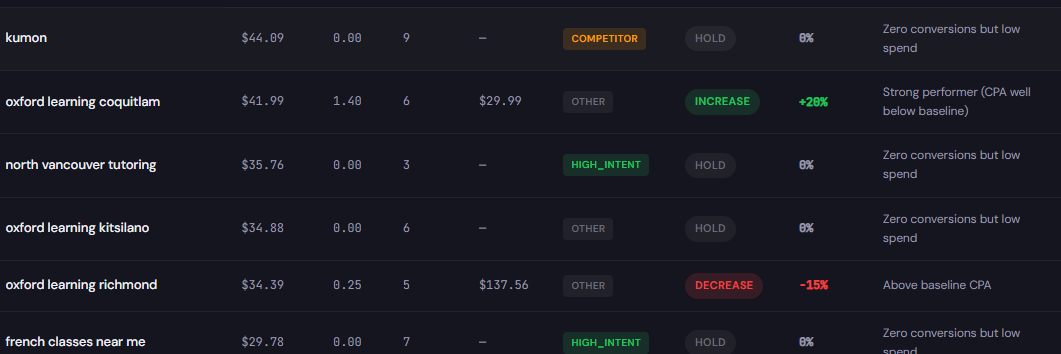
Outputs an exportable table with spend, conversions, tags, and recommended bid actions for each search term.
How to use it (3 steps)
- Upload your search-term report or connect your account on the Search Term Analyzer.
- Filter to zero- or low-converting terms and tag for negative or phrase match migration.
- Export the negative keywords and apply them at campaign level; move high-potential long-tail terms into new ad groups.
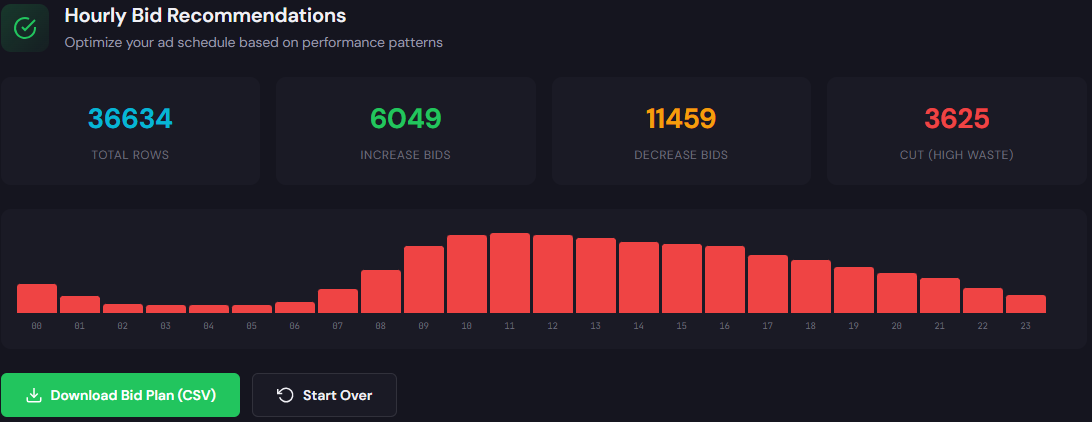
Generates hour-of-day rows with cost, conversions, CPA, and suggested bid adjustments to inform ad schedules and modifiers.
How to use it (3 steps)
- Upload your hourly performance CSV to the Hourly Bid Adjuster.
- Review hours where CPA exceeds target and accept suggested down-modifiers.
- Apply an ad schedule and monitor 7–14 days; iterate using fresh hourly data.
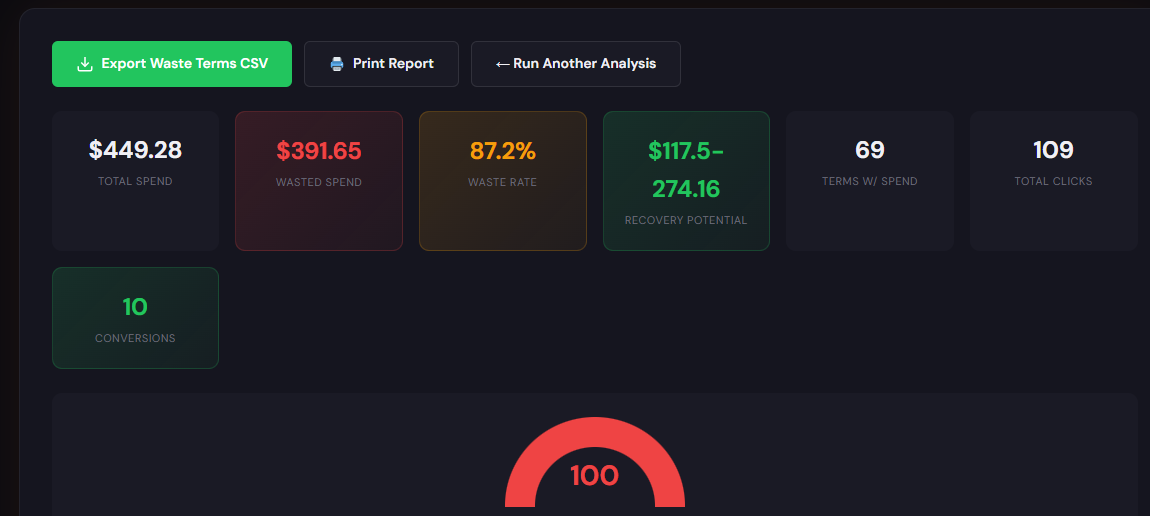
Provides a dashboard snapshot showing waste totals, top leakage areas, and a prioritized recovery plan with negative keyword and budget recommendations.
How to use it (3 steps)
- Run the Wastage Snapshot for a recent 30–90 day window.
- Implement the top 5 negative keyword recommendations and the highest-impact budget caps.
- Re-run the snapshot after 14 days to measure recovered spend and adjust the plan.
Delivers a Quality Score diagnostic and headline/landing-page recommendations to improve ad relevance and CTR.
How to use it (3 steps)
- Feed top keywords and corresponding landing pages into the Quality Score Optimizer.
- Review suggested headlines and landing page copy; pick 1–2 variants to test immediately.
- Deploy headline variants in ads and publish a dedicated landing page for the most important keyword group.

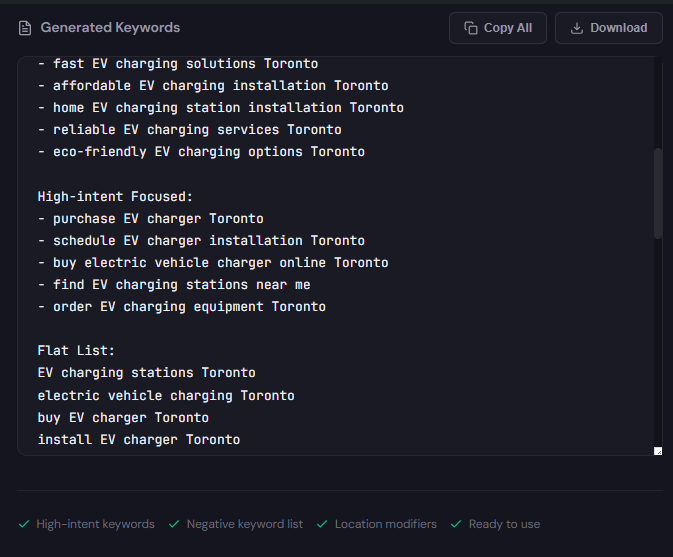
Generates organized keyword lists, negative suggestions, and export-ready campaign/ad group structures for fast imports.
How to use them (3 steps)
- Enter top intent signals into the AI Keyword Generator to get focused keyword buckets and negatives.
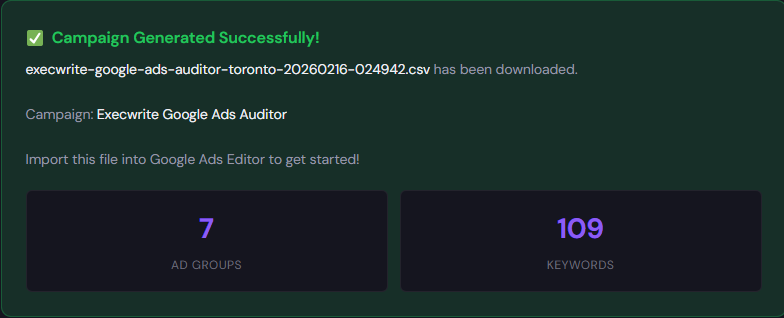
- Use the Campaign Generator to create an exportable Google Ads Editor CSV with ad groups and headlines.
- Import to Editor, review match types and bids, then push changes to live with your naming conventions.
Preview: Generated keyword buckets • Preview: Campaign export
90-minute account triage playbook (step-by-step)
A focused triage to recover key conversion volume in a single sprint.
- Minutes 0–15: Pull top-level KPIs (30 days vs prior period) and confirm the primary metric that matters (CPA, ROAS, or cost per lead).
- Minutes 15–35: Run the Wastage Snapshot to identify top leakage areas and export the top 25 wasted search terms.
- Minutes 35–55: Apply top negatives and a temporary 10–20% ad schedule reduction on flagged hours (use Hourly Bid Adjuster outputs).
- Minutes 55–75: Run Search Term Analyzer on remaining queries; extract high-potential long-tail terms and isolate them into a new ad group.
- Minutes 75–90: Quick Quality Score check on top 10 cost-driving keywords; deploy a headline/landing-page variant for immediate A/B testing.
- After 7 days: Re-run snapshots, measure reclaimed spend, and move from emergency fixes to structured rebuilds using Campaign Generator.
Run the snapshots, analyzers, and generators referenced above — fast. Execute the 90-minute playbook and lock in quick wins.
FAQ
Most accounts see measurable improvement in spend efficiency within 7–14 days after applying negatives, ad schedule changes, and the top Quality Score fixes.
Use automation recommendations as signals, not commands. Review recommended negatives and bid changes in the context of business rules before applying them account-wide.
Start with the Wastage Snapshot to set priorities, then run the Search Term Analyzer for negative keywords, and the Hourly Bid Adjuster for scheduling fixes.
Yes — the AI Keyword and Campaign Generators produce export-ready structures. Always validate match types, bids, and naming, and run small tests before full-scale pushes.
Leave a Reply