Table of Contents
- 1 Why is my Google Ads account wasting budget and how do I fix it?
- 2 Why PPC feels harder now
- 3 The 5 biggest PPC problems marketers face
- 3.1 Problem 1 — Wasted spend from low-intent search queries
- 3.2 Problem 2 — Wrong bids by hour and device (dayparting blind spots)
- 3.3 Problem 3 — Low Quality Score & landing page mismatch
- 3.4 Problem 4 — Campaign structure too broad (keyword cannibalization)
- 3.5 Problem 5 — Conversion tracking and attribution errors
- 4 Fixes you can apply this week
- 5 Tool-based workflow: map problems to the ExecWrite tools
- 6 90-minute account triage playbook
- 7 FAQ
- 8 Sources
Why is my Google Ads account wasting budget and how do I fix it?
Wasted spend shows up as high cost with low conversions. This guide gives a tactical account triage, weekly fixes, and a tools-first workflow. Try quick checks or run snapshots at ExecWrite to get data-backed recommendations in minutes.
- Most waste comes from mismatched keywords, poor negatives, and wrong bids by hour/device—fix with targeted audits.
- Use a snapshot + search-term analyzer to find top leakage and bid opportunities in under an hour.
- Follow the 90-minute triage to recover budget, then run the two ExecWrite tools weekly to prevent relapse.
Why PPC feels harder now
Automation, measurement gaps, rising CPCs and platform complexity compress margins. Marketers must be more surgical—fewer blanket bids and more surgical data-led fixes. The problem isn’t fewer tools; it’s that teams lack repeatable workflows that surface actionable waste quickly.
The 5 biggest PPC problems marketers face
Problem 1 — Wasted spend from low-intent search queries
- Symptoms: High impressions on broad queries, low CTR, conversions clustered in few queries.
Why it happens: Broad match, poor negatives, and unchecked search terms let low-intent traffic eat budget.
- Fix this week:
- Export top search terms by spend and conversion rate (last 30 days).
- Pause or add negative for queries with spend but zero conversions.
- Move profitable queries into dedicated exact/ad group structures.
Problem 2 — Wrong bids by hour and device (dayparting blind spots)
- Symptoms: CPA/ROAS swings by hour or device; you see peaks of spend with no conversions overnight.
Why it happens: Ad schedules and bid modifiers often get set and forgotten, or based on noisy aggregated data.
- Fix this week:
- Run an hour-of-day performance check for the last 90 days.
- Bump bids on hours with stable low CPA; reduce or exclude hours with persistently poor ROAS.
- Apply device bid adjustments when conversion rates diverge by device.
Problem 3 — Low Quality Score & landing page mismatch
- Symptoms: High CPCs, low impression share, good CTR but low conversion rate on landing pages.
Why it happens: Ads drive clicks but messaging or landing experience doesn’t match intent—Google penalizes relevance.
- Fix this week:
- Compare top ad headlines to landing page H1 and CTA—align messaging.
- Improve load speed and remove distracting navigation on paid landing pages.
- Test a headline variant that mirrors the highest-converting search queries.
Problem 4 — Campaign structure too broad (keyword cannibalization)
- Symptoms: Multiple ad groups competing for the same queries; unclear match-type strategy.
Why it happens: Rapid scaling without structure leads to overlap—Google’s auction chooses the cheapest winner, not the most efficient.
- Fix this week:
- Map top-performing queries into single ad groups with clear intent labels (brand, commercial, bottom-funnel).
- Convert high-converting broad queries to phrase/exact in dedicated ad groups.
- Use negatives to prevent internal competition.
Problem 5 — Conversion tracking and attribution errors
- Symptoms: Sudden drops in conversions after tag changes, or traffic that looks like conversions but has no backend receipt.
- Symptoms: Discrepancy between Google Ads and analytics/conversion sources.
Why it happens: Misconfigured tags, duplicate conversions, or broken server-side events create noisy signals that mislead bidding algorithms.
- Fix this week:
- Verify conversion actions in Google Ads and match them to backend events.
- Temporarily pause automated bidding if conversion accuracy is under 80%.
- Run a quick tag audit—look for duplicate tags or missing confirmations on thank-you pages.
Fixes you can apply this week
- Export search terms by spend → add negatives for zero-conversion high-spend queries.
- Run hour-of-day performance and apply >10% bid changes for underperforming hours.
- Align top ad headlines with landing page H1 and primary CTA.
- Isolate high-intent queries into exact-match ad groups and add negatives to parent campaigns.
- Audit conversion tags and pause automated bidding if conversion data is unreliable.
- Schedule a weekly snapshot to catch regression early.
Run a Wastage Snapshot to identify budget leaks, top negative keyword candidates, and an immediate recovery plan.
Tool-based workflow: map problems to the ExecWrite tools
Wastage Snapshot & Recovery — what it outputs
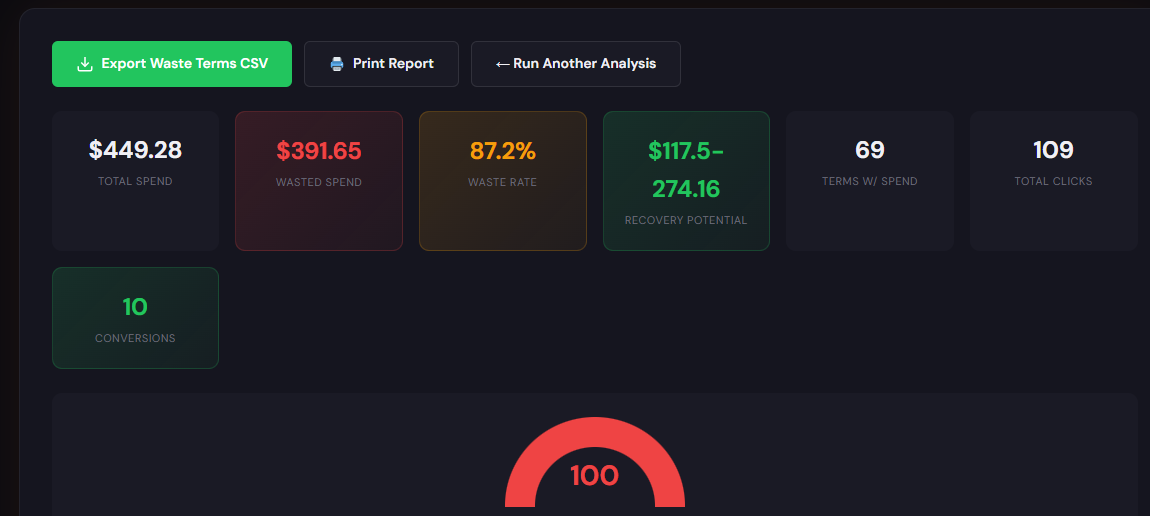
The Snapshot produces a dashboard-style audit that highlights total waste, the top leakage areas (search terms, low-converting campaigns, device/time issues), and a prioritized recovery plan.
How to use it (3 steps)
- 1. Upload account CSV or connect the platform via the guided flow on the tool page.
- 2. Review the top three leakage areas in the recovery summary (negatives, poor ad groups, bad hours).
- 3. Export the recovery checklist and actionable negatives to apply in Google Ads immediately.
Search Term Analyzer — what it outputs
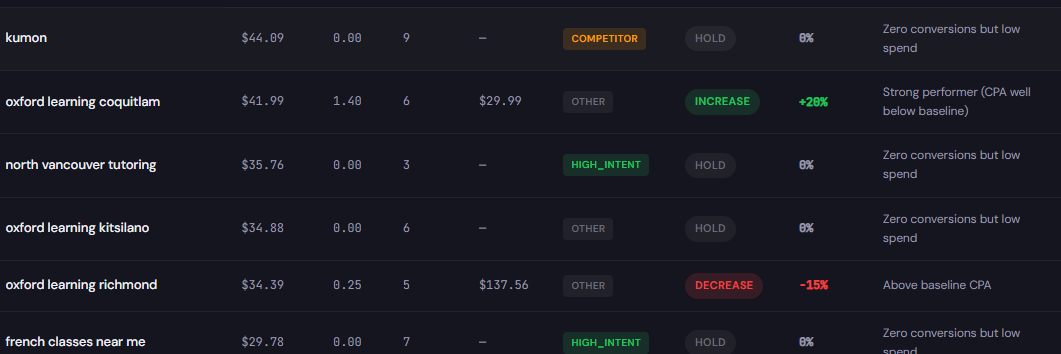
The Analyzer returns a table of search terms with spend, conversions, CPA, and recommended tag/actions (negative, move to exact, bid up/down).
How to use it (3 steps)
- 1. Paste your search term report or upload the CSV into the tool interface.
- 2. Filter by spend and conversion thresholds to surface the primary waste and opportunity buckets.
- 3. Export the recommended negatives and ad-group moves; apply them and monitor the next two weeks.
90-minute account triage playbook
- 0–10 minutes: Run a Wastage Snapshot to get a top-level leak summary.
- 10–30 minutes: Import the top 500 search terms into the Search Term Analyzer, tag negatives and move high-value queries into dedicated ad groups.
- 30–50 minutes: Hour-of-day check—reduce bids or exclude hours with negative ROI; apply device modifiers for immediate impact.
- 50–70 minutes: Check conversion actions and recent changes to tags; revert recent changes if conversions look unreliable.
- 70–90 minutes: Implement recovery items from the Snapshot export (negatives, ad-group restructuring). Document changes and set alerts for CPA/ROAS drift.
- After triage: Run the Snapshot again in 7–14 days to validate recovery and catch regressions.
Use ExecWrite to accelerate the 90-minute playbook: automated waste detection, exportable fixes, and a recovery checklist you can apply directly.
FAQ
Expect to see measurable CPC/CPA improvements within one to two weeks for bid and negative changes. Structural fixes (landing pages, campaigns) typically take 2–6 weeks to stabilize.
Not always. Pause automated bidding only if conversion tracking is clearly broken. Otherwise use conservative bid adjustments while you clean data and negatives.
Yes. ExecWrite accepts CSVs and report uploads for quick analysis; full account connections enable deeper snapshots but aren’t required for initial triage.
Use the metric tied to your business goal. For lead-gen prioritize CPA; for ecommerce prioritize ROAS. The Snapshot surfaces both so you can focus on the right lever.
Weekly for high-spend accounts, biweekly for medium, monthly for low-spend. Regular runs catch regression from automation or new keyword leakage early.
Leave a Reply