PPC performance is fragmenting: rising costs, automation opacity, and noisy search terms are squeezing returns. This article shows immediate fixes you can apply, a 90-minute triage playbook, and a tool-first workflow that uses ExecWrite to recover wasted spend and set smarter bids.
- Run a wastage snapshot to find budget leaks and priority negative keywords.
- Apply quick bid adjustments by search term and hour-of-day to stop paying for bad traffic.
- Use the small playbook (90 minutes) to lock down the account, then schedule weekly audits.
Table of Contents
- 1 Why PPC feels harder now
- 2 The 5 biggest PPC problems marketers face
- 2.1 1) Wasted spend from low-intent or irrelevant search terms
- 2.2 2) Poor bid timing (dayparting) and hourly CPA swings
- 2.3 3) Message mismatch: ads click but landing pages don’t convert
- 2.4 4) Fragmented account structure (too many keywords per ad group)
- 2.5 5) Slow negative keyword hygiene across campaigns
- 3 Fixes you can apply this week
- 4 Tool-based workflow: map problems to ExecWrite tools
- 5 90-minute account triage playbook
- 6 FAQ
- 7 Sources
Why PPC feels harder now
PPC has always required active maintenance, but three structural shifts make it feel harder: automation that hides decision logic, shifting search behavior, and rising noise from low-quality clicks. Automation and smart bidding can help, but they also introduce lag and opaque bid decisions that amplify waste when campaign structure or negative keywords are weak. To act fast, you need diagnostics you can trust and concrete bid & negative keyword actions you can apply immediately.
If you want fast diagnostics, ExecWrite has free and paid tools that analyze wasted spend and deliver prioritized actions — see https://execwrite.com for the tools mentioned below.
The 5 biggest PPC problems marketers face
1) Wasted spend from low-intent or irrelevant search terms
Symptoms
- High cost with zero conversions for long-tail terms.
- Spikes in clicks after query changes or broad match updates.
- Conversion rate drops while traffic volume remains steady.
Why it happens
Broad match and automated bidding can match to low-intent queries. Without frequent search-term audits and negative keyword hygiene, accounts pay for irrelevant traffic that skews machine learning.
Fix this week
- Export last 30–90 days of search terms and tag clear negatives.
- Pause the worst-performing, high-cost search terms immediately.
- Add negative keyword lists scoped by campaign/brand where needed.
2) Poor bid timing (dayparting) and hourly CPA swings
Symptoms
- Strong CPA during business hours, steeply worse at night or weekends.
- High spend during low-awake hours with few conversions.
- Automated strategies chasing noisy signals and inflating bids.
Why it happens
Default ad schedules and aggressive bidding ignore hour-level performance. Automated bidding averages performance across hours, which can amplify bad hours unless you apply hourly adjustments or granular ad scheduling.
Fix this week
- Analyze performance by hour-of-day and day-of-week for last 30 days.
- Lower bids or exclude hours with CPA 25–50% worse than baseline.
- Set conservative max CPCs for low-conversion hours while testing.
3) Message mismatch: ads click but landing pages don’t convert
Symptoms
- High CTR but low conversion rate or high bounce rate.
- Ad copy promises benefits not present on the landing page.
- Quality Score declines while impressions remain stable.
Why it happens
Automation and copy variants can drive clicks that aren’t matched to landing-page intent. When headlines, CTAs, and landing messages misalign, Quality Score and conversion rates suffer.
Fix this week
- Match top-performing ad headlines to landing page H1 and first paragraph.
- Run a headline/landing-page alignment check and temporarily pause poor-performing ads.
- A/B test one landing page change (headline/CTA) for a high-traffic ad group.
4) Fragmented account structure (too many keywords per ad group)
Symptoms
- Ad groups with dozens of unrelated keywords.
- Low ad relevance and keyword-level Quality Score variance.
- Slow or unstable automated bidding performance.
Why it happens
Rapid scaling, inexperienced managers, or template imports create bloated ad groups. Automation needs tight signal; poor structure dilutes it and reduces bid strategy effectiveness.
Fix this week
- Split top 10 worst ad groups into more focused groups with 5–10 keywords each.
- Create single-theme ad groups for high-value queries and exact-match clusters.
- Export a CSV for Google Ads Editor to push targeted restructures quickly.
5) Slow negative keyword hygiene across campaigns
Symptoms
- Recurring irrelevant queries reappear after short fixes.
- Negative lists applied inconsistently across similar campaigns.
- Brand vs non-brand leakage causing budget cannibalization.
Why it happens
Negatives are often added ad-hoc without owning lists, scopes, or notes. Without a repeatable negative keyword process, waste returns and teams duplicate work.
Fix this week
- Create named negative keyword lists for common leak types (competitors, jobs, irrelevant industries).
- Apply lists to all applicable campaigns and document who can edit them.
- Schedule a weekly 20-minute search-term review to capture new negatives.
Fixes you can apply this week
- Run a single-account wastage snapshot to find top 10 leak sources (search-term, campaigns, placements).
- Export search terms, tag negatives, and apply negative lists across campaigns.
- Identify 3 worst hours by CPA and apply hourly bid modifiers or remove them from your ad schedule.
- Split 2 largest, unfocused ad groups into themed groups and align ads to landing pages.
- Lock budgets for high-funnel campaigns while you stabilize bottom-funnel bidding.
Use a snapshot to find top leakage areas and negative keyword candidates in minutes.
Tool-based workflow: map problems to ExecWrite tools
Below are two tools you can run immediately. Each listing shows what the tool outputs and a 3-step use case. Preview images show sample outputs you’ll receive.
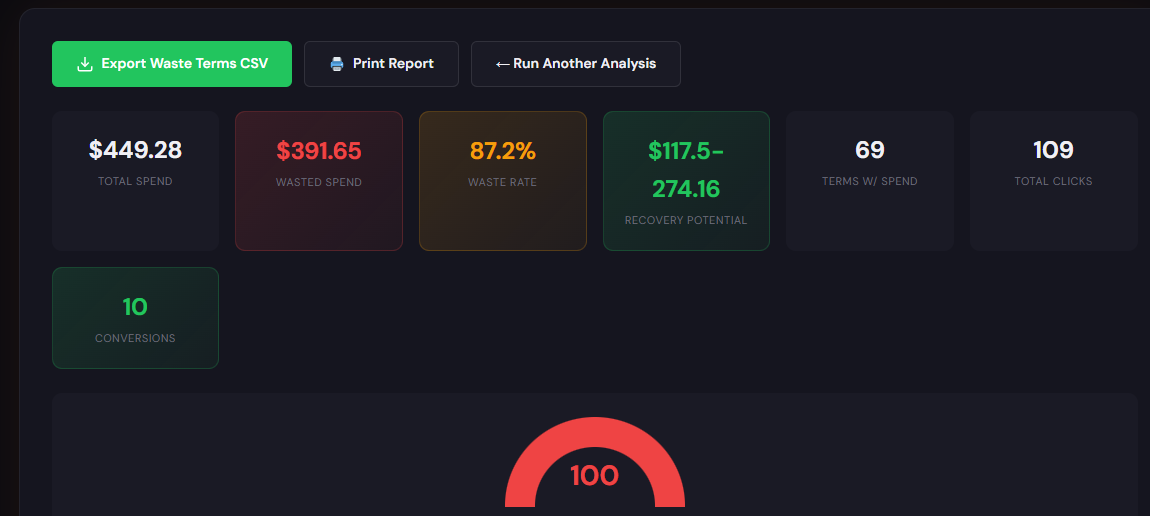
Tool: Wastage Snapshot & Recovery — Open tool
What it outputs: Account-level dashboard with waste totals, prioritized leakage areas, top negative keyword suggestions, and a recovery checklist.
How to use (3 steps)
- Upload account data or connect via the tool’s export template.
- Review the top 5 leakage areas and export the negative keyword list.
- Apply negatives and follow the recovery plan steps prioritized by ROI.
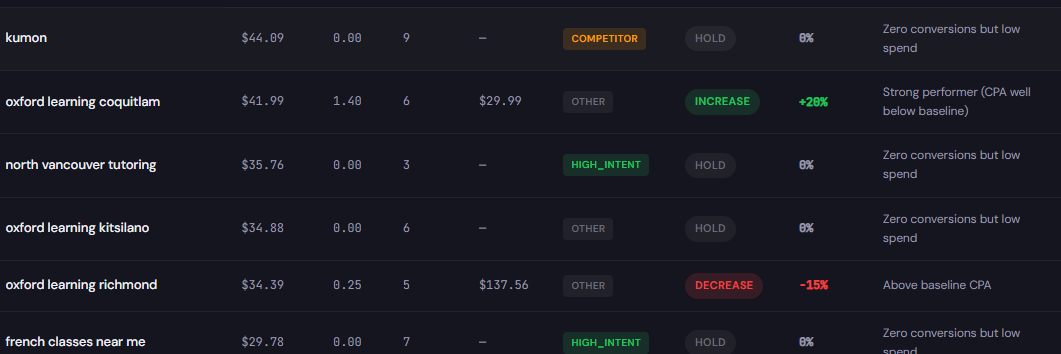
Tool: Search Term Analyzer — Open tool
What it outputs: A table of search terms with spend, conversions, suggested tag (negative/keep), and recommended bid actions per term.
How to use (3 steps)
- Upload your search-term CSV from Google Ads or paste the export.
- Scan the recommended tags and export the negative keyword list and bid recommendations.
- Push changes via Google Ads Editor (negatives + bid modifiers) and monitor the next 7 days.
90-minute account triage playbook
Follow these time-boxed steps to stop the worst waste and stabilize learning models.
- 0–10 min: Run the Wastage Snapshot to surface top leakage categories (search terms, placements, ad groups).
- 10–30 min: Download search-term CSV for the last 90 days and run the Search Term Analyzer to tag negatives and bid actions.
- 30–45 min: Apply top 25 negative terms and remove 1–2 worst-performing keywords/ad groups.
- 45–60 min: Review hour-of-day CPA; apply hourly bid reductions or remove low-conversion hours from schedule.
- 60–80 min: Split the two largest unfocused ad groups, align ads to landing pages, and pause underperformers.
- 80–90 min: Document changes, set a 7-day monitoring window, and schedule the weekly 20-minute search-term review.
FAQ
Expect immediate reduction in irrelevant clicks within 24–48 hours. Conversion rate improvements may take up to a week as bidding strategies re-stabilize.
No. Negative keywords are account-level controls. Machine learning will adapt to the new traffic pattern and should bid more effectively once noise is removed.
Yes. The tools focus on surfacing waste and bid suggestions. You can apply negatives and ad-schedule changes without switching your bidding strategy to see quick gains.
Yes. ExecWrite tools export standard CSVs and suggested changes that you deploy via Google Ads Editor or your deployment process — you control every change.
Run a fast account snapshot and get a prioritized recovery plan. Use the exported negatives and bid actions to take immediate control.
Leave a Reply