Most accounts leak spend across keywords, schedules, and landing pages. This post shows measurable fixes and a tool-based workflow using ExecWrite to reclaim budget fast — learn more at ExecWrite.
- Run a 90-minute triage and recover quick wins (negatives, hour bids, low-QS ad groups).
- Use the Wastage Snapshot to quantify leakage and the Search Term Analyzer to set bid actions.
- Apply a weekly checklist: negative keywords, ad-to-LP alignment, and hour-of-day bid adjustments.
Table of Contents
Why PPC feels harder now
Three forces make paid media feel like spinning plates: rising CPCs, stricter privacy-driven signal loss, and smarter but brittle automation. That combination magnifies small setup mistakes into large monthly waste. Instead of guessing, operators need fast diagnostics and repeatable fixes that uncover the real money leaks.
The 5 biggest PPC problems marketers face
1) Wasted spend from non-converting queries
Symptoms
- High spend on long-tail queries with zero conversions.
- Low CTR but steady impressions on many search terms.
- Rising CPA without clear conversion quality issues.
Why it happens
Broad match expansions and loose keyword match types surface low-intent queries. Without a fast search-term audit you’re bidding on noise.
Fix this week
- Export last 30–90 days of search terms by cost and conversions.
- Apply negatives for high-cost zero-conversion queries (cost threshold + minimum impressions).
- Move recurring low-intent queries into a negative keyword list tied to the campaign.
2) Poor ad-to-landing-page relevance (low Quality Score)
Symptoms
- Low CTR vs impression share competitors for similar keywords.
- Large gaps between ad messaging and landing page headlines.
- Declining conversion rate after a creative launch.
Why it happens
Teams iterate ads and landing pages separately; small message mismatches kill Quality Score and increase CPC.
Fix this week
- Group ad copy by landing-page theme; ensure top 3 headlines match main LP headline and CTA.
- Run a QS diagnostic on worst-performing ad groups and prioritize headlines.
- Test a single LP headline update for the largest ad group and measure CTR/CR over 7 days.
3) Time-of-day and dayparting inefficiencies
Symptoms
- CPA swings wildly by hour but bidding is uniform.
- Manual bid increases during ‘peak’ hours that don’t match actual conversion rate.
- Limited or no ad schedule applied.
Why it happens
Most teams set flat bids or rely on broad automation without hour-level granularity. Opportunities exist when conversion rates vary by time.
Fix this week
- Pull hour-of-day performance for the last 30 days and calculate hourly CPA/ROAS.
- Reduce bids for hours with consistently poor CPA; raise where ROAS is favorable.
- Apply ad schedule adjustments in small increments and monitor for 7–14 days.
4) Campaign structure drift and orphaned keywords
Symptoms
- Ad groups with >50 keywords or generic catch-all headlines.
- Untracked test keywords or auto-added keywords in broad campaigns.
- Mismatch between campaign goals and landing pages.
Why it happens
Over-time edits, experimentation, and broad match expansions create messy structures that hurt relevance and reporting clarity.
Fix this week
- Identify ad groups over keyword thresholds and split into focused groups.
- Move high-spend, low-relevance keywords into a paused test campaign for analysis.
- Document one expected landing page per ad group and align ads accordingly.
5) Automation consuming budget on low-value conversions
Symptoms
- Smart bidding driven by a conversion event that isn’t tied to revenue.
- Sudden spend increases after automation changes.
- High CPA on lead forms that don’t convert downstream.
Why it happens
Automation optimizes for the signal you give it. If that signal is low-value or noisy, bids get miscalibrated and waste grows.
Fix this week
- Audit conversion events and remove low-quality triggers from automated bidding.
- Switch to manual or portfolio automated strategies on priority campaigns while you clean signals.
- Implement a conversion-value model or import revenue where possible.
Fixes you can apply this week
- Export search terms (30–90 days). Tag top waste and add negatives.
- Run a Quality Score headline-to-LP alignment check and update headlines for worst ad groups.
- Pull hour-of-day CPA/ROAS and set +/- adjustments by 10–20% where patterns are consistent.
- Segment ad groups with >30 keywords and assign single landing pages.
- Pause automation on noisy conversion signals; prioritize campaigns for manual control during clean-up.
Run a quick recovery snapshot to see top leakage areas and get a prioritized recovery plan.
Tool-based workflow — map problems to ExecWrite tools
Below are two focused ExecWrite tools that map directly to the pain points above. Each tool section shows what the tool outputs and a compact 3-step use workflow. Preview images are included left-aligned.
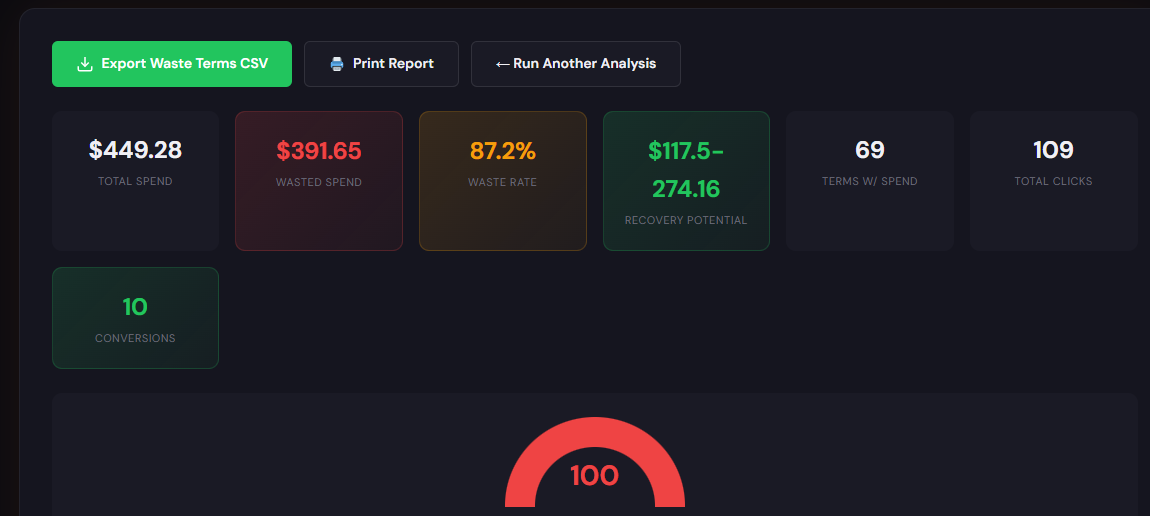
What it outputs: A dashboard-style snapshot that quantifies wasted spend, ranks leakage areas (search terms, campaigns, placements), and produces a short recovery plan you can act on immediately.
How to use it — 3 steps
- Upload cost/conversion data or connect account snapshot and run the recovery scan.
- Review the top 5 leakage categories the tool surfaces (negatives, low-QS, schedule waste).
- Export the recovery plan and implement the highest-impact items (negatives & budget shifts) in the next 90 minutes.
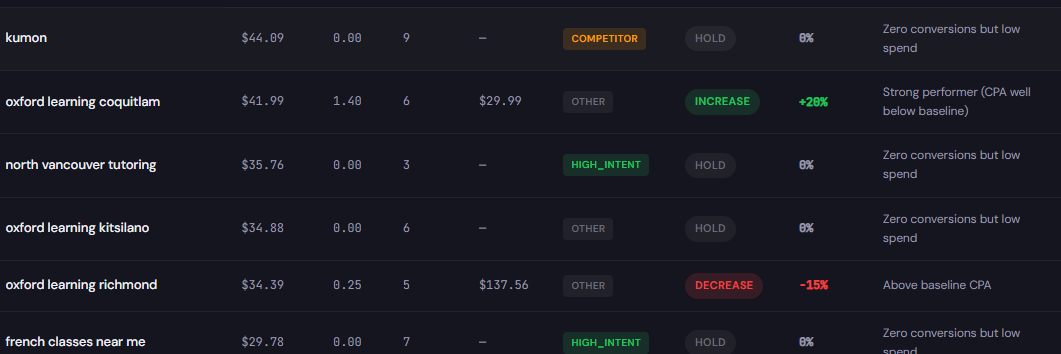
What it outputs: A table with spend, conversions, CPA/ROAS by search term plus recommended bid actions and tags for negatives or bid-adjustment candidates.
How to use it — 3 steps
- Feed in search-term-level data (30–90 days) and run the analyzer.
- Tag rows as negative, bid-down, bid-up, or monitor; apply batch negative lists for repeated waste.
- Export the bid-adjustment CSV or apply recommendations to campaigns and re-check after 7 days.
90-minute account triage playbook
- 0–15 min — Pull data: Search-term report, hourly performance, top campaigns by spend/conversions, conversion events list.
- 15–35 min — Run Wastage Snapshot to get a prioritized leak list (negatives, campaigns, ad groups).
- 35–55 min — Export top zero-conversion search terms and apply negative keywords for immediate stops.
- 55–70 min — Use Search Term Analyzer to create bid action tags and a small bid-adjustment CSV focused on high-spend terms.
- 70–85 min — Pause or adjust campaigns with noisy conversion signals; align top ad groups to matching LP headlines.
- 85–90 min — Document actions, assign owners for 7-day validation, and set a follow-up check at day 7 for CPA/ROAS impact.
FAQ
Short answer: audit first.
Run the Wastage Snapshot and Search Term Analyzer to identify whether automation is optimizing for low-value conversions. If automation is clearly amplifying waste, pause or reduce budgets on affected campaigns while you fix signals.
Often immediate.
High-cost zero-conversion search terms can cut spend within 24 hours once the negative list is applied. The largest wins are often a small set of terms driving disproportionate cost.
Yes — export-friendly formats.
Both the Search Term Analyzer and the Wastage Snapshot export CSVs that you can push via Google Ads Editor or apply through scripts for batch changes.
Fix tracking early in the triage.
If conversions are noisy, prioritize fixing tracking (server-side where needed) and use revenue-import or offline conversion uploads before trusting automation.
Run a Wastage Snapshot and apply a prioritized recovery plan in under 90 minutes.
Leave a Reply