If your paid media feels expensive and unpredictable, this article gives an operator-level playbook to find leaks, fix the 5 biggest problems, and recover wasted spend. You can run the checks manually or accelerate the triage with tools from ExecWrite.
- Start with a 90-minute triage: diagnose waste, dayparting swings, and landing page mismatches.
- Fix low-hanging optimizations this week: negatives, bids by hour, ad-to-page alignment.
- Use two ExecWrite tools to accelerate audits: the Wastage Snapshot and the Free AI Keyword Generator for rapid cleanup and expansion.
Table of Contents
Why PPC feels harder now
Two structural shifts have made account management more brutal: bidding automation hides micro-leaks, and auction dynamics plus rising CPCs magnify waste. At the same time, ad inventory and audience expectations have advanced — so tactical fixes that worked in 2018 won’t move the needle today.
Sources on automation behavior and industry benchmarks are cited at the end.
The 5 biggest PPC problems marketers face
1. Invisible wasted spend
- Symptoms: high daily spend with flat or declining conversions; many clicks with zero conversions; inefficient CPA despite conversion volume.
Why it happens: Automation and broad match expansion can drive spend into low-intent queries and placements. Without regular leak audits, waste compounds.
- Fix this week: run a search-term audit, add top wasted queries as negatives, pause low-contributing placements.
2. Poor ad-to-landing page relevance
- Symptoms: high impressions and CTR but low conversion rate; Quality Score pressure; high bounce rates from paid visitors.
Why it happens: Rapid campaign builds or copy changes create messaging mismatch between ad headlines and landing pages, hurting conversions and Quality Score.
- Fix this week: align top 1–2 headlines on landing pages with your top ad headlines; test a single landing page variant per ad group.
3. Bad bid timing (dayparting losses)
- Symptoms: huge CPA swings by hour/day; conversions cluster in narrow windows but budget is spread evenly.
Why it happens: Default ad schedules and automated bidding often fail to capitalize on predictable time-based performance patterns.
- Fix this week: analyze hour-of-day and day-of-week CPA, apply manual bid multipliers to profitable windows.
4. Keyword/structure bloat
- Symptoms: sprawling ad groups, mixed intent keywords in the same group, poor ad relevance.
Why it happens: Rapid scaling and stop-gap keyword additions create noisy groups that reduce CTR and Quality Score.
- Fix this week: group by single intent, remove unrelated keywords, use the AI keyword generator for structured expansions.
5. Measurement and conversion tagging gaps
- Symptoms: clicks look fine in the UI but conversions are missing or double-counted; mismatch between analytics and Ads data.
Why it happens: Tagging failures, duplicate tags, or event mismatch break the data that bidding learns from.
- Fix this week: validate conversion actions, check tag firing with a debugger, and reconcile last-click vs. data-driven columns for a 7-day window.
Fixes you can apply this week
- Run a search-term report and add the top 20 wasted queries as negative keywords.
- Export hour-of-day performance and apply ad schedule multipliers for top 3 performing hours.
- Fix the top ad-to-page headline mismatch on your highest-spend ad group.
- Consolidate or split ad groups so each has a single buyer intent and 3–4 tightly themed keywords.
- Confirm conversion tag firing across desktop and mobile, then pause campaigns with clearly broken conversions.
Run a quick wastage audit to find spend leakage, negative keyword opportunities, and a prioritized recovery plan.
Tool-based workflow (map each pain point to ExecWrite tools)
We spotlight two tools that solve the most common operator problems: the Wastage Snapshot for rapid waste diagnosis and the Free AI Keyword Generator for clean, intent-aligned keyword structures.
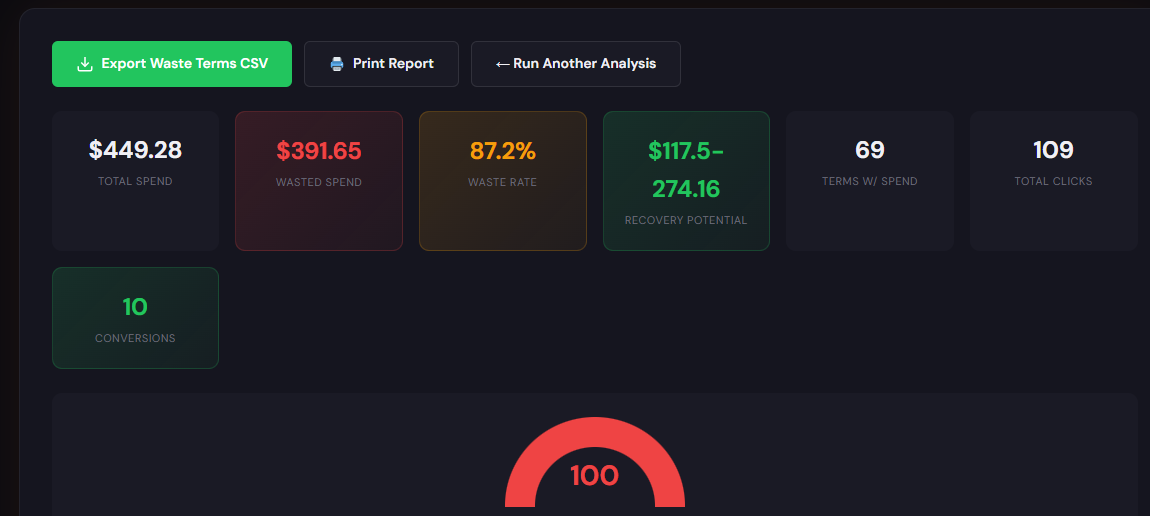
What it outputs: a dashboard-style snapshot that highlights total wasted spend, top leakage areas (search terms, placements, devices), and a prioritized recovery checklist.
How to use it in 3 steps:
- Step 1 — Upload a recent 30/90-day Ads export to the Wastage Snapshot to generate the waste summary.
- Step 2 — Apply the suggested negative keyword and placement actions (the tool gives a downloadable CSV of changes you can import).
- Step 3 — Follow the recovery checklist: pause bad spend, reallocate budget to top-performing hours, and schedule a repeat snapshot in 14 days.
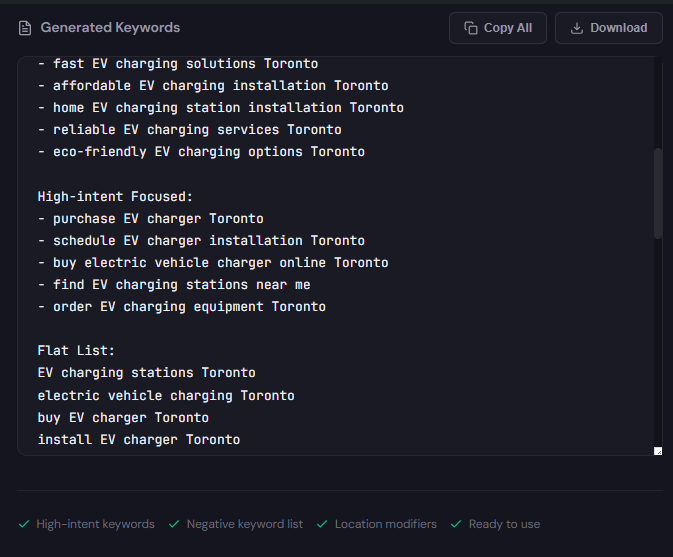
What it outputs: structured keyword lists by intent (high intent, mid funnel, negatives) and ad group suggestions you can export to CSV.
How to use it in 3 steps:
- Step 1 — Enter your seed terms and top landing page URLs to generate intent-segmented keywords.
- Step 2 — Review and accept confined lists for high-intent ad groups; export the CSV for Google Ads Editor.
- Step 3 — Import, assign landing pages per ad group, and run a 14-day monitor for performance changes.
90-minute account triage playbook
- 0–10 min — Snapshot prep: download 30/90-day Ads performance data, conversions, search terms, and hourly reports.
- 10–30 min — Wastage scan: run the Wastage Snapshot (or manually sort search terms by spend <–> conversions). Flag top 10 wasted queries and top 5 low-performing placements.
- 30–45 min — Quick structural fixes: implement negatives, pause worst placements, and consolidate obvious keyword bloat into single-intent groups.
- 45–60 min — Dayparting and bids: export hourly performance, apply manual ad schedule multipliers to top hours, lower bids in the worst hours by 20–30%.
- 60–80 min — Messaging & landing page: pick the highest-spend ad group, align the headline and CTA on the landing page to match the ad, and push a single A/B test variant.
- 80–90 min — Tag & monitoring: validate conversion tags, set a 14-day watch with alerts on CPA and spending spikes, schedule a repeat wastage snapshot.
Run a prioritized recovery plan and export-ready fixes you can apply in Google Ads Editor today.
FAQ
Adding high-impact negatives can reduce wasted clicks in days. Expect measurable drops in low-intent clicks within 48–72 hours after negatives are applied and propagated.
Yes — overly aggressive dayparting can limit volume. Use historical hourly data to apply conservative multipliers (e.g., +10–30% for good hours, −10–30% for bad hours) and monitor for two weeks.
Partially. Smart bidding optimizes toward the signals you feed it. If conversions are noisy or you have tag issues, automation magnifies those problems. Clean data, then enable automation.
Use the generator to create tight, intent-based ad groups. Export CSV directly to Google Ads Editor and attach the most relevant landing page per group before enabling broad match or automated bidding.
The tool highlights likely negatives based on spend-to-conversion ratios and intent signals. Treat them as prioritized suggestions and review before bulk applying.
Sources
- WordStream: Google Ads Benchmarks — industry averages for CTR, CPC, and conversion that illustrate why small inefficiencies scale into large waste.
- Google Ads Help: About automated bidding — how machine learning uses conversion signals and why clean data matters.
- Search Engine Land: How to Find and Fix Google Ads Waste — practical steps for waste audits and negative keyword hygiene.
For a faster audit and export-ready fixes, run the Wastage Snapshot and try the Free AI Keyword Generator at ExecWrite.
Leave a Reply