If your Google Ads account feels slower, more expensive, or harder to scale, this post gives a focused, operator-level triage. Follow the checklist and use ExecWrite tools for fast, measurable fixes — start at ExecWrite.
- Most performance drops come from wasted spend, bid timing mismatches, and keyword noise — not mysterious algorithm changes.
- Do a 90-minute triage: waste snapshot, search-term cleanup, and hourly bid adjustments to recover immediate margin.
- Use ExecWrite’s Wastage Snapshot & Recovery and Search Term Analyzer to generate prioritized actions and exports you can apply in Google Ads within an hour.
Table of Contents
Why PPC feels harder now
Advertisers face three structural shifts that raise the baseline difficulty of running profitable campaigns: more automation, less deterministic user data, and rising competition. Automation changes where you spend effort (strategy and inputs, not hourly bid fiddling). Privacy/attribution limits reduce direct signal for bidding and keyword judgment. And competition inflates CPCs, making waste and inefficient structure costlier.
The 5 biggest PPC problems marketers face
1) Wasted spend and low-quality clicks
Symptoms
- High cost with few or no conversions in a large portion of campaigns.
- Large spend on low-intent or irrelevant search terms.
- Conversions concentrated in a tiny subset of terms or audiences.
Why it happens
Accounts accumulate waste when negative keywords aren’t maintained, automatic matching pulls in poor intent, and budgets are left unchecked on underperforming segments.
Fix this week
- Run a waste snapshot to quantify top leakage areas by spend and non-converting queries.
- Export top 1,000 search terms by spend and mark immediate negatives.
- Pause or cap budgets on high-spend, zero-conversion campaigns while you clean keywords.
2) Search-term mismatch and ad relevance gaps
Symptoms
- Low CTR and low Quality Score on keywords with otherwise solid intent.
- Landing page bounce after clicks that should convert.
- Ads and landing pages use different messaging than search queries.
Why it happens
Broad match and loosely-structured ad groups let irrelevant queries trigger ads. Without tight copy and landing-page alignment, Quality Score and conversion rates drop.
Fix this week
- Segment by match type and ad-group relevance; move bad queries into dedicated ad groups or negatives.
- Align headlines and landing page headlines to top-performing queries.
- Add at least 5 high-intent exact-match keywords per top-converting landing page.
3) Hour-of-day (dayparting) inefficiencies
Symptoms
- CPA/ROAS swings wildly by hour or day.
- Flat bid strategies overspend during low-converting hours.
- Time-based promotions or staffing misaligned with traffic peaks.
Why it happens
Standard automated bidding averages performance across hours. When conversions concentrate in specific windows, you either lose conversions by underbidding or waste by overbidding.
Fix this week
- Analyze performance by hour and set conservative bid multipliers for low-performing hours.
- Schedule ad creatives and sitelink messaging to match peak hours.
- Exclude or lower bids for hours with negative margin impact.
4) Ramp-ups that leak budget
Symptoms
- Doubling budget produces worse CPA, not more profit.
- New campaigns pick up low-quality traffic as they learn.
- Shared budgets unintentionally subsidize low-performing ad groups.
Why it happens
Learning phases and aggressive budget increases let algorithms explore, often pulling in marginal traffic. Without guardrails, spend spreads to weak segments.
Fix this week
- Increase budgets incrementally (10–20%) and monitor top 10 keywords for quality shift.
- Use campaign-level exclusions and tight ad-group structure during ramp.
- Keep a holdback budget for proven winners only.
5) Measurement and attribution blind spots
Symptoms
- Observed conversion count drops after platform updates.
- Conversion value no longer maps predictably to spend.
- Confused bid automation signals.
Why it happens
Privacy changes, cookie depreciation, and server-side measurement policies cause partial data. Automated bidding models use aggregated/modeled conversions which can lag or smooth signals.
Fix this week
- Confirm conversion imports and model settings; add supplemental micro-conversions where possible.
- Compare modeled vs. raw conversion trends to understand variance.
- Use conservative bid caps while measurement gaps persist.
Fixes you can apply this week
- Run a quick wastage audit to find top leakage by spend and non-converting queries.
- Export top search terms and apply negatives for irrelevant traffic immediately.
- Adjust ad schedule bids using hourly performance data — lower bids in losing hours, raise in high-ROAS windows.
- Limit budget increases to 10–20% and monitor the top 20 keywords for quality changes.
- Align 1–2 landing page headlines with your top 5 queries to lift Quality Score and conversion rate.
Run a waste snapshot and a search-term analyzer to generate prioritized negatives, bid actions, and CSV exports you can apply in Google Ads today.
Tool-based workflow
Below are two tools that map directly to the five problems above. Each listing shows what the tool outputs and how to use it in three clear steps.
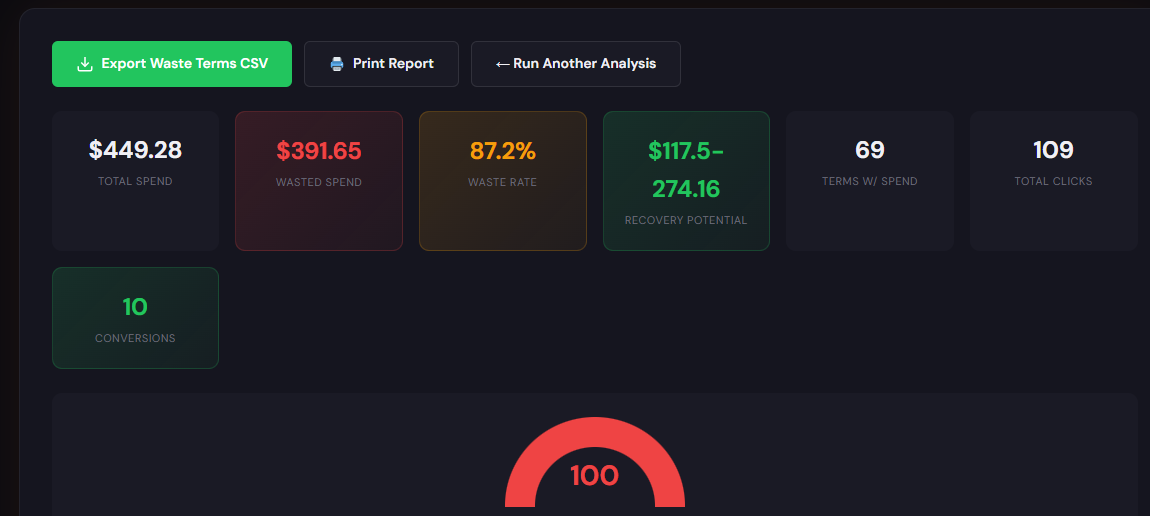
What it outputs
- Dashboard-style waste totals by campaign and query buckets.
- Top leakage areas with recommended recovery actions.
- CSV of terms and suggested negatives, plus a recovery plan summary.
How to use it (3 steps)
- Upload or connect your account snapshot — generate the waste snapshot to identify top spend with zero/low conversions.
- Review the recovery plan and accept suggested negative keywords and campaign-level actions.
- Export CSV to Google Ads Editor or apply changes directly to pause or cap budgets on leaking campaigns.
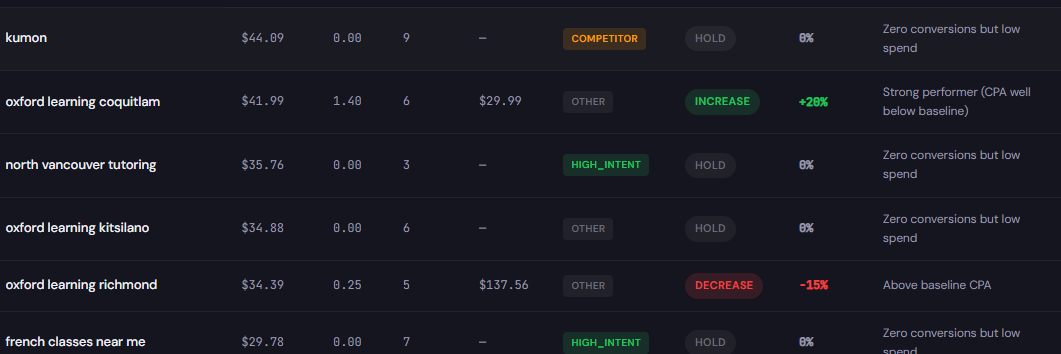
What it outputs
- Per-term performance table with spend, conversions, CPA/ROAS, and recommended bid actions (up/down/negative).
- Tagging for quick grouping (brand, competitor, low-intent, high-intent).
- Export-ready CSV for Google Ads Editor or scripts.
How to use it (3 steps)
- Import your search-term report and filter by recent high-spend windows.
- Tag and accept recommendations: mark negatives, reduce bids for low-converting terms, and identify high-intent keywords to promote to exact match.
- Export and push changes to Google Ads Editor or upload via the platform.
90-minute account triage playbook
Execute this playbook with a laptop and access to Google Ads + ExecWrite tools.
- 0–15 minutes — Snapshot: Run Wastage Snapshot & Recovery. Identify top 10 leakage campaigns by spend and zero/low conversions.
- 15–35 minutes — Search-term export: Pull top 1,000 search terms by spend, import into Search Term Analyzer, flag immediate negatives and low-intent tags.
- 35–55 minutes — Quick fixes: Apply negative keywords and pause or cap budgets on worst leak campaigns. Export CSV for Google Ads Editor.
- 55–75 minutes — Dayparting: Use Hourly Bid Adjuster output (within the bid toolset) to mark hours to reduce bids by 20–40% and boost peak hours by 10–25%.
- 75–90 minutes — Validation and monitoring: Push changes, set a 48-hour monitoring window, and schedule a follow-up to check top 20 keywords and CPA changes.
FAQ
Most accounts see CTR and Quality Score improvements within a few days. Conversion uplift depends on traffic volatility and how much waste you remove; expect clearer signal in 48–72 hours.
Automated bidding can adapt; use conservative adjustments and monitor. Where automation is in use, apply small multipliers and let models re-learn over a week. If instability continues, consider temporary bidding restrictions during triage.
Modeled conversions are usable, but treat them as smoothed signals. Add micro-conversions (form starts, key page visits) to increase signal volume and compare modeled vs. raw trends before making aggressive bid moves.
Start with Wastage Snapshot & Recovery to quantify loss, then run Search Term Analyzer to clean terms and generate bid actions. Both produce CSVs you can apply immediately.
Run a targeted snapshot and automated search-term cleanup. Export recommendations in minutes and apply them with Google Ads Editor.
Leave a Reply