Category: Google Ads

Expert Google Ads optimization guides, troubleshooting tips, and PPC strategies to reduce wasted spend and improve ROAS.

  • Why is my Google Ads performance slipping? Practical PPC fixes

    PPC Google Ads Marketing Ops

    If your account has rising CPA, falling conversion rates, or spotty ROAS, this post gives a battle-tested triage path, quick fixes you can implement this week, and two ExecWrite tools to automate the heavy lifting. For hands-on remediation try ExecWrite’s tools at ExecWrite.

    TL;DR — what to do first
    • Run a wastage snapshot to find budget leaks and low-intent traffic.
    • Audit high-spend search terms and apply bid adjustments or negatives.
    • Fix ad-to-landing-page relevance and dayparting within a single 90-minute triage.

    Why PPC feels harder now

    Markets, tracking, and automation have added layers of variance: less deterministic data, more signal noise, and automated bidding that amplifies unfiltered inputs. That combination makes small structural problems—poor asset relevance, wasted keywords, or wrong dayparting—scale into larger performance degradation.

    The 5 biggest PPC problems marketers face

    1. Invisible wasted spend

    Symptoms

    • High impression/click volume with near-zero conversions in specific campaigns.
    • Budget burned early in the day without ROAS to justify it.
    • Reports look OK at account level but performance deteriorates by campaign or keyword.

    Why it happens

    Accounts accumulate low-quality queries and mismatched audiences. Automated bidding optimizes what it sees; if the inputs include junk traffic, the system spends on it until you intervene.

    Fix this week

    • Generate a wastage snapshot to identify top leakage areas.
    • Pause or reduce budget on mid-funnel display and broad-match campaigns until cleaned.
    • Add high-confidence negatives from recent search-term data.

    2. Poor search-term hygiene

    Symptoms

    • Irrelevant or low-intent queries driving clicks and spend.
    • Multiple unrelated queries grouped under one phrase match or broad match.
    • Negative keyword lists haven’t been updated in months.

    Why it happens

    Search-term reports are noisy and time-consuming; teams deprioritize cleanup and rely on broad-match coverage, which magnifies waste over time.

    Fix this week

    • Export last 90 days of search terms and tag by intent: high, research, irrelevant.
    • Apply negatives for clear negatives and move high-intent terms into exact/ad-group appropriate bids.
    • Set rules to auto-tag new low-intent terms for weekly review.

    3. Quality Score leaks (ad/landing mismatch)

    Symptoms

    • High clicks but falling conversion rate after a rewrite or site change.
    • Low ad relevance and expected CTR components in Quality Score diagnostics.
    • Discrepancy between ad promises and landing page messaging.

    Why it happens

    Landing pages and ads drift apart—new creative or CMS updates break tight ad-to-page messaging. Google penalizes relevance which raises CPCs and reduces visibility.

    Fix this week

    • Run a focused QS audit on top-spend keywords; identify headline/landing gaps.
    • Align headlines and CTAs on landing pages to the ad copy in the top ad groups.
    • Set an experiment with a landing page version targeted to top keywords.

    4. Time-of-day swings (bad dayparting)

    Symptoms

    • Huge CPA variance by hour or day.
    • Campaigns spend during low-conversion hours because schedules are too broad.
    • No measurement of hour-level ROAS or CPA trends.

    Why it happens

    Default ad schedules and automated bidding assume uniform intent; they don’t account for business-specific hour-by-hour demand patterns.

    Fix this week

    • Pull hour-of-day performance for last 90 days and identify profitable windows.
    • Create ad schedule adjustments: bid up during profitable hours, down during loss-making hours.
    • Test a conservative dayparting policy on a single campaign before scaling.

    5. Over-automated campaigns with bad inputs

    Symptoms

    • Automated bidding amplifies sudden drops in conversion rates.
    • Smart campaigns spend more after site changes or tracking issues.
    • Low transparency into what signals the algorithm used.

    Why it happens

    Automation is strong when inputs are clean. If conversion tracking, audience signals, or creatives are broken, automation optimizes the wrong goal.

    Fix this week

    • Pause or switch to manual CPC on problem campaigns until tracking is validated.
    • Verify conversion tags, audience definitions, and recent site changes.
    • Use short experiments to confirm signal fixes before re-enabling automated bidding.

    Fixes you can apply this week

    • Run a quick wastage audit and prioritize the top 3 leak areas by daily spend impact.
    • Extract recent search-term data, tag for intent, and add negatives for clear mismatches.
    • Compare top ad headlines with landing-page H1s; make the copy consistent.
    • Pull hour-of-day CPA/ROAS and apply conservative bid adjustments for worst hours.
    • Pause automated strategies on campaigns with tracking or creative instability.
    Automate the diagnostics — run a snapshot now

    Use a wastage snapshot to find and quantify leaks in minutes. It surfaces top negative keyword candidates, wasted budgets, and recovery steps.

    Run a snapshot at ExecWrite

    Tool-based workflow — map pain points to ExecWrite tools

    Tool: Wastage Snapshot & Recovery
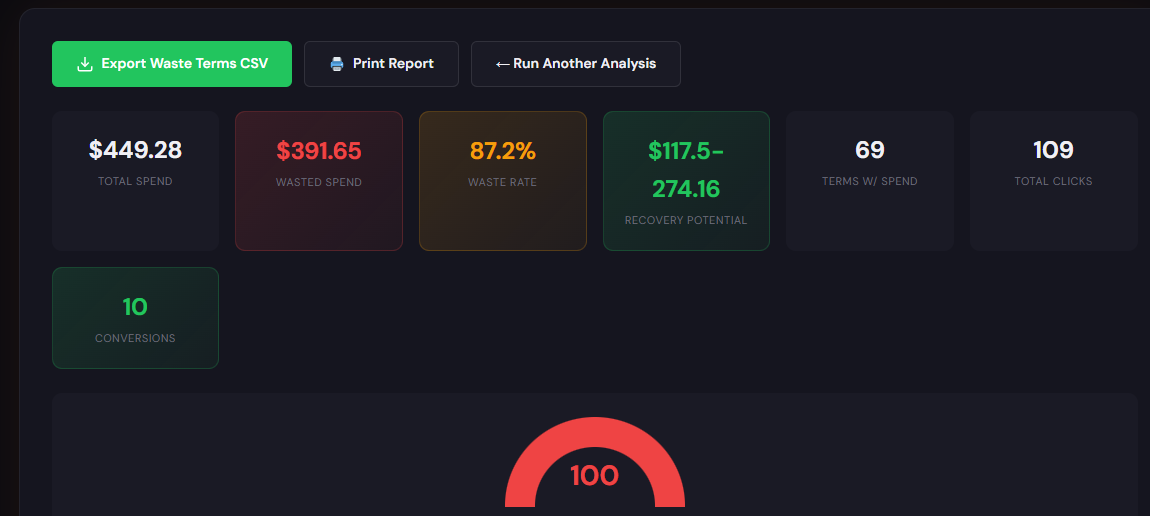
    Dashboard-style snapshot showing waste totals, top leakage areas, and a recovery plan summary

    What it outputs: A dashboard summary of wasted spend, top leakage sources, negative keyword suggestions, and a staged recovery plan.

    How to use it — 3 steps

    • Upload your account export or connect via the tool to generate the snapshot.
    • Review the top 5 leakage areas the snapshot lists (by spend and low-intent clicks).
    • Apply the suggested negatives and budget pauses; export the recovery checklist for your team.

    Open Wastage Snapshot & Recovery


    Tool: Bid Adjustment by Search Term (Search Term Analyzer)
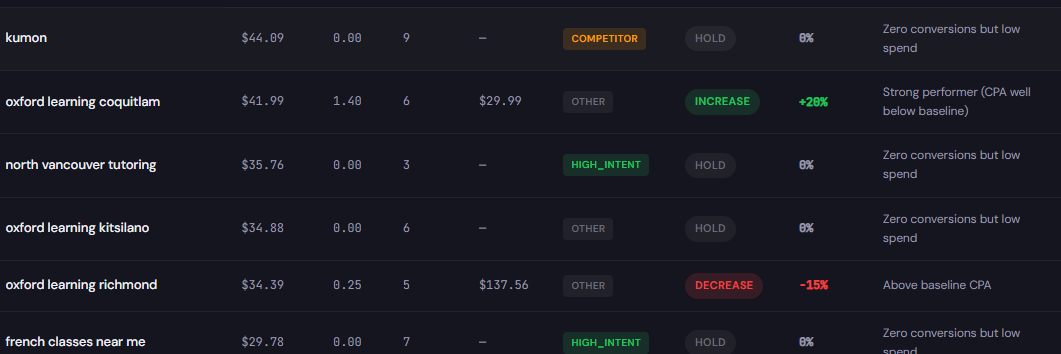
    Search term analyzer output table showing spend, conversions, tags, and recommended bid actions

    What it outputs: A tagged search-term table with spend, conversion metrics, intent labels, and recommended bid or negative actions.

    How to use it — 3 steps

    • Feed your recent search-term export into the analyzer.
    • Use the intent tags to move high-intent terms into tighter match types and apply negatives for low-intent queries.
    • Export bid-adjustment recommendations and implement via Google Ads Editor or scripts.

    Open Search Term Analyzer

    90-minute account triage playbook

    1. Minutes 0–10: Snapshot. Run the Wastage Snapshot to get an immediate prioritized list of leak areas.
    2. Minutes 10–30: Search-term triage. Load top 5 campaigns into the Search Term Analyzer; tag and apply top negatives.
    3. Minutes 30–50: Dayparting check. Pull hour-of-day CPA/ROAS and apply conservative ad schedule changes to stop loss-making hours.
    4. Minutes 50–70: Quality quick-fix. Match headlines to landing-page H1s for 3 top ad groups; set an experiment if possible.
    5. Minutes 70–90: Stabilize. Pause automated bidding on broken campaigns, save exports for the team, and assign follow-ups (detailed negative list, landing page rewrites, and schedule tests).
    Start the 90-minute triage with ExecWrite

    Run the wastage snapshot and search-term analyzer back-to-back to convert the triage steps into action items your team can deploy immediately.

    Launch tools at ExecWrite

    FAQ

    How fast will I see improvements?

    Some fixes—negatives, pausing bad campaigns, and dayparting—can reduce wasted spend within 24–72 hours. Quality-score and landing experiments typically take 2–4 weeks to show stable impact.

    Do I need to connect my account to use these tools?

    No. You can upload CSV exports for diagnostics or connect directly for a live snapshot. Exports are sufficient for immediate triage.

    Will automation undo manual fixes?

    Automation will adjust given signals. After manual fixes, monitor automated campaigns closely and re-enable gradual bid automation only after you validate conversion tracking and creative stability.

    Which tool should I start with?

    Start with the Wastage Snapshot to quantify the problem at account-level, then use the Search Term Analyzer to clean the biggest sources of waste.
    Sources

  • Why is my Google Ads account underperforming? Practical PPC fixes that recover wasted spend

    PPC Google Ads Marketing Ops

    If your account feels expensive and unpredictable, you need a compact, operator-first triage and toolbox. Use this guide with quick checklists and ExecWrite tools to stop wasted spend and restore performance fast — try the tools at ExecWrite as you work through the steps.

    TL;DR
    • Most underperformance comes from waste (misaligned keywords, poor bidding, or bad landing-page relevance) — find and freeze leaks fast.
    • Run a 90-minute account triage, prioritize fixes by ROI, and apply quick bid/keyword/landing fixes this week.
    • Use the Wastage Snapshot and Search Term Analyzer to identify leaks and actionable bid adjustments in minutes.

    Why PPC feels harder now

    Three structural shifts make managing Google Ads more painful: automation hides signals, auction dynamics compress margins, and privacy changes reduce attribution clarity. That means old playbooks (wide-match + low-touch bids) create more waste today. The answer is not “turn automation off” — it’s a faster, evidence-based triage process plus targeted tool-driven fixes.

    The 5 biggest PPC problems marketers face

    Pain 1 — Wasted spend on non-converting search terms

    • Symptoms: High spend with low conversions; many low-intent search terms in reports; high CPA for specific ad groups.

    Why it happens: Broad or modified match and automation expand query reach; without frequent negative keyword audits, low-intent queries burn budget.

    • Fix this week: Export last 30 days search terms, tag top spend/no-conversion queries, add negatives for branded/irrelevant intent.
    • Pause or lower bids on ad groups where >30% of clicks are from non-converting terms.
    • Use a Search Term Analyzer to tag and recommend bid actions (see tool below).

    Pain 2 — Hourly performance swings (bad ad scheduling)

    • Symptoms: CPA or ROAS swings by hour of day; budget spent during low-conversion hours; conversion lag hides real-time issues.

    Why it happens: Budgets and automated bidding don’t always account for predictable hourly patterns; campaigns bid uniformly unless you explicitly daypart.

    • Fix this week: Pull hour-of-day performance, set negative bid adjustments in low-performing hours, and test +20–30% bid ups during peak hours.
    • Apply an hourly bid-adjuster to generate recommended bid actions by hour.

    Pain 3 — Low Quality Score and landing-page mismatch

    • Symptoms: Low CTR, high CPCs, high impression share loss to rank; landing pages with poor conversion rates despite clicks.

    Why it happens: Ads and landing pages drift apart; messaging, headlines, or CTAs don’t match search intent. This reduces relevancy and increases cost.

    • Fix this week: Audit ad-to-landing relevance for top 10 ad groups and apply headline/copy alignment changes.
    • Use a landing-page rewrite tool to generate headline and CTA variants focused on the search intent driving conversions.

    Pain 4 — Automated bidding without guardrails

    • Symptoms: Sudden CPA spikes after switching to maximize conversions or target CPA; large day-to-day volatility.

    Why it happens: Automation learns from noisy or sparse signals; without constraints (min/max CPC, excluded queries), it can chase bad traffic.

    • Fix this week: Add bid caps, exclude top-waste queries, and revert to manual bids for ad groups with volatile outcomes.
    • Audit automated strategy windows and give automation fresh, cleaned data after waste removal.

    Pain 5 — Poor account structure and keyword cannibalization

    • Symptoms: Multiple ad groups targeting the same queries, low CTRs across many keywords, difficulty isolating winning copy.

    Why it happens: Teams layer keywords into existing structures instead of creating tightly themed ad groups; this dilutes signal and hurts Quality Score.

    • Fix this week: Identify top 10 keywords by spend and map them to single, focused ad groups; export for bulk edits to split or pause overlapping keywords.

    Fixes you can apply this week

    • Run a 30-day search term export. Tag high-spend/no-convert queries and add negatives.
    • Check hour-of-day report; apply bid adjustments to mute low-value hours and boost high-value hours.
    • Audit top ad groups for ad-to-landing relevance; update headlines and CTAs for alignment.
    • Set bid caps or switch volatile ad groups back to manual bidding while you clean data.
    • Split crowded ad groups into tightly themed groups for clearer signals.
    Quick recovery: run a wastage snapshot

    Start with a single audit that surfaces waste, top leakage areas, and an immediate recovery plan.

    Run a snapshot at ExecWrite

    Tool-based workflow: map each pain to ExecWrite tools

    Wastage Snapshot & Recovery

    Wastage snapshot dashboard showing waste totals and recovery plan

    What it outputs: A dashboard-style snapshot showing total wasted spend, top leakage categories (search terms, campaigns, audiences), and a prioritized recovery checklist.

    How to use it — 3 steps:

    • Upload a 30-day Google Ads export and let the snapshot classify waste buckets.
    • Review the top 5 leakage items in the report and apply the suggested negatives or pauses.
    • Export the recovery plan and push changes into Google Ads Editor or implement directly.

    Open the Wastage Snapshot tool

    Search Term Analyzer (Bid Adjustment by Search Term)

    Search term analyzer output table showing spend, conversions, tags, and recommended bid actions

    What it outputs: A tagged table of search terms with spend, conversions, intent tags, and recommended bid actions (increase, decrease, negative).

    How to use it — 3 steps:

    • Paste your search term report into the tool; it auto-tags intent and highlights high-spend, low-conversion queries.
    • Accept recommended bid adjustments and export the change list as a Google Ads Editor CSV.
    • Upload the CSV to apply bid adjustments and negatives quickly, then monitor CPA over the next 7 days.

    Open the Search Term Analyzer

    Both tools work together: run the Wastage Snapshot to prioritize campaigns, then use the Search Term Analyzer to surgically remove low-value queries and set bid actions.

    90-minute account triage playbook

    1. 0–10 minutes: Pull last 30 days (or 90 days if sparse) — search terms, campaign performance, hour-of-day, landing-page conversion rates.
    2. 10–30 minutes: Run the Wastage Snapshot. Identify top 3 leakage campaigns and one critical ad group to pause or cap.
    3. 30–55 minutes: Export search terms for the top 3 campaigns and run them through the Search Term Analyzer. Generate negatives and bid recommendations.
    4. 55–70 minutes: Implement immediate changes: hard negatives, bid caps, and ad schedule adjustments for low-performing hours.
    5. 70–85 minutes: Update 3 landing pages or headlines for the highest-spend ad groups to improve Quality Score.
    6. 85–90 minutes: Document changes, set 7-day monitoring, and schedule a follow-up to re-open automated bidding only after cleaned signal.
    Start the triage with ExecWrite

    Use ExecWrite’s snapshot and search term analyzer to complete most triage steps in the workflow above.

    Start recovering wasted spend

    FAQ

    Q: How fast will I see results after applying negatives and bid caps?

    Expect measurable CPA improvements in 3–7 days if your account has steady traffic. Immediate impressions and CPC reductions are visible within hours for paused/negated queries.

    Q: Should I pause automated bidding while I triage?

    Temporarily adding bid caps or switching critical ad groups to manual can stabilize cost while you remove waste. Re-enable automation only after at least one clean cycle (7–14 days) of accurate data.

    Q: Can the tools export directly to Google Ads Editor?

    Yes — both the Wastage Snapshot and Search Term Analyzer export upload-ready CSVs for Google Ads Editor to speed bulk edits.

    Q: How do I prioritize fixes across many campaigns?

    Prioritize by waste dollars recovered per hour of work. Start with high-spend, low-conversion campaigns and work down the list.

    Sources

  • Why Is My Google Ads Account Underperforming? A Practical PPC Triage Playbook

    PPCGoogle AdsMarketing Ops

    If your Google Ads metrics slipped without a clear reason, this article gives a disciplined, operator-level approach to triage, quick fixes, and a tool-backed workflow. You can follow the playbook manually or speed it with tools from ExecWrite.

    TL;DR
    • Start with a 90-minute triage to identify leakage (bad keywords, poor schedules, wasted spend).
    • Fix 1–3 high-impact issues this week: negatives, bid adjustments (by search term and hour), and landing page relevance.
    • Use two tools—Wastage Snapshot & Recovery and Search Term Analyzer—to automate audits and bid actions.

    Why PPC feels harder now

    Google Ads hasn’t gotten easier: automation hides signals, competition raises CPCs, and data gaps make diagnosis noisy. Smart bidding and machine learning require clean inputs—if your account is unstructured, automation amplifies errors. Treat underperformance as a systems problem: measurement, structure, and controls.

    The 5 biggest PPC problems marketers face

    1) Invisible wasted spend

    Symptoms

    • High cost with flat/declining conversions.
    • Lots of clicks from low-intent queries or poorly matched audiences.
    • Daily budgets burning early with no ROI improvement.

    Why it happens — Poor negative keyword hygiene, broad match leakage, and unchecked search-term conversions cause steady waste that’s hard to spot on aggregate metrics.

    Fix this week

    • Export top 1,000 search terms by spend and tag low-intent queries.
    • Implement negatives for obvious non-converters (free, jobs, cheap, etc.).
    • Pause or reduce budgets on campaigns with CPA above a defined threshold.

    2) Bid rules that fight each other (or nothing at all)

    Symptoms

    • Large hour-over-hour CPA/ROAS swings.
    • Bid modifiers unset or inconsistent across campaigns.
    • Automated bidding underperforming because data inputs are noisy.

    Why it happens — Teams rely on broad automated strategies without granular adjustments (by search term or hour). When the account lacks layered controls, bids either overpay for low-value clicks or miss valuable windows.

    Fix this week

    • Create a basic hour-of-day ad schedule based on last 90 days.
    • Apply conservative bid modifiers (+/−) for the best and worst-performing hours.
    • Segment search terms into high-value vs low-value, and override bids at the search-term level where possible.

    3) Poor ad-to-landing relevance (Quality Score leaks)

    Symptoms

    • Low click-through rates relative to impression share.
    • High CPCs and low Quality Score in key ad groups.
    • Landing pages with mismatched headlines, slow load, or unclear CTA.

    Why it happens — Ads and landing pages drift apart after iterative creative changes or when campaigns scale. Quality Score is a compounded metric; small relevance gaps multiply CPCs.

    Fix this week

    • Audit top-performing ad groups for headline-to-LP message match.
    • Test one landing page headline and CTA update per high-volume ad group.
    • Pause low-QS ads until you can align copy and page experience.

    4) Keyword structure chaos

    Symptoms

    • Broad match dominating high-spend campaigns.
    • Ad groups with dozens to hundreds of unrelated keywords.
    • Low relevance and mixed intent within ad groups.

    Why it happens — Fast scaling without governance leads to ad groups that confuse Google’s learning systems and reduce signal quality for smart bidding.

    Fix this week

    • Split the top 10 high-spend ad groups into intent-homogeneous groups.
    • Move exact and phrase matches into dedicated ad groups; use broad match with modifiers sparingly.
    • Apply negative keywords at campaign level to prevent internal competition.

    5) Attribution and conversion tracking problems

    Symptoms

    • Last-click looks better than it should; cross-channel conversions missing.
    • Sudden drops or spikes in conversions after technical changes.
    • Inflated conversion counts from soft or duplicated events.

    Why it happens — Tracking changes (tag updates, GA4 migration, server-side issues) create noisy conversion signals that break bid strategies.

    Fix this week

    • Verify event firing for primary conversions and deduplicate tags.
    • Compare server logs, GA and Ads conversions for the last 14 days.
    • Mark one reliable macro conversion for automated bidding and pause noisy micro-conversions.

    Fixes you can apply this week

    • Export the top 1,000 search terms and tag negatives (takes 30–60 minutes).
    • Run a 90-day hour-of-day performance query; set conservative bid modifiers for the worst 3 hours.
    • Pause campaigns or ad groups with CPA > target × 1.5, then reallocate budget to high-converting segments.
    • Align headlines and landing pages for three core ad groups; run an A/B test.
    • Verify conversion events and mark one macro conversion as the bidding signal.
    Start a recovery audit with ExecWrite

    Automate the top checks—waste snapshot, recovery plan, and search-term bid recommendations—to turn hours of manual work into minutes.

    Run an audit at ExecWrite

    Tool-based workflow

    Below are two focused tools to speed diagnosis and fixes. Each shows what it outputs and a three-step usage pattern. Preview images are included for context.

    Wastage Snapshot & Recovery (audit + recovery plan)

    Wastage snapshot dashboard showing waste totals and recovery plan

    Outputs: dashboard of wasted spend, top leakage categories (keywords, campaigns, audiences), and a prioritized recovery checklist.

    How to use (3 steps)

    • Connect account and run a 30/90-day snapshot to surface leakage and waste totals.
    • Review the prioritized recovery checklist and apply recommended negatives or pauses.
    • Export the recovery CSV to Google Ads Editor for fast bulk changes.

    Tool URL: Wastage Snapshot & Recovery

    Search Term Analyzer — Bid Adjustment by Search Term

    Search term analyzer output table showing spend, conversions, tags, and recommended bid actions

    Outputs: per-search-term performance rows, tags (high-value, negative, review), and suggested bid actions.

    How to use (3 steps)

    • Run the analyzer on top-spend campaigns to get a tagged search-term list.
    • Apply negative tags and export recommended bid adjustments for high-value terms.
    • Upload actions in Google Ads Editor or apply via script for ongoing enforcement.

    Tool URL: Search Term Analyzer

    90-minute account triage playbook

    1. Minutes 0–15: Pull top 1,000 search terms by spend and the last 90-day hour-of-day report.
    2. Minutes 15–35: Scan search terms and tag clear negatives; mark top 20% of terms by spend for bid review.
    3. Minutes 35–55: Run a campaign-level waste check: pause campaigns with CPA > target × 1.5 and > 7 days high spend.
    4. Minutes 55–75: Set crude hour-of-day bid modifiers (−20% for worst 3 hours; +10% for best 2 hours).
    5. Minutes 75–90: Export changes to Google Ads Editor; schedule tests for landing page headline alignment on top ad groups.

    FAQ

    How fast will I see impact after applying negatives?

    You can see lower wasted clicks within 24–48 hours. Full CPA impact may take 7–14 days as machine learning re-adjusts.

    Should I pause smart bidding when fixing structure?

    Not always. If your automated bids are wildly off because of noisy conversions, switch to manual or Enhanced CPC for 1–2 weeks while you stabilize inputs.

    What’s the minimum data needed to adjust by hour?

    Use at least 30 days; 90 days is better for smoothing weekly patterns. If data is sparse, group days into weekday/weekend buckets.

    How often should I run wastage audits?

    Weekly for active accounts with >$10k/month spend; biweekly or monthly for smaller accounts. Automate with snapshots to avoid manual drift.

    Sources

    Run the tools that fix wasted spend

    Start a wastage snapshot or search-term bid audit and get exportable recovery actions in minutes.

    Open Wastage Snapshot

  • Why is my Google Ads ROI falling? A practical PPC recovery playbook

    PPCGoogle AdsMarketing Ops

    If your Google Ads ROI is dropping, this post gives a tight, operator-level playbook to find leaks, stop waste, and stabilize CPA. Use the quick checks below and the ExecWrite tools linked for repeatable recovery. (Soft mention: try ExecWrite for fast diagnostic outputs that map to actions.)

    TL;DR — What to do first
    • Run a 30-minute wastage snapshot to find budget leaks and negative keyword opportunities.
    • Audit search terms and apply bid adjustments by search term and hour of day.
    • Fix quality score and landing-page alignment for the top 20% of spend-driving keywords.

    Why PPC feels harder now

    Google Ads is more automated, data-noisy, and expensive. Auction dynamics and privacy-driven signal loss make performance swings bigger: automated bidding reacts to fragmented signals, broad match/automation surfaces irrelevant queries, and inflated CPCs punish low-relevance assets. That combination turns small structural problems into rapid budget waste. Fix the structure first — then tune models.

    The 5 biggest PPC problems marketers face

    1) Silent wasted spend (you don’t notice bad queries quickly)

    Symptoms

    • High clicks with no conversions on mid-to-high CPAs
    • Many low-quality search terms in broad match/ad groups
    • Top-spend campaigns with large long-tail query lists

    Why it happens — Automation + broad match expands into irrelevant queries and negative keyword hygiene lags. Without quick snapshots you keep funding queries that never convert.

    Fix this week

    • Run a quick wastage snapshot to surface top leakage areas.
    • Add negative keywords for the top 30 non-converting terms.
    • Pause broad-match ad groups responsible for most low-quality clicks.

    2) Quality Score decay and messaging mismatch

    Symptoms

    • Click-through rate drops over 30–60 days
    • High CPC relative to expected benchmarks
    • Landing page and ad headlines that don’t match intent

    Why it happens — Creative drift and landing page updates create relevance gaps. Automation penalizes relevance with higher CPCs and lower ad rank.

    Fix this week

    • Compare headlines and landing page messaging for the top 10 keywords by spend.
    • Apply focused ad copy tests with exact-phrase calls-to-action that mirror landing pages.
    • Use a Quality Score checklist and rewrite the worst-performing landing pages.

    3) Hour-of-day and dayparting mismatches

    Symptoms

    • Huge CPA or ROAS swings by hour
    • Same campaign performs differently weekdays vs weekends
    • Bid strategies over/under-react to time-based volume

    Why it happens — Aggregated bidding models smooth hourly signals; without explicit dayparting or hourly bid adjustments, you subsidize poor hours and lose efficiency.

    Fix this week

    • Pull hour-of-day performance and apply conservative bid reductions for losing hours.
    • Test a small ad schedule restriction for worst-performing hours.
    • Monitor conversion latency to ensure you’re not cutting off delayed conversions.

    4) Campaign structure entropy (ad groups are noisy and unfocused)

    Symptoms

    • Many keywords in a single ad group with poor CTR variance
    • Low ad relevance scores and messy negative lists
    • Difficulty executing incremental experiments

    Why it happens — Rapid scaling and automation push managers to lump keywords together. The result: diluted relevance, harder optimizations, poor QS.

    Fix this week

    • Split the top 10 poorest-performing ad groups into tighter intent buckets.
    • Create ad copy that maps precisely to each new ad group.
    • Export to Editor for bulk negative keyword and match-type fixes.

    5) Measurement drift and attribution blind spots

    Symptoms

    • Conversions drop while leads or revenue don’t match expected patterns
    • Inconsistent cross-channel metrics
    • Conversion windows or tags misaligned after site changes

    Why it happens — Tagging changes, conversion-action misconfigurations, and shifts in multi-touch attribution hide real performance, leading to mistaken optimizations.

    Fix this week

    • Verify conversion tags and event firing on the top two conversion pages.
    • Check conversion windows and disable redundant conversion actions.
    • Run a parallel-channel check (Analytics vs Ads) for the largest campaigns.

    Fixes you can apply this week

    • Run a wastage snapshot for top 10 campaigns and cut the worst 5% of queries by spend.
    • Export search terms and add negatives at campaign level for immediate savings.
    • Use hourly analysis to create conservative bid modifiers for expensive hours.
    • Rewrite headlines and H1s for landing pages tied to high-spend keywords.
    • Split noisy ad groups and push tight ad relevance into Editor CSVs for bulk upload.
    Start a fast diagnostic

    Run a wastage snapshot and a search-term audit to get action items in minutes.

    Run ExecWrite diagnostics


    Tool-based workflow — map problems to ExecWrite tools

    Below are two focused tools that produce action-ready outputs and how to use them in a tight workflow. Images show the actual output previews aligned left so you know what to expect.

    Wastage snapshot showing leak totals and recovery plan

    Wastage Snapshot & Recovery — find and recover wasted spend

    What it outputs: A dashboard-style snapshot with total wasted spend, top leakage areas, negative keyword candidates, and a prioritized recovery plan.

    How to use it — 3 steps

    1. Upload your last 30–90 days of account data to the snapshot tool (or connect via CSV).
    2. Review the top 5 leakage items and export the negative keyword list and pause recommendations.
    3. Implement high-confidence negatives and paused ad groups; re-run snapshot after 7–10 days to measure recovered ROI.

    Open Wastage Snapshot

    Search term analyzer output table showing spend, conversions, tags, and recommended bid actions

    Bid Adjustment by Search Term (Search Term Analyzer)

    What it outputs: A table showing search-term performance with spend, conversions, CPA, and recommended bid actions (up/down/neutral), plus tags for quick export.

    How to use it — 3 steps

    1. Feed the tool your search term report. Set thresholds for minimum spend and conversion counts.
    2. Apply the recommended bid actions for high-spend, high-CPA terms and tentatively bid-up high-ROAS terms.
    3. Export the CSV for Google Ads Editor and push changes in a controlled batch (monitor 3–7 day impact).

    Open Search Term Analyzer

    90-minute account triage playbook

    Follow this time-boxed sequence to get from bewilderment to action in 90 minutes.

    1. Minutes 0–10: High-level scan — top 10 campaigns by spend and MoM trend. Flag the worst three.
    2. Minutes 10–30: Run Wastage Snapshot on the account; export the negative keywords and leakage report.
    3. Minutes 30–50: Run Search Term Analyzer for the two worst campaigns; tag non-converting high-spend terms.
    4. Minutes 50–70: Implement immediate changes — add top negatives, pause worst ad groups, apply hourly bid cuts for worst hours.
    5. Minutes 70–80: Quick landing-page check for top 3 spend-driving keywords; tweak headlines to match intent.
    6. Minutes 80–90: Document changes, set 7-day monitoring alerts, schedule follow-up test (A/B ads or landing flows).
    Run the full triage now

    Use the two ExecWrite tools above to produce your triage outputs and a clear action list in under 90 minutes.

    Start a triage

    FAQ

    How quickly will I see results after adding negatives?

    Expect CPC and CPA improvements in 3–7 days for immediate negatives; broader quality score improvements take 2–6 weeks as ad systems re-learn.

    Can automation undo my manual optimizations?

    Automation can counteract changes if signals differ. Protect critical changes with campaign-level exclusions and monitor algorithms for 7–14 days.

    Will these tools work with Smart Bidding?

    Yes. Use these tools to fix data quality and relevance before trusting Smart Bidding. Cleaner inputs yield better automated decisions.

    What data do I need to run a useful snapshot?

    At minimum: 30–90 days of search-term-level spend, conversions, and campaign/ad-group structure. More history improves signal for hourly and QS diagnostics.

    Sources

  • Why is my Google Ads campaign wasting budget — and what do I fix first?

    PPC Google Ads Marketing Ops

    If your Google Ads account is burning budget without predictable results, you don’t need theory — you need a fast, repeatable triage and a couple of tools that produce actions. ExecWrite has workflow-driven tools that produce recovery plans and bid actions you can implement today. Visit ExecWrite for the tools and templates referenced below.

    TL;DR
    • Most wasted PPC spend comes from unmanaged search terms, poor bid timing, and ads/landing-page mismatch.
    • Fixes this week: stop bad search terms, restore ad-to-landing relevance, and apply hour-of-day bid adjustments.
    • Use ExecWrite’s Wastage Snapshot and Search Term Analyzer to generate prioritized actions and recover budget in hours.

    Why PPC feels harder now

    Automation and broader match types increased scale — and with scale comes noise. Privacy changes and fluctuating CPCs mean conversion volume can swing while costs stay high. Teams are under pressure to show efficiency with fewer signals, so manual guesses don’t cut it. You need deterministic audits and exportable actions (negative keywords, bid changes, landing updates) not hypotheses.

    The 5 biggest PPC problems marketers face

    1. Uncontrolled search term waste

    • Symptoms: high impressions on low-intent queries, clicks with zero conversions, frequent irrelevant search term spikes.

    Why it happens — Broad and smart match increase reach but surface unrelated queries. Without a fast search-term audit you accumulate low-quality clicks and miss negative keyword opportunities.

    • Fix this week: export top non-converting search terms, add negatives, and move high-intent terms into single-term exact ad groups.

    2. Ad-to-landing-page relevance (Quality Score leaks)

    • Symptoms: rising CPCs, low click-through rate vs historical, conversion rate drop after campaign changes.

    Why it happens — Ads that promise something different than the landing page confuse users and reduce Quality Score, increasing CPCs.

    • Fix this week: align headlines to landing-page value props, add focused ad groups, and run a quick headline-to-LP audit.

    3. Time-of-day and dayparting losses

    • Symptoms: wildly different CPA by hour, peak spend during low-converting hours, inconsistent ROAS across weekdays.

    Why it happens — Accounts often inherit a flat ad schedule. Without granular hourly analysis you bid identically for high- and low-intent hours.

    • Fix this week: analyze hour-of-day CPAs, reduce bids on poor-performing hours, and reallocate budget to peak hours.

    4. Unrecovered wasted budgets (leaky campaigns)

    • Symptoms: recurring low-quality spend, manual fixes that don’t stick, no consolidated recovery plan.

    Why it happens — Teams act on individual finds but lack a prioritized recovery roadmap, so the same waste returns next month.

    • Fix this week: run a snapshot audit to quantify waste, prioritize top three leakage areas, and apply high-impact quick wins.

    5. Poor campaign structure & keyword cannibalization

    • Symptoms: keywords competing in the same account, duplicated ads, inconsistent match types across groups.

    Why it happens — Rapid scaling and ad-hoc additions create overlap. When similar keywords live in different ad groups you waste impressions and drive up CPCs.

    • Fix this week: map intent (high, mid, low), consolidate duplicates, and export a clean campaign structure for Google Ads Editor.

    Fixes you can apply this week

    • Run a top-100 search-term export, add negatives for irrelevant terms, and promote clear converting queries to exact-match ad groups.
    • Quick Quality Score patch: align ad headlines to landing page H1 and CTA; pause ads that underperform by CTR for 7 days.
    • Hour-of-day triage: lower bids by 20–40% on hours with CPA > 1.5x account average; raise bids on hours with CPA < 0.8x average.
    • Snapshot & prioritize: quantify absolute waste ($) and top 3 leak types, make a recovery checklist, and assign owners with deadlines.
    • Structural clean-up: remove keyword overlap, standardize match types, and export CSV for Editor to redeploy in bulk.
    Recover wasted spend fast

    Run a prioritized audit and get implementable actions. ExecWrite’s Wastage Snapshot produces a recovery plan you can act on in hours, not weeks.

    Run a snapshot at ExecWrite


    Tool-based workflow: map problems to ExecWrite tools

    Wastage Snapshot & Recovery — what it outputs

    Dashboard-style snapshot showing waste totals, top leakage areas, and a recovery plan summary

    The Wastage Snapshot (https://execwrite.com/google-ads-wastage-recovery-snapshot/) produces a dashboard-style audit: total wasted spend, top leakage sources (search terms, campaigns, devices), and a prioritized recovery plan with line-item actions you can implement or export.

    How to use it in 3 steps

    • 1) Upload account exports (cost, conversions, search terms) and run the snapshot.
    • 2) Review the prioritized leak list — the tool quantifies $ waste and ranks fixes by ROI.
    • 3) Export action items (negatives, campaign pauses, reallocation suggestions) and apply them in Google Ads or Editor.
    • Tool URL: Wastage Snapshot & Recovery

      Search Term Analyzer — what it outputs

      Search term analyzer output table showing spend, conversions, tags, and recommended bid actions

      The Bid Adjustment by Search Term / Search Term Analyzer (https://execwrite.com/bid-adjustment-by-search-term/) turns raw search-term reports into tagged tables with spend, conversions, suggested negatives, and recommended bid actions. It’s built to create negative keyword lists and prioritized bid changes quickly.

      How to use it in 3 steps

      • 1) Paste the search-term report into the tool and choose intent tagging thresholds.
      • 2) Review auto-tagged rows (Low intent, Brand, High intent) and accept suggested negatives and promotions to exact-match ad groups.
      • 3) Export negative lists and bid-adjustment CSVs for Google Ads Editor or API pushes.
      • Tool URL: Search Term Analyzer


        90-minute account triage playbook

        1. Minutes 0–10: Pull last 30 days — cost, conversions, search terms, hour-of-day, device, campaign labels.
        2. Minutes 10–30: Run Wastage Snapshot. Flag top 3 leakage areas by $ and list required actions.
        3. Minutes 30–50: Paste search-term report into Search Term Analyzer. Export negatives and high-intent candidates.
        4. Minutes 50–70: Apply quick changes: add negative lists, pause lowest-performing campaigns, implement hour-of-day bid adjustments.
        5. Minutes 70–90: Create a 7-day monitoring plan. Schedule a re-evaluation and lock in who applies permanent structure fixes.

        These steps create measurable change within 90 minutes and a roadmap for work that needs longer-term fixes.

        Start the triage: generate actions now

        Use ExecWrite tools to turn exports into negative lists, bid adjustments, and a prioritized recovery plan. Implement fast and stop repeating the same fixes.

        Open ExecWrite and run a snapshot

        FAQ

        How fast will I see results after applying fixes?

        You should see CTR/CPA movement within 48–72 hours if you apply negatives and hour-of-day bids. Full Quality Score improvements can take 2–4 weeks.

        Can these tools export Editor-ready files?

        Yes. Both the Wastage Snapshot and the Search Term Analyzer export CSVs formatted for Google Ads Editor or bulk uploads.

        Are negative keyword suggestions safe to apply automatically?

        Treat automated negatives as recommendations. Use the Search Term Analyzer to review and approve suggested negatives before bulk application.

        Do these tools support multi-account audits?

        Yes. Wastage Snapshot accepts consolidated exports so you can prioritize cross-account recovery plans.

        Sources

        Ready to stop wasting budget? Run a Wastage Snapshot and a Search Term Analyzer to get immediate, exportable actions: https://execwrite.com.

  • Why is my Google Ads account wasting money?

    PPC Google Ads Marketing Ops

    If conversions are flat or CPA is creeping up, this guide gives a tactical recovery playbook you can run this week. It maps practical fixes to free and premium tools on ExecWrite so you stop guessing and start recovering wasted spend.

    TL;DR
    • Wasted spend usually comes from poor match between intent, bids, and creative — diagnose with a quick wastage snapshot.
    • Five root problems cover ~90% of account leaks: wasted search terms, poor bidding by hour, messy keywords/ad group architecture, low relevance (Quality Score), and automated bidding gone wrong.
    • 90-minute triage + focused fixes + using the Wastage Snapshot and Search Term Analyzer from ExecWrite gets you immediate recoveries and a repeatable workflow.

    Why PPC feels harder now

    Fewer signals, more automation, and rising CPCs mean traditional rule-of-thumb tactics fail faster. The result: teams get reactive — pausing campaigns, cutting budgets, and missing structural fixes that recover spend.

    The 5 biggest PPC problems marketers face

    1. Wasted search terms eating your budget

    • Symptoms: High spend on low-converting queries, long tail of singleton conversions, negative keywords missing.

    Why it happens: Broad or phrase match expands into irrelevant long-tail queries; teams don’t review search terms frequently enough to add negatives.

    • Fix this week: Export search terms last 30 days, surface top spend/no-conversion terms, add negatives and move high-intent queries into exact/ad group level.

    2. Hour-of-day and dayparting blind spots

    • Symptoms: CPA swings wildly by hour, conversion volume concentrated in narrow windows, wasted budget at low-performing hours.

    Why it happens: Default ad schedules and campaign settings don’t match user behavior; manual checks are time-consuming so many teams never normalize by hour.

    • Fix this week: Pull hour-of-day performance, reduce bids 20–40% for consistently high-CPA hours, increase bids on peak conversion hours, add ad schedule overrides.

    3. Keyword/ad group structure chaos

    • Symptoms: One ad group has 100+ keywords, ads are generic, Quality Score variance across keywords is high.

    Why it happens: Rushed campaign builds and copy-first approaches leave keywords loosely grouped, which dilutes relevance and pushes CPC up.

    • Fix this week: Break out top-spend keyword themes into separate ad groups, align 1–2 tightly-focused ads per ad group, and apply keyword-level negatives to reduce overlap.

    4. Low ad-to-landing-page relevance (Quality Score leaks)

    • Symptoms: Low CTR, rising CPC, conversion rate drops despite stable traffic.

    Why it happens: Messaging mismatch between ad and landing page, poor headline alignment, or generic landing pages that don’t match intent.

    • Fix this week: Match ad headlines to landing page H1s, create 1-2 landing page variants for top ad groups, A/B test headline and CTA relevance.

    5. Automated bidding that’s misaligned with business goals

    • Symptoms: Sudden volatility after switching to Smart Bidding, target CPA not met, limited conversion volume.

    Why it happens: Smart bidding needs stable conversion data and accurate conversion values; when signals change or conversions are noisy, automated bids amplify the problem.

    • Fix this week: Pause new broad experiments, switch to maximize conversions with a CPA cap, segment campaigns by conversion certainty, and use short-term manual bid overrides on high-variance groups.

    Fixes you can apply this week

    • Run a one-day search-term export and tag top spend/no-conversion queries for negatives.
    • Pull hour-of-day report; reduce bids on worst 3 non-peak hours and increase on the top 2 performing hours.
    • Split the top 20% of keywords by spend into dedicated ad groups with bespoke ads and landing pages.
    • Audit Quality Score drivers: CTR, ad relevance, and landing page experience — fix the lowest-scoring keywords first.
    • Temporarily cap automated bidding where conversion events are noisy; use conservative manual bids for testing.
    Try a targeted recovery snapshot

    Run a quick wastage audit to find the biggest leaks fast. Use the snapshot to prioritize negatives, bid fixes, and landing page mismatches.

    Run an ExecWrite recovery snapshot

    Tool-based workflow (map each pain point to ExecWrite tools)

    Wastage snapshot dashboard showing total waste and recovery plan

    Google Ads Wastage Recovery Snapshot

    What it outputs: A dashboard-style snapshot showing waste totals, top leakage areas (search terms, budgets, audiences), and a prioritized recovery plan.

    How to use it (3 steps):

    1. Upload account data to the Wastage Snapshot at ExecWrite Wastage Recovery.
    2. Review the top 3 leakage categories it flags — prioritize negatives, budget shifts, and ad schedule fixes.
    3. Export the recovery plan and apply immediate negatives and bid caps; re-run snapshot weekly until waste drops.

    Use when you need a fast, evidence-driven list of where your dollars leak.


    Search term analyzer output table showing spend, conversions, tags, and recommended bid actions

    Bid Adjustment by Search Term (Search Term Analyzer)

    What it outputs: A table of search terms with spend, conversions, CPA, and recommended bid actions or negatives.

    How to use it (3 steps):

    1. Paste your search term report into the analyzer at Search Term Analyzer.
    2. Filter for high spend/no conversion and high CPA terms; tag terms for negative, move, or bid-change actions.
    3. Apply negatives and bid adjustments in the Google Ads UI or Editor; re-run the analyzer next week to measure lift.

    Best for cleaning the tail and converting that work into specific account edits fast.

    90-minute account triage playbook

    • 0–10 min: Open account overview. Note last 14-day CPA, conversion volume, and any large budget shifts.
    • 10–25 min: Run the ExecWrite Wastage Snapshot or scan campaign-level spend to identify top 3 leak categories.
    • 25–45 min: Export search terms for top-spend campaigns and run the Search Term Analyzer. Tag negatives and move high-intent queries.
    • 45–60 min: Pull hour-of-day report; apply temporary bid adjustments for worst-performing hours and boost peak hours.
    • 60–75 min: Audit top ad groups for relevance: update headlines to match landing page H1, pause poorly performing ads.
    • 75–90 min: Apply immediate negatives and bid changes in bulk via Google Ads Editor. Schedule a 1-week recheck and a deeper landing page/QA review.
    Recover wasted spend faster

    Start your 90-minute triage with tools and templates from ExecWrite — get a prioritized recovery plan and actionable search-term fixes.

    Start your recovery now

    FAQ

    How quickly will I see improvements after applying negatives?

    You should see reduced wasted spend immediately; meaningful CPA improvement typically appears after 7–14 days as bids and automation stabilize.

    Can automation (Smart Bidding) be trusted?

    Yes — when conversion signals are accurate and stable. If your conversions are noisy or low-volume, use conservative manual controls while you clean data and structure.

    Which report is highest ROI to run first?

    Search terms and hour-of-day reports. They reveal direct, high-impact actions: negatives and daypart bid changes.

    Do I need technical support to use ExecWrite tools?

    No — tools are designed for operators. Export CSVs from Google Ads, paste into the tool, and follow the prioritized actions it returns.

    Sources

  • Why is my Google Ads budget being wasted?

    PPC Google Ads Marketing Ops

    Wasted spend is the most common reason campaigns miss targets — not bad creatives. Start with a focused audit, apply quick fixes this week, and use targeted tools at ExecWrite to recover budget and raise ROI.

    TL;DR
    • Most wasted spend comes from poor match types, irrelevant search terms, and bad dayparting — you can triage this in 90 minutes.
    • Apply a three-step weekly checklist (negatives, bid caps, message alignment) to stop leakage immediately.
    • Use ExecWrite’s Wastage Snapshot and Search Term Analyzer to find leakage and prioritize fixes.

    Why PPC feels harder now

    Two trends make PPC operations tougher: automation masks signals (so problems compound before they’re visible) and account structures have ballooned (more campaigns, more keywords, more leakage). The result: budgets move to low-intent queries, inefficient hours, and mismatched landing pages, and teams chase metrics rather than root causes.

    The 5 biggest PPC problems marketers face

    1) Wasted spend from irrelevant search terms

    Symptoms

    • High spend on low or zero conversion queries.
    • Low CTR on many search terms, with cost but no conversions.
    • Broad-match keywords driving unrelated traffic.

    Why it happens

    Broad and smart-bidding strategies increase reach, but without search-term monitoring they bid on queries that offer no intent or fit.

    Fix this week

    • Pull last 30 days of Search Terms by spend and conversions.
    • Add top irrelevant terms as negatives (campaign- and account-level).
    • Move high-spend, low-conversion queries into precise match ad groups or pause them.

    2) Budget leakage across hours and days (bad dayparting)

    Symptoms

    • Spikes in CPA or low ROAS during specific hours.
    • Evening or weekend spend with no lead volume.

    Why it happens

    Default ad schedules and aggregated bid strategies ignore hour-by-hour performance swings — and automation can’t correct when the signal is weak.

    Fix this week

    • Segment performance by hour and day; identify hours with CPA > target by 30%.
    • Apply -25% to -100% bid adjustments for bad hours; test in one campaign first.
    • Use a weekday/weekend schedule if behavior differs materially.

    3) Low Quality Score and landing page mismatch

    Symptoms

    • High CPCs with strong click volume but poor conversion rate.
    • Low ad relevance and low expected CTR on Quality Score diagnostics.

    Why it happens

    Ads promise one thing and landing pages deliver another — search intent isn’t mapped to messaging or page experience.

    Fix this week

    • Match top-performing headlines to landing page H1 and primary CTA.
    • Create targeted landing sections for highest-volume keywords.
    • Run A/B tests on headline + CTA alignment for low-converting groups.

    4) Overbidding on low-intent or exploratory traffic

    Symptoms

    • High impression volume with few conversions; low conversion rate but high clicks.
    • Poor ROAS for new campaign experiments.

    Why it happens

    Auto-bidding can be overly aggressive when it tries to chase conversions in weak-signal contexts, driving up cost with little return.

    Fix this week

    • Apply conservative CPA/ROAS targets to new experiments for the first 2 weeks.
    • Use portfolio bidding with clear guardrails or switch to manual CPC for low-data campaigns.
    • Pause experimental keywords that exceed a spend threshold without conversions.

    5) Structural chaos: too many mixed-intent ad groups

    Symptoms

    • High variance in CTR and conversion rate inside the same ad group.
    • Difficulty writing relevant ads because keywords cover multiple intents.

    Why it happens

    Poorly segmented ad groups lower relevance and Quality Score — automation amplifies the problem because signals are noisy.

    Fix this week

    • Split ad groups by intent (buy vs research vs comparison).
    • Create distinct ads and landing pages for each intent bucket.
    • Use the free keyword generator to expand and structure groups logically.

    Fixes you can apply this week

    • Run a 30-day search-terms export sorted by spend; add the top irrelevant queries to negatives.
    • Audit hours: lower bids by 25–100% on hours where CPA exceeds goal by 30%.
    • Pinpoint low-QS ad groups and align headlines to landing page H1s; deploy a quick A/B test.
    • Set conservative targets for new experiments; pause keywords that spend without conversions.
    • Restructure ad groups by intent and deploy tailored ad copy per intent bucket.
    Quick audit: Run a waste snapshot

    Scan for leakage and get a prioritized recovery plan in minutes.

    Run an ExecWrite Snapshot

    Tool-based workflow: map problems to ExecWrite tools

    Below are two practical tools you can run today. Each section includes what the tool outputs and a 3-step way to apply it. Preview images appear inline for immediate signal recognition.

    Wastage Snapshot & Recovery

    Wastage snapshot output showing waste totals and recovery plan

    What it outputs: Dashboard-style snapshot with total wasted spend, top leakage areas (search terms, devices, hours), and a short recovery plan of prioritized fixes.

    How to use it in 3 steps

    1. Run the Snapshot for the last 30 days to surface where spend is leaking.
    2. Apply the top three fixes the snapshot recommends (negatives, bid adjustments, paused keywords).
    3. Re-run after 7 days and measure spend reduction vs conversions; iterate.

    Tool: Wastage Snapshot & Recovery


    Search Term Analyzer (Bid Adjustment by Search Term)

    Search term analyzer output table showing spend, conversions, tags, and recommended bid actions

    What it outputs: A table of search terms with spend, conversions, suggested tags (negative, keep, test), and recommended bid actions.

    How to use it in 3 steps

    1. Upload your search-term report and sort by spend and conversion rate.
    2. Tag high-spend no-conversion terms as negatives; move ambiguous terms to exact-match tests.
    3. Apply suggested bid adjustments for high-converting terms and monitor CPA for 7 days.

    Tool: Search Term Analyzer

    Both tools integrate into a weekly workflow: Snapshot to prioritize, Search Term Analyzer to act on the top leakage items.

    90-minute account triage playbook

    Use this playbook to convert the theory above into action. Time allocations assume you have account access and a basic reporting export ready.

    • 0–10 minutes: Pull reports — last 30 days search terms, hourly performance, campaign-level spend vs conversions.
    • 10–25 minutes: Run ExecWrite Wastage Snapshot; digest top 3 leakage categories.
    • 25–45 minutes: Open Search Terms for top-leakage campaigns. Add top irrelevant queries as negatives immediately.
    • 45–60 minutes: Dayparting quick-fix — apply negative bid adjustments to worst hours and schedule tests for weekends/weekday splits.
    • 60–75 minutes: Align top ad headlines to landing page H1 for 2 worst-performing ad groups; deploy A/B variant.
    • 75–90 minutes: Document actions, set a 7-day check, and schedule a follow-up review. Confirm expected impact thresholds (spend down X%, CPA down Y%).
    Recover wasted spend now

    Start the triage with ExecWrite: snapshot, search-term analysis, and prioritized recovery actions.

    Start a Snapshot at ExecWrite

    FAQ

    How fast will I see results?

    Quick wins from negatives and bid adjustments often show within 3–7 days. Structural fixes like landing-page updates can take longer to move Quality Score and conversion rate.

    Will automation undo my manual fixes?

    Not if you apply guardrails. Set conservative targets on automated strategies after manual clean-up and monitor weekly; automation performs better on cleaner signal.

    What data window should I use?

    Start with 30 days for recent trends, extend to 90 days for seasonality checks. For new campaigns, use shorter windows (14 days) and conservative actions.

    Can these tools integrate with my workflow?

    Yes. ExecWrite tools export actionable lists and CSVs you can apply via Google Ads Editor or directly in the UI.

    Sources

  • Why Are My Google Ads Underperforming? A PPC Triage & Recovery Playbook

    PPC Google Ads Marketing Ops

    If your account feels unstable—ROAS drifting, CPA spiking, or a sudden flood of irrelevant clicks—this post is a tactical recovery guide. Actionable checks, a 90-minute triage, and a tools-first workflow using ExecWrite to recover wasted spend and rebuild signal fast. Learn more at ExecWrite.

    TL;DR
    • First stop the bleeding: find wasted spend, kill leakage, add negatives.
    • Fix quick wins this week: simplify segments, stabilize bids, align landing pages.
    • Use the Wastage Snapshot + AI Keyword Generator to prioritize fixes and export recovery plans.

    Why PPC feels harder now

    Automation, broad-match expansion, and privacy-driven signal loss mean the old rules for keyword hygiene and manual bid cuts no longer deliver consistent results. Systems find more users but return less predictable intent; budgets get drained by low-value queries or misaligned landing experiences. The result: more noise, fewer clean signals, and heavier reliance on fast, repeatable audits to detect waste.

    The 5 biggest PPC problems marketers face

    1) Wasted spend from low-intent queries

    Symptoms

    • High click volume on non-converting keywords or search terms
    • High impressions but low conversion rate and rising CPA
    • Conversions concentrated in a handful of queries

    Why it happens

    Broad match and automated targeting increase exposure to low-intent searches; missing negatives and poor search-term reviews let low-value traffic keep draining budget.

    Fix this week

    • Export top search-terms last 30 days, filter by conversions=0 and cost>$100
    • Create negative keyword lists for clear leakages and apply at campaign level
    • Pause or lower bids on high-cost/no-convert queries


    2) Bid volatility by time-of-day

    Symptoms

    • CPA swings dramatically by hour
    • Bids auto-adjust without predictable performance gains

    Why it happens

    Automated bidding reacts to thin or erratic signals; without hour-level analysis you can be overbidding when conversion probability is low.

    Fix this week

    • Pull hour-of-day performance and set conservative ad schedules
    • Apply small bid multipliers for hours that consistently convert

    3) Ad-to-landing mismatch (Quality Score drag)

    Symptoms

    • High CTR but low conversion rate
    • Quality Score or expected CTR penalties

    Why it happens

    Ads that promise one value and landing pages that deliver another create friction and lost conversions; Quality Score falls when relevance gaps persist (see Google Ads guidance on Quality Score).

    Fix this week

    • Run headline-to-LP alignment checks for top 10 ad groups
    • Test landing page variations that match primary ad message

    4) Poor keyword structure and messy account hierarchy

    Symptoms

    • Large ad groups with mixed intent keywords
    • Hard-to-isolate winners and losers

    Why it happens

    Poorly organized accounts prevent clean signal aggregation; automated systems can’t optimize effectively when ad groups mix awareness and purchase intent.

    Fix this week

    • Split top ad groups by intent (purchase vs. research)
    • Create focused ad copy and landing page pairs for each group

    5) Slow negative keyword hygiene

    Symptoms

    • Recurring irrelevant search trends cause repeated waste
    • Negative lists out of date across campaigns

    Why it happens

    Teams review search terms irregularly; without automation or a quick generator, negative coverage lags and budgets leak.

    Fix this week

    • Automate weekly exports of zero-conversion high-cost queries
    • Publish a centralized negative list and push changes across accounts

    Fixes you can apply this week

    • Stop spend on top 5 non-converting search terms—apply negatives now.
    • Set conservative ad schedules for low-converting hours and test hour multipliers.
    • Segment ad groups by intent; move high-intent keywords into dedicated ad groups.
    • Match top 20 ad headlines to landing page H1 and CTAs; measure lift in conversion rate.
    • Run a quick wastage snapshot to prioritize fixes by dollar impact.
    Quick recovery: run a wastage snapshot

    Start with a one-click account snapshot to find leakage, negative keyword candidates, and recovery actions.

    Run a snapshot on ExecWrite

    Tool-based workflow (map each pain point to ExecWrite tools)

    We focus on two tools that deliver the fastest ROI: the Wastage Snapshot & Recovery and the Free AI Keyword Generator. Use them in tandem to find waste, extract negatives, and rebuild structured campaigns.

    Wastage Snapshot & Recovery

    Wastage snapshot showing waste totals and recovery plan

    What it outputs: Dashboard snapshot of wasted spend, top leakage categories, negative keyword candidates, and a prioritized recovery plan.

    How to use it (3 steps)

    • 1) Upload or connect your account data and run the snapshot—get a one-page waste score and top leak list.
    • 2) Review the prioritized recovery actions (negatives, paused keywords, ad schedule changes) and export the CSV.
    • 3) Apply the exported negatives and bid adjustments in bulk via Google Ads Editor. Monitor 7-day performance impact.

    Open Wastage Snapshot & Recovery

    Free AI Keyword Generator

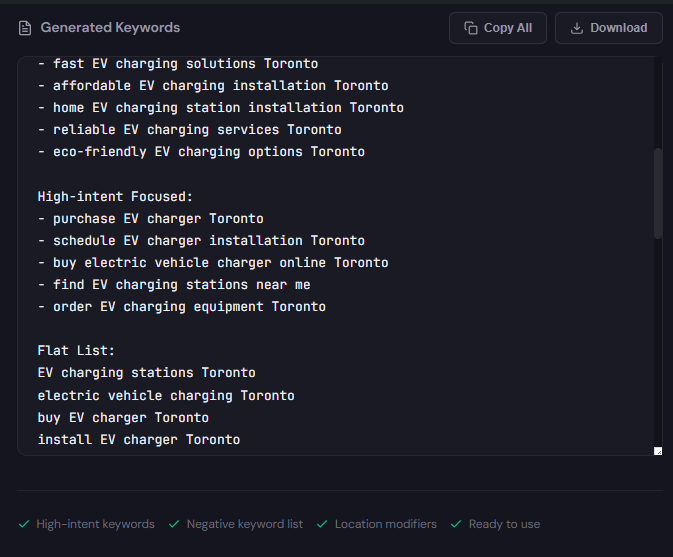
    Keyword generator output with high-intent and negative sections

    What it outputs: Structured keyword lists with high-intent groups, modifier suggestions, and negative keyword candidates—export-ready for campaign builds.

    How to use it (3 steps)

    • 1) Input your landing page or core product phrases and select desired intent buckets.
    • 2) Generate keyword groups and review automated negatives—remove any false positives.
    • 3) Export group CSV for Google Ads Editor or use the Campaign Generator to produce ad-group-level structure.

    Open AI Keyword Generator (Free)

    90-minute account triage playbook

    Run this playbook live with an editor and 1 analyst. Aim: stop waste, stabilize CPA, and create a recovery backlog.

    1. 0–10 min: Snapshot. Run the Wastage Snapshot to get top leakage by cost and category.
    2. 10–30 min: Kill the top 3 bleeding items. Apply negatives and pause clearly irrelevant keywords/campaigns.
    3. 30–50 min: Hourly check. Pull hour-of-day performance; set ad schedule blocks for hours with CPA > 2x baseline.
    4. 50–70 min: Quality quick-fix. For top 10 ad groups, align ad headlines to landing pages and tag for A/B tests.
    5. 70–85 min: Structure cleanup. Use AI Keyword Generator to create focused ad groups for 2 worst-performing product areas.
    6. 85–90 min: Export & document. Export negatives and campaign CSVs; assign owners for 7-day monitoring and a 30-day recovery plan.
    Recover wasted spend in one workflow

    Use the snapshot to prioritize and the AI generator to rebuild structured campaigns. Fast exports, action items, and measurable wins.

    Start your recovery at ExecWrite

    FAQ

    How fast will I see CPA improvements?

    Small wins (negatives, paused waste) often show impact in 72 hours. Structural changes and A/B tests take 7–30 days to validate.

    Will automations fix this for me?

    Automation helps but needs clean inputs. Run these audits to give algorithms better signals; otherwise automation can accelerate wasted spend.

    Can I use the free AI Keyword Generator for large accounts?

    The free generator scales for ideation and negative lists; export to Google Ads Editor for large-batch uploads and campaign builds.

    Do I need to pause broad match?

    Not always. Instead, pair broad match with aggressive negative hygiene and close monitoring. Use the snapshot to identify where broad match is bleeding budget.

    Sources

  • Why is my Google Ads PPC performance slipping — and how do I fix it?

    PPC Google Ads Marketing Ops

    Accounts that once delivered steady ROAS now show volatility: wasted spend, bid swings by hour, and low conversion yield. This playbook is practical—no fluff—and links to the exact ExecWrite tools you can run in minutes to find and fix root causes. Learn more at ExecWrite.


    TL;DR
    • Common PPC problems are predictable: waste, keyword mismatch, bidding timing, Quality Score gaps, and tracking errors.
    • Quick triage and three tactical fixes (negative keywords, hour-of-day bids, landing-page alignment) reduce waste fast.
    • Use ExecWrite’s Wastage Snapshot and the Search Term Analyzer to pinpoint leak sources and generate prioritized fixes in minutes.

    Why PPC feels harder now

    Automation and auction dynamics changed the mechanics—fewer manual levers, more hidden signals. That raises the bar for signal hygiene: if your keywords, bids, and landing pages aren’t tightly aligned, automation amplifies waste instead of fixing it. Google’s automated bidding and smarter auction signals help when data is clean, but they struggle when accounts have noise: wrong intents, duplicate keywords, poor conversion tagging, or time-of-day swings.

    For technical guidance on how Google evaluates relevance and automation, see Google’s documentation on Quality Score and automated bidding.

    The 5 biggest PPC problems marketers face

    1) Wasted spend (low intent clicks)

    Symptoms

    • High clicks with zero/low conversions
    • Disproportionate spend on bottom-of-funnel budgets
    • Many search terms showing irrelevant queries

    Why it happens

    Broad match, weak negative keyword lists, and unmanaged query growth let low-intent traffic consume budget. Automation then optimizes for volume unless negative signals are strong.

    Fix this week

    • Add negative keywords from last 30 days: exact low-intent phrases first
    • Pause or reduce budgets on high-spend/zero-conversion campaigns
    • Switch overly broad match keywords to phrase or exact where possible

    2) Poor keyword/ad group structure

    Symptoms

    • Ad groups mixing multiple intents
    • High impression share but low CTR/conversion rate
    • Ad copy not matching landing page

    Why it happens

    Teams expand quickly and lump keywords by surface topic rather than intent. That damages relevance signals and reduces Quality Score.

    Fix this week

    • Split top 10% of ad groups by spend into single-intent groups
    • Create tailored ad copy that matches the dominant intent per group
    • Use negative keywords between sibling groups to prevent overlap

    3) Bidding and dayparting mismatches

    Symptoms

    • CPA/ROAS varies wildly by hour or day
    • Automated bids chase noisy conversion signals
    • No consistent ad schedule adjustments

    Why it happens

    Accounts often lack hourly performance visibility; automated strategies then average across hours and lose efficiency when performance swings intraday.

    Fix this week

    • Audit performance by hour for the last 30 days and note extremes
    • Apply conservative bid adjustments to hours with poor CPA
    • Test holding back spend during low-performing hours for one week

    4) Ad/landing-page relevance (Quality Score leaks)

    Symptoms

    • Low CTR despite high impressions
    • Landing page conversion rate < industry benchmark
    • High bounce rate from paid traffic

    Why it happens

    Misaligned headlines, inconsistent calls-to-action, and landing pages that don’t answer the search intent degrade Quality Score and increase CPC.

    Fix this week

    • Align 3 high-volume ad headlines to landing page H1s
    • Run an A/B test for the main conversion flow
    • Fix top 5 mismatch issues (headline, CTA, offer wording)

    5) Conversion tracking & attribution errors

    Symptoms

    • Conversion counts differ between analytics and Google Ads
    • Sudden drops/spikes in reported conversions without biz changes
    • Attribution windows change performance signals unexpectedly

    Why it happens

    Missing tags, duplicate tracking, or server-side changes break the signal pipelines that automated bidding relies on.

    Fix this week

    • Verify the Google Ads conversion tag and GA4 event mapping
    • Reconcile conversions for a 7-day window and surface mismatches
    • Test a one-day manual bid cap on high-uncertainty campaigns

    Fixes you can apply this week

    • Run a top-down wastage snapshot to identify the single largest leak (campaign or query).
    • Export last 30 days of search terms; add negatives and pause irrelevant queries.
    • Split three worst-performing ad groups into single-intent groups and create matching ad copy.
    • Check hour-of-day performance and apply conservative bid adjustments where CPA exceeds target by 30%.
    • Confirm conversion tag health and reconcile differences with analytics.
    Run a quick wastage snapshot

    Identify where the budget leaks are, in minutes. Use the snapshot to generate prioritized recovery actions.

    Open Wastage Snapshot


    Tool-based workflow: map problems to ExecWrite tools

    Only two tools are required in this playbook: the Wastage Snapshot & Recovery and the Search Term Analyzer. Together they find the biggest leaks and convert search-term data into action.

    Wastage Snapshot & Recovery

    Wastage snapshot dashboard preview

    What it outputs: A dashboard-style snapshot showing total waste, top leakage areas (campaigns, ad groups, queries), and a recovery plan with prioritized actions.

    How to use it (3 steps)

    • Upload a 30-day Google Ads export (or connect account) to generate the snapshot.
    • Review the top 5 waste drivers in the dashboard and export the recovery checklist.
    • Apply the suggested negatives, budget shifts, and campaign pauses; re-run after 7 days to measure improvement.

    Open the Wastage Snapshot

    Search Term Analyzer (Bid Adjustment by Search Term)

    Search term analyzer output table showing spend, conversions, tags, and recommended bid actions

    What it outputs: A prioritized table of search terms with spend, conversions, tags (good/bad), and recommended bid actions or negatives.

    How to use it (3 steps)

    • Paste your recent search terms export into the analyzer.
    • Tag top offenders (waste, brand, high-intent) and accept automated bid suggestions or negatives.
    • Export updates for bulk upload to Google Ads Editor or apply via your account UI.

    Open the Search Term Analyzer

    90-minute account triage playbook

    • 0–10 min: Export last 30 days (search terms, campaign performance, ad group list, conversions).
    • 10–25 min: Run the Wastage Snapshot to surface the top leak (campaign/ad group/query).
    • 25–45 min: Import search terms into the Search Term Analyzer; tag and accept top 20 negatives or bid actions.
    • 45–60 min: Implement quick changes—negatives, pause worst-performing campaigns, apply hourly bid caps.
    • 60–80 min: Align ad copy and landing page for the three biggest ad groups; push headline/CTA fixes to the site or use temporary landing variants.
    • 80–90 min: Document actions and schedule a 7-day check. Re-run the snapshot to measure impact and iterate.
    Start the 90-minute triage

    Run both tools and get a prioritized recovery checklist you can action in an hour. Reduce wasted spend quickly.

    Start at ExecWrite

    FAQ

    How fast will I see improvements?

    Most accounts see measurable reductions in wasted spend within 7–14 days after applying negative keywords, pausing wasteful campaigns, and adjusting hour-of-day bids.

    Do I need account-level access to use the tools?

    You can use CSV exports if you prefer not to grant access. Upload exports to generate snapshots and search-term analyses.

    Will these tools change my automated bidding?

    No. The tools recommend bid adjustments and negatives; you apply changes in your account. The goal is to clean signals so automated bidding can perform better.

    Can these tools fix Quality Score issues?

    They diagnose relevance gaps and provide landing-page and headline recommendations; paired with the recommended ad/landing updates, you can improve Quality Score over several weeks.

    Sources

  • Why is my Google Ads account wasting budget and how do I fix it?

    PPCGoogle AdsMarketing Ops

    Why is my Google Ads account wasting budget and how do I fix it?

    Wasted spend shows up as high cost with low conversions. This guide gives a tactical account triage, weekly fixes, and a tools-first workflow. Try quick checks or run snapshots at ExecWrite to get data-backed recommendations in minutes.

    TL;DR
    • Most waste comes from mismatched keywords, poor negatives, and wrong bids by hour/device—fix with targeted audits.
    • Use a snapshot + search-term analyzer to find top leakage and bid opportunities in under an hour.
    • Follow the 90-minute triage to recover budget, then run the two ExecWrite tools weekly to prevent relapse.

    Why PPC feels harder now

    Automation, measurement gaps, rising CPCs and platform complexity compress margins. Marketers must be more surgical—fewer blanket bids and more surgical data-led fixes. The problem isn’t fewer tools; it’s that teams lack repeatable workflows that surface actionable waste quickly.

    The 5 biggest PPC problems marketers face

    Problem 1 — Wasted spend from low-intent search queries

    • Symptoms: High impressions on broad queries, low CTR, conversions clustered in few queries.

    Why it happens: Broad match, poor negatives, and unchecked search terms let low-intent traffic eat budget.

    • Fix this week:
      • Export top search terms by spend and conversion rate (last 30 days).
      • Pause or add negative for queries with spend but zero conversions.
      • Move profitable queries into dedicated exact/ad group structures.

    Problem 2 — Wrong bids by hour and device (dayparting blind spots)

    • Symptoms: CPA/ROAS swings by hour or device; you see peaks of spend with no conversions overnight.

    Why it happens: Ad schedules and bid modifiers often get set and forgotten, or based on noisy aggregated data.

    • Fix this week:
      • Run an hour-of-day performance check for the last 90 days.
      • Bump bids on hours with stable low CPA; reduce or exclude hours with persistently poor ROAS.
      • Apply device bid adjustments when conversion rates diverge by device.

    Problem 3 — Low Quality Score & landing page mismatch

    • Symptoms: High CPCs, low impression share, good CTR but low conversion rate on landing pages.

    Why it happens: Ads drive clicks but messaging or landing experience doesn’t match intent—Google penalizes relevance.

    • Fix this week:
      • Compare top ad headlines to landing page H1 and CTA—align messaging.
      • Improve load speed and remove distracting navigation on paid landing pages.
      • Test a headline variant that mirrors the highest-converting search queries.

    Problem 4 — Campaign structure too broad (keyword cannibalization)

    • Symptoms: Multiple ad groups competing for the same queries; unclear match-type strategy.

    Why it happens: Rapid scaling without structure leads to overlap—Google’s auction chooses the cheapest winner, not the most efficient.

    • Fix this week:
      • Map top-performing queries into single ad groups with clear intent labels (brand, commercial, bottom-funnel).
      • Convert high-converting broad queries to phrase/exact in dedicated ad groups.
      • Use negatives to prevent internal competition.

    Problem 5 — Conversion tracking and attribution errors

    • Symptoms: Sudden drops in conversions after tag changes, or traffic that looks like conversions but has no backend receipt.
    • Symptoms: Discrepancy between Google Ads and analytics/conversion sources.

    Why it happens: Misconfigured tags, duplicate conversions, or broken server-side events create noisy signals that mislead bidding algorithms.

    • Fix this week:
      • Verify conversion actions in Google Ads and match them to backend events.
      • Temporarily pause automated bidding if conversion accuracy is under 80%.
      • Run a quick tag audit—look for duplicate tags or missing confirmations on thank-you pages.

    Fixes you can apply this week

    • Export search terms by spend → add negatives for zero-conversion high-spend queries.
    • Run hour-of-day performance and apply >10% bid changes for underperforming hours.
    • Align top ad headlines with landing page H1 and primary CTA.
    • Isolate high-intent queries into exact-match ad groups and add negatives to parent campaigns.
    • Audit conversion tags and pause automated bidding if conversion data is unreliable.
    • Schedule a weekly snapshot to catch regression early.
    Quick snapshot to find the biggest waste

    Run a Wastage Snapshot to identify budget leaks, top negative keyword candidates, and an immediate recovery plan.

    Run a free snapshot at ExecWrite

    Tool-based workflow: map problems to the ExecWrite tools

    Wastage Snapshot & Recovery — what it outputs

    Wastage snapshot dashboard showing waste totals and recovery plan

    The Snapshot produces a dashboard-style audit that highlights total waste, the top leakage areas (search terms, low-converting campaigns, device/time issues), and a prioritized recovery plan.

    How to use it (3 steps)

    • 1. Upload account CSV or connect the platform via the guided flow on the tool page.
    • 2. Review the top three leakage areas in the recovery summary (negatives, poor ad groups, bad hours).
    • 3. Export the recovery checklist and actionable negatives to apply in Google Ads immediately.

    Open the Wastage Snapshot

    Search Term Analyzer — what it outputs

    Search term analyzer output table showing spend, conversions, tags, and recommended bid actions

    The Analyzer returns a table of search terms with spend, conversions, CPA, and recommended tag/actions (negative, move to exact, bid up/down).

    How to use it (3 steps)

    • 1. Paste your search term report or upload the CSV into the tool interface.
    • 2. Filter by spend and conversion thresholds to surface the primary waste and opportunity buckets.
    • 3. Export the recommended negatives and ad-group moves; apply them and monitor the next two weeks.

    Open the Search Term Analyzer

    90-minute account triage playbook

    • 0–10 minutes: Run a Wastage Snapshot to get a top-level leak summary.
    • 10–30 minutes: Import the top 500 search terms into the Search Term Analyzer, tag negatives and move high-value queries into dedicated ad groups.
    • 30–50 minutes: Hour-of-day check—reduce bids or exclude hours with negative ROI; apply device modifiers for immediate impact.
    • 50–70 minutes: Check conversion actions and recent changes to tags; revert recent changes if conversions look unreliable.
    • 70–90 minutes: Implement recovery items from the Snapshot export (negatives, ad-group restructuring). Document changes and set alerts for CPA/ROAS drift.
    • After triage: Run the Snapshot again in 7–14 days to validate recovery and catch regressions.
    Start the triage with an automated snapshot

    Use ExecWrite to accelerate the 90-minute playbook: automated waste detection, exportable fixes, and a recovery checklist you can apply directly.

    Start a free check at ExecWrite

    FAQ

    How fast will I see savings after applying these fixes?

    Expect to see measurable CPC/CPA improvements within one to two weeks for bid and negative changes. Structural fixes (landing pages, campaigns) typically take 2–6 weeks to stabilize.

    Do I need to pause automated bidding to triage?

    Not always. Pause automated bidding only if conversion tracking is clearly broken. Otherwise use conservative bid adjustments while you clean data and negatives.

    Can I use the tools without sharing account access?

    Yes. ExecWrite accepts CSVs and report uploads for quick analysis; full account connections enable deeper snapshots but aren’t required for initial triage.

    Which metric should I prioritize: CPA or ROAS?

    Use the metric tied to your business goal. For lead-gen prioritize CPA; for ecommerce prioritize ROAS. The Snapshot surfaces both so you can focus on the right lever.

    How often should I run the Snapshot and Analyzer?

    Weekly for high-spend accounts, biweekly for medium, monthly for low-spend. Regular runs catch regression from automation or new keyword leakage early.

    Sources