If your account feels like a leaky bucket—high spend, declining ROI—you’re not alone. This post gives a short triage, practical fixes you can implement in a week, and two ExecWrite tools that turn audit work into action. Try the tools at ExecWrite for fast recoveries.
- Common leaks: wasted keywords, poor match/intent alignment, wrong bid timing, and low Quality Score.
- Do a 90-minute triage: top-wasting queries, ad-schedule swings, and conversion funnel mismatches.
- Use the Wastage Snapshot and Search Term Analyzer to recover spend and apply precise bid actions.
Table of Contents
Why PPC feels harder now
Automation and broader match types have reduced manual guardrails while competition and CPCs rose. Advertisers see more impressions and clicks but face weaker intent signals, higher noise, and fewer obvious signals for manual fixes. That means the same old “pause low performers” approach misses the root causes: leakage at the search-term level, timing mismatches, and landing page relevance problems.
The 5 biggest PPC problems marketers face
1) Wasted spend from irrelevant search terms
Symptoms
- High spend on queries with zero conversions.
- Low CTR but high impressions for broad match keywords.
- Rising CPA despite stable conversion volumes.
Why it happens
Broad match and automated bidding can surface low-intent queries that eat budget before signals arrive. Without consistent search-term reviews and negative keyword updates, waste compounds.
Fix this week
- Export last 30 days of Search Terms, sort by cost then conversions.
- Tag the top 20 cost/no-conversion queries for negatives.
- Add negative lists at campaign level and monitor impact for 7 days.
2) Hour-of-day and dayparting mismatches
Symptoms
- CPA swings wildly by hour (e.g., cheap mornings, expensive evenings).
- Ad schedule set to broad hours with no testing.
- Conversions cluster in narrow time windows but spend remains even.
Why it happens
Default ad schedules and auto-bids assume uniform performance across hours. Many businesses have concentrated demand or support-limited hours; failing to daypart wastes bids during poor-converting windows.
Fix this week
- Pull hour-by-hour CPA/ROAS for the last 14–30 days.
- Identify top and bottom-performing hours (top 20%/bottom 20%).
- Apply -20% to poor hours and +10–25% to top hours, then review after three days.
3) Low Quality Score and ad/landing page mismatch
Symptoms
- High CPCs for specific keywords with low CTRs.
- Strong traffic but poor conversion rates on specific ads/landing pages.
- Quality Score components flagged in diagnostics.
Why it happens
Ads that don’t match user intent or landing pages with different messaging break the ad-relevance loop. Google penalizes relevance with higher CPCs and lower ad rank.
Fix this week
- Map top keywords to ad headlines and landing page H1s; ensure 1:1 relevance where possible.
- Run ad variations that contain the exact keyword phrase in the headline.
- Test one landing page headline update and measure lift in CTR/conv rate.
4) Conversion tracking gaps and attribution noise
Symptoms
- Conversions reported in GA but missing in Google Ads.
- Unusually high last-click variance between systems.
- sudden spikes/dips after tag or site changes.
Why it happens
Tracking breaks after site changes, tag misconfigurations, or overlapping pixels. If conversions are underreported, bids and optimizations are chasing wrong signals.
Fix this week
- Validate GTM and global site tag firing on critical pages with a tag debugger.
- Compare Google Ads and GA conversions for a recent 14-day window and isolate disparities.
- Set a temporary traffic split to a verified thank-you URL to capture clean attribution for one week.
5) Poor keyword/ad group structure
Symptoms
- Ad groups with 15–50 unrelated keywords.
- Low CTRs because ads aren’t tailored to user intent.
- Difficulty applying negative keywords without collateral damage.
Why it happens
Large, mixed ad groups reduce relevance and limit the effectiveness of automated bidding strategies that assume coherent ad groups.
Fix this week
- Identify 3 largest ad groups by spend; split into single-theme groups.
- Create 2–3 tailored ads per new ad group using core keyword in headline.
- Export to Google Ads Editor and deploy as a controlled rollout (10–20% of traffic) before full switch.
Fixes you can apply this week
- Run a Search Terms-to-Negatives cleanup focused on the top 30 cost/no-conversion queries.
- Pull hourly CPA/ROAS and set temporary hour-of-day bid adjustments.
- Fix the top 3 landing page mismatches (headline, CTA, form placement).
- Validate tracking across GA and Google Ads; isolate a clean test conversion URL.
- Split two broad ad groups into theme-aligned ad groups and launch tailored ads.
Use an automated snapshot to find the top leakage areas and a search-term analyzer to convert audit findings into bid actions.
Tool-based workflow: map problems to ExecWrite tools
Below are two high-impact tools you can run in under an hour that produce action items you can deploy right away. Preview outputs are included so you know exactly what to expect.
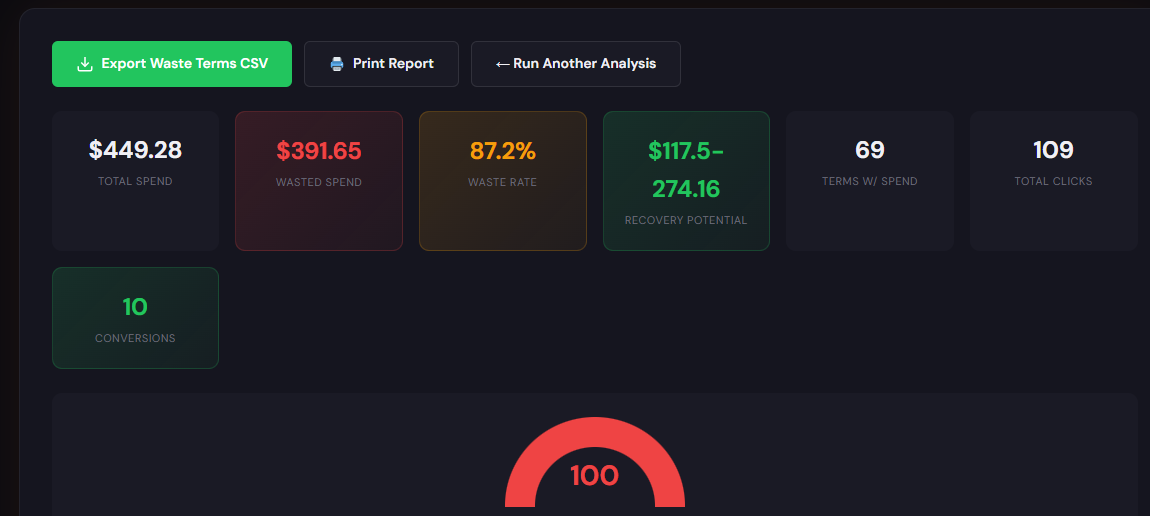
What it outputs: A dashboard-style snapshot that flags total wasted spend, top leakage channels (keywords, audiences, placements), and a prioritized recovery plan with suggested negative keywords and budget shifts.
How to use it — 3 steps
- Upload a 30-90 day account export into the Wastage Snapshot (choose last 30 days for a quick triage).
- Review the top 10 leakage items and approve suggested negatives and reallocated budgets.
- Export recommended changes to Google Ads Editor or apply them manually; monitor top-line spend and CPA for 7 days.
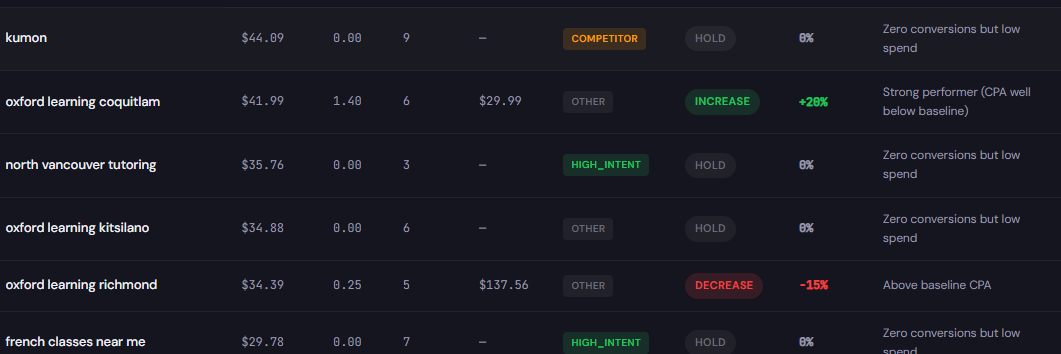
What it outputs: A search-term-level table showing spend, conversions, CPA/ROAS, tags, and recommended bid/broad-match actions so you can convert audit findings into precise bid adjustments and negatives.
How to use it — 3 steps
- Paste your search term report (last 30 days) into the analyzer.
- Review recommended actions: negatives, keep, or bid-adjust recommendations at the search-term level.
- Export the bid adjustments or negative keyword list and apply via Google Ads Editor; monitor impact over the next 7 days.
90-minute account triage playbook
- Minute 0–15: Pull four reports—Search Terms (30d), Hourly performance (14d), Top landing pages by conversions (30d), and Account change history for 30 days.
- Minute 15–35: Run the Wastage Snapshot to identify top leakage buckets and get the recovery checklist.
- Minute 35–55: Run the Search Term Analyzer on the top 1,000 search terms. Tag the top 20 cost/no-conversion queries as negatives.
- Minute 55–70: Apply temporary hour-of-day bid adjustments based on the hourly report (top/bottom 20%).
- Minute 70–80: Implement landing page headline fixes or launch one variation tied to the highest-spend keyword bucket.
- Minute 80–90: Create a monitoring dashboard (CPA, spend, conv rate) and set a 7-day review cadence with clear success thresholds.
FAQ
If negatives target high-cost/no-conversion queries, you’ll often see spend drop within 24–72 hours; meaningful CPA improvement typically shows within 3–7 days as auction dynamics settle.
Use recommendations as starting points. Combine search-term-level suggestions with hourly and conversion-quality checks before full deployment. A 10–20% controlled rollout minimizes risk.
Fix tracking first: validate tags, set a clean thank-you URL for a test, and pause any bidding automation driven by the flawed signal until resolved.
Start with the Wastage Snapshot to prioritize. Then run the Search Term Analyzer on the highlighted buckets to convert findings into bid and negative actions.
Run a fast audit and get an export-ready recovery plan. Use ExecWrite to turn audit recommendations into deployed changes in hours, not weeks.
Leave a Reply