If your account feels like it used to convert but no longer does, this is a practical, operator-first playbook. We reference tools and walkthroughs on ExecWrite to automate the parts that lift results fastest.
Table of Contents
Why your Google Ads PPC performance is slipping (and what this article does)
Short version: campaigns degrade when waste, bid mismatch, daypart problems, and landing-page relevance combine. This article diagnoses five repeatable problems, gives immediate fixes you can apply this week, and maps each to two ExecWrite tools that produce action-ready outputs.
- Audit waste and recover budget with a focused leakage snapshot — stop bidding on the traffic that never converts.
- Align bids to search-term performance and hour-of-day swings — bid up where conversions happen and down where they don’t.
- Fix landing-page relevance and account structure with quick rewrites and tidy ad groups for better Quality Score and faster learning.
Why PPC feels harder now
Performance feels worse because margin for error is smaller. Automation needs clean inputs: structured accounts, correct negatives, and landing pages that match ads. Without those, machine learning amplifies bad signals—more spend, fewer conversions. Data privacy changes and rising CPCs make it imperative to eliminate waste and get bids precise. This article focuses on operator steps that give automation good signals again.
The 5 biggest PPC problems marketers face
1) Wasted spend from low-intent queries
Symptoms
- High spend on queries with zero conversions
- Large number of clicks from long-tail or irrelevant queries
- Negative keyword list that hasn’t changed in months
Why it happens
Accounts accumulate irrelevant queries because negatives aren’t maintained, and broad match or poorly structured campaigns let low-intent traffic through.
Fix this week
- Export last 90 days of search terms, filter by spend > X and conversions = 0.
- Add top irrelevant patterns as negatives at campaign level.
- Pause broad-match keywords that consistently drive non-converting traffic.
2) Bid mismatch: bidding the same across all queries
Symptoms
- Wide CPA variance by search term or hour, but uniform bids
- Automation seems to “overpay” for low-value clicks
Why it happens
Many teams set static bid rules or use only campaign-level targets; they never map bid actions to the search-term or hour signals that predict value.
Fix this week
- Segment search terms by CPA/ROAS and tag high-/low-value groups.
- Apply manual bid adjustments for top-value terms and reduce bids on losers.
- Test hourly bid modifiers for known peak conversion windows.
3) Hourly/dayparting swings not used
Symptoms
- Huge CPA variance by hour; campaigns run unchanged 24/7
- Conversions cluster in specific hours but spend is evenly distributed
Why it happens
Operators often overlook hour-of-day analysis because it’s time-consuming to pull and interpret, so ad schedules remain generic.
Fix this week
- Pull hour-of-day performance, identify hours with CPA under your target.
- Increase bids during profitable hours, decrease or exclude the worst hours.
- Monitor for a week and iterate—don’t flip all changes at once.
4) Landing page and ad mismatch (Quality Score leaks)
Symptoms
- Low Quality Scores, rising CPCs, but CTRs are OK
- Conversion rate drops after campaign changes
Why it happens
Ads and landing pages drift apart when messaging and CTAs aren’t aligned. Quality Score declines, driving higher CPCs and less efficient automation.
Fix this week
- Compare top-performing ad headlines to landing page H1s; align intent/message.
- Test a landing page headline and CTA rewrite focused on the ad’s promise.
- Move high-value keywords to tightly themed ad groups with matching landing pages.
5) Disorganized account structure & learning starvation
Symptoms
- Many tiny ad groups with low traffic, or one huge ad group with mixed intent
- Smart bidding struggles because signals are sparse or noisy
Why it happens
Poor structure dilutes conversion signals. Smart bidding and automation need consistent, high-quality signals per ad group.
Fix this week
- Consolidate tiny ad groups into intent-aligned groups that can reach learning thresholds.
- Create focused ad copy variations and run them until a clear winner emerges.
- Export a CSV for batch updates (Google Ads Editor friendly) to implement changes fast.
Fixes you can apply this week
- Audit search terms (90 days): flag spend > 5% of budget and conversions = 0 → add negatives.
- Segment search-term performance into 3 buckets: scale, maintain, cut. Apply bid changes.
- Run an hour-of-day report and set ad schedule modifiers for top 6 hours.
- Review top ad headlines vs landing page H1; implement a focused headline rewrite.
- Consolidate ad groups by intent and export a campaign CSV for bulk updates.
Use a snapshot and search-term analyzer to convert the audit steps above into action-ready lists in minutes.
Tool-based workflow: map problems to ExecWrite tools
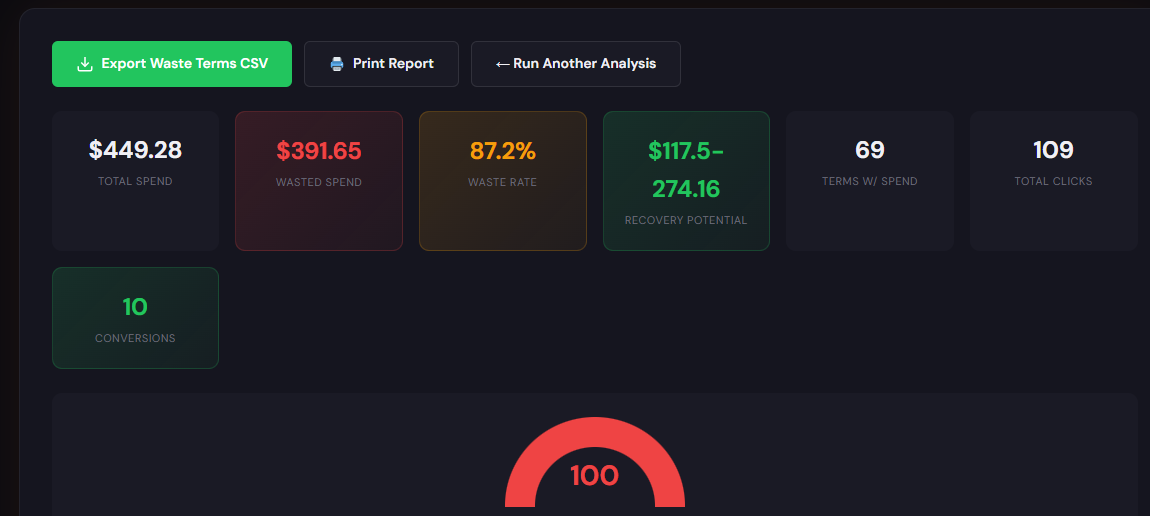
The Wastage Snapshot analyzes your account and produces a dashboard with wasted spend totals, top leakage areas, negative keyword opportunities, and a prioritized recovery plan. It converts audit time into a clear to-do list.
How to use it (3 steps)
- Run the snapshot and download the PDF/CSV to see top leakage by query, campaign, and ad group.
- Apply the recovery plan: add the top negatives, pause the worst-performing placements, and reallocate budget.
- Re-run after 7–10 days to measure recovered budget and iterate.
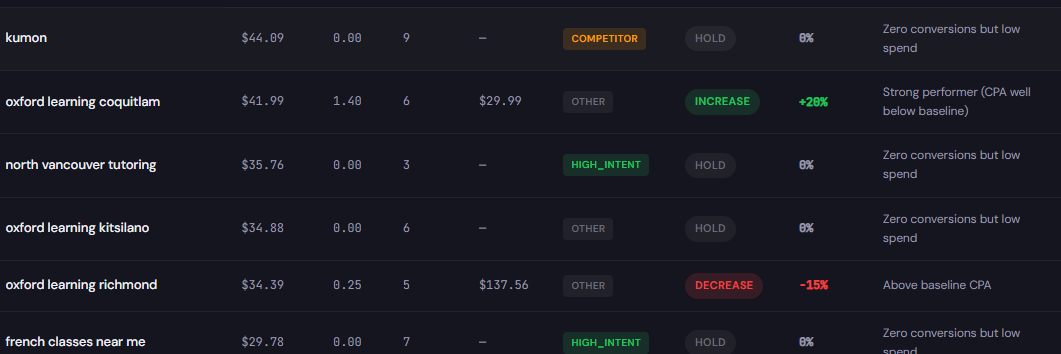
This tool produces a table of search-terms with spend, conversions, CPA/ROAS, and recommended bid actions. Use it to create CSVs for bulk bid adjustments and negative keywords.
How to use it (3 steps)
- Upload your search-term export (or connect via Google Ads) and let the tool tag terms by value bucket.
- Review recommended bid adjustments and negative suggestions; accept the rows you want.
- Export the CSV and push changes via Google Ads Editor or the platform directly.
90-minute account triage playbook
Run this playbook live with a teammate. Allocate 90 minutes and follow the steps below.
- 0–15 min: Run the Wastage Snapshot and scan the top 10 leakage items.
- 15–30 min: Export search terms for the same period and run the Search Term Analyzer.
- 30–45 min: Apply immediate negatives and pause the top 3 non-converting keywords/campaigns.
- 45–60 min: Implement 10 targeted bid changes (scale 5 winners, reduce 5 losers).
- 60–75 min: Set ad schedule modifiers for top-performing hours and exclude the worst 3 hours.
- 75–90 min: Align headlines to landing page H1 for 2 priority ad groups and export a CSV for bulk upload.
Start with a snapshot and a search-term analysis to get prioritized actions you can implement during a single working session.
FAQ
You can find negatives manually, but tools accelerate identification and prioritize candidates by spend and impact so you won’t waste time on low-impact items.
You can see measurable ROAS lift in 7–14 days if you remove the largest sources of waste and apply bid adjustments during peak hours.
Short-term volume can drop if you exclude hours; the goal is better volume quality and lower CPA. Monitor and re-open hours that later show value.
ExecWrite accepts CSV uploads and offers connectors for quick exports. Use the export to apply changes in Google Ads Editor or upload directly where supported.
Sources
- Google Ads Help: About search terms — guidance on search terms and negatives.
- Google Ads Help: Ad schedule — dayparting and ad schedule best practices.
- WordStream: How to Improve Quality Score — practical tips for ad relevance and landing-page alignment.
Ready to stop wasting budget? Start with a snapshot and a search-term analysis at ExecWrite.
Leave a Reply